What Is a HEIC File and How to Convert HEIC to JPG
You copy photos off an iPhone, and Windows shows a blank thumbnail, or an upload form says the file type is not allowed. The culprit is HEIC, Apple’s default photo format. This guide explains what HEIC is, how to stop your iPhone from producing it when you do not want it, and how to convert the files you already have to JPG without uploading them anywhere.
What a HEIC file is
Two names are involved. HEIF (High Efficiency Image File Format) is a
container: a file structure that can hold one or more images plus extra data such as
thumbnails, depth maps and metadata. HEIC is the common variant where the
images inside are compressed with HEVC, the same H.265 codec used for
modern video. In practice, .heic and .heif files from a phone are
the same kind of thing.
Apple switched the iPhone camera to HEIC with iOS 11 in 2017, on hardware that can encode HEVC quickly. The reason is storage. A video codec is very good at describing smooth areas and fine gradients with few bits, so a HEIC photo is much smaller than a JPG of similar quality; Apple describes it as roughly half the size. HEIC also supports 10-bit color, which reduces banding in skies, and it can keep related images together, which is how an iPhone stores the still part of a Live Photo, burst frames and Portrait mode depth data.
Why HEIC often will not open
The format is well designed; the obstacle is support. HEVC is covered by patents that require licensing, so not every software maker includes a decoder. That leaves a patchy map:
- Apple devices open HEIC everywhere: Photos, Preview, Finder and Safari.
- Windows needs extensions from the Microsoft Store (HEIF Image Extensions, plus HEVC Video Extensions for the actual decoding). Without them, Photos shows an error or a blank thumbnail. Even with them, many older programs still cannot read the files.
- Web browsers other than Safari generally cannot display HEIC, so websites cannot show it and most upload forms reject it outright.
- Android support depends on the phone and app; newer devices open it, but many messaging and social apps still expect JPG.
JPG, by contrast, opens on every device made in the last three decades. That is why converting is the reliable fix whenever a HEIC file needs to leave the Apple ecosystem.
iPhone settings: shoot or transfer as JPG
Before converting anything, it is worth knowing the two iPhone settings that control HEIC. Menu names below are from recent versions of iOS and may differ slightly on older ones.
Capture: Settings › Camera › Formats
High Efficiency saves photos as HEIC (and video as HEVC). Most Compatible saves photos as JPG (and video as H.264). Switching to Most Compatible avoids HEIC entirely, at the cost of larger files that use up storage and iCloud space faster. Some camera features, such as certain high-resolution and HDR modes, may require High Efficiency. This setting only affects new photos; it does not change ones already in your library.
Transfer: Settings › Photos › Transfer to Mac or PC
Automatic converts photos to a compatible format such as JPG when you copy them to a computer over a USB cable. Keep Originals copies the HEIC files unchanged. If you import photos to a Windows PC by cable and get HEIC files, this is the setting to check. It does not affect iCloud downloads, AirDrop or cloud storage apps, which may hand over the original HEIC.
Convert HEIC to JPG in Photoyam
Photoyam decodes HEIC with a browser build of libheif, the open-source HEIF decoder, running in your tab. The decoder is fetched the first time you convert a HEIC file; your photos are never uploaded.
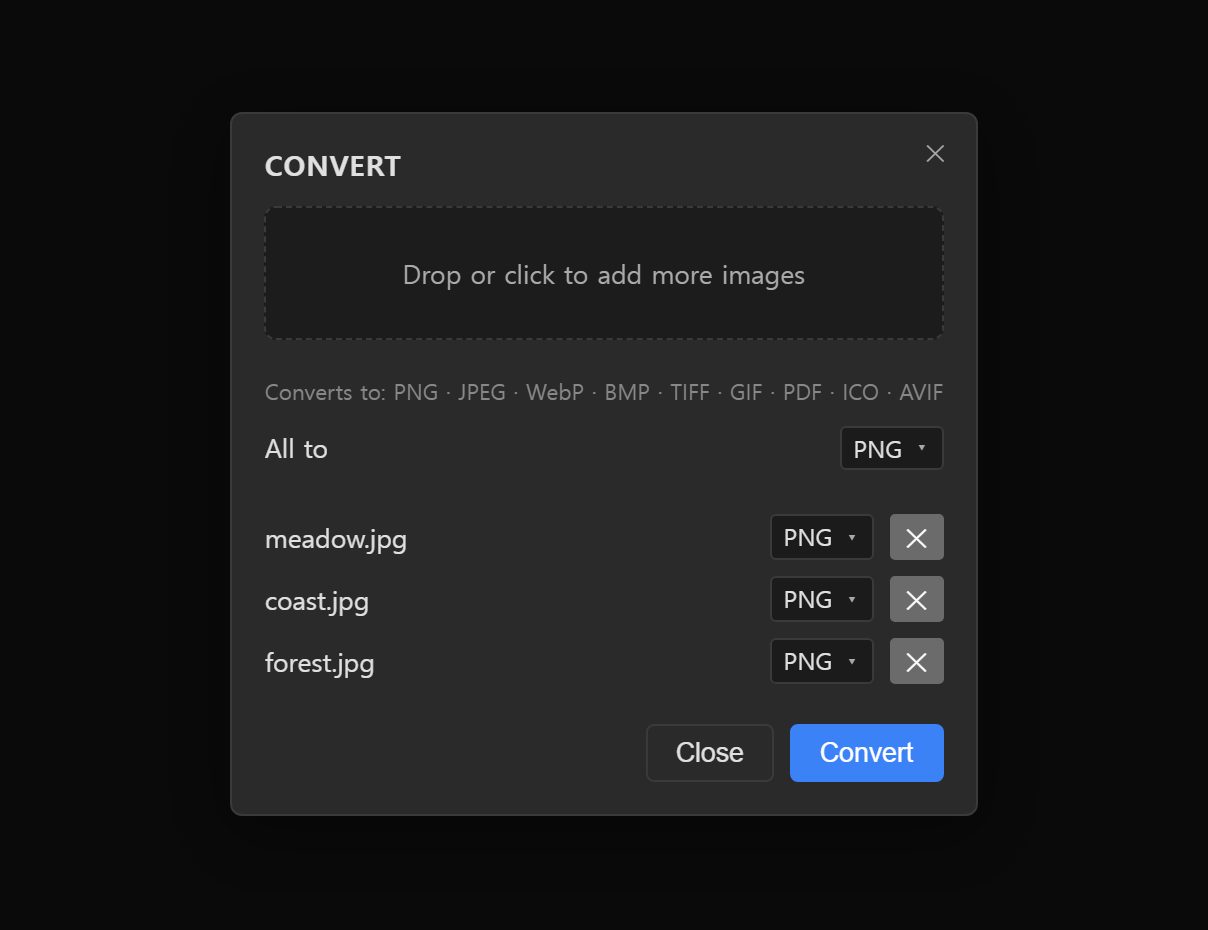
- Add your HEIC files. Go to the HEIC to JPG tool and click Choose HEIC files, or drop them anywhere on the page. You can add one photo or a whole folder in one go. The converter opens with every file listed.
- Set the output to JPEG. New rows start set to PNG. Open the All to menu and choose JPEG so every file converts to JPG. You can also change a single row’s menu if you want a different format for one file.
- Choose a quality. The Quality slider starts at 90, which is a safe choice for photos you want to keep. Lower it to around 80 if the files are for email or a website and size matters more.
- Convert. Click Convert. Files are processed one after another to keep memory use steady, and each row shows a Download button when it is done.
- Download.
Save files one at a time, or click Download all (ZIP) once two or more are
finished. Each JPG keeps the original name with a
.jpgextension, soIMG_4021.HEICbecomesIMG_4021.jpg.
Quality, size and metadata
Will the JPG look worse?
Converting between two lossy formats always costs a little, because the JPG encoder has to describe pixels that were already approximated by HEVC. At quality 85 to 90, the difference is not visible when viewing the photo normally. Expect the JPG to be larger than the HEIC, often noticeably, because JPEG is the less efficient format. That size increase is normal and does not mean anything went wrong.
Color and bit depth
JPG stores 8 bits per channel, so 10-bit HEIC data is reduced to 8 bits. For everyday viewing and sharing you will not notice. If you edit heavily afterward, such as pulling detail out of a dark sky, work from the converted file carefully or keep the HEIC original for the Apple Photos app, which can edit it natively.
Metadata and privacy
iPhone photos carry EXIF metadata: the capture date and time, camera settings and, if location services were on for the Camera, the GPS coordinates where the photo was taken. Photoyam’s converter decodes each photo to plain pixels and encodes a brand-new JPG, and it does not copy EXIF metadata into the output. The converted file therefore contains no location, date or camera details.
That is helpful when you are posting photos publicly or sending them to someone you do not know well. It is a drawback if you rely on capture dates to sort a library: the converted JPGs will be sorted by file date instead. Keep the original HEIC files if that metadata matters to you.
Troubleshooting
- A row shows “error.” The file may be damaged, not really a HEIC (check the extension was not renamed), or too large for the memory available to the tab. Try converting it alone, or on a desktop browser if you are on a phone.
- A file contains several images. HEIF can store more than one image in a single file. The converter outputs the first image only.
- Live Photos. The motion part is a separate video file. Converting the HEIC gives you the still frame only.
- The first conversion is slow. The HEIC decoder is downloaded on first use. Later conversions in the same session start straight away.
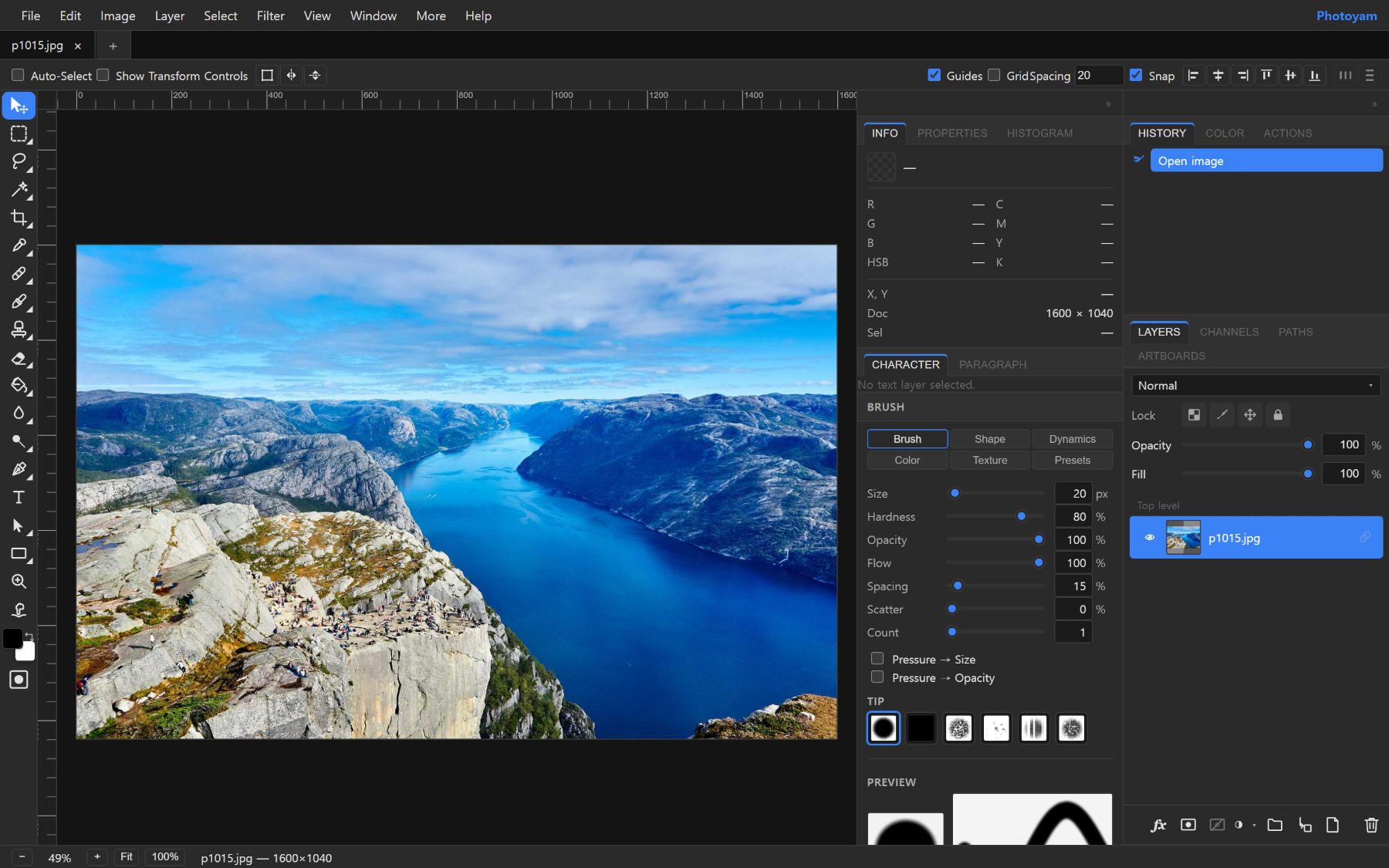
- You want to edit the photo too. Convert to JPG first, then open the JPG in the Photoyam editor to crop, adjust or retouch it.
Common mistakes
- Renaming
.heicto.jpg. The contents stay HEIC, so the file still will not open; some programs then report it as corrupt. - Converting to PNG. PNG is lossless, so each photo becomes several times larger with no visible gain. Use JPEG for photos.
- Deleting the originals right away. The HEIC files keep the metadata and the higher bit depth. Keep them until you are sure the JPGs are what you need.
- Setting quality very low to save space. A lower setting on a converted file adds visible artifacts quickly. If size matters, resize the photo too; see how to compress images.
Try it in Photoyam
Convert a batch of iPhone HEIC photos to JPG in your browser and download them as a ZIP. Free, no sign-up, and your photos never leave your device.
FAQ
Are my HEIC photos uploaded when I convert them?
No. Photoyam decodes HEIC files inside your browser tab using a browser build of the open-source libheif decoder, which is downloaded when you first convert a HEIC file. The photos themselves stay on your device.
Does the converted JPG keep the photo's location and date?
No. The converter decodes the image to pixels and encodes a new JPG, and it does not copy the EXIF metadata across. GPS location, capture date and camera details are not in the output file. That is useful for privacy, but keep the originals if you rely on dates for sorting.
What happens to Live Photos?
A Live Photo is a HEIC still plus a separate short video file. Converting the HEIC gives you a JPG of the still image only. The motion part is not included.
Should I convert to JPG or PNG?
JPG, for almost every photo. PNG is lossless, so a converted iPhone photo becomes several times larger with no visible improvement. Choose PNG only if you plan to edit and re-save the image many times.