JPG vs PNG vs WebP vs AVIF vs HEIC: Which Image Format Should You Use?
Every image format is a set of trade-offs between file size, visual quality, features and compatibility. Once you understand the handful of ideas behind them, picking the right one takes seconds. This guide explains those ideas, compares the five formats you will meet most often, and gives a short answer for each common job.
The four ideas behind every format
An uncompressed photo is big. A 12-megapixel image (4,000 × 3,000 pixels) with three bytes per pixel for red, green and blue needs 36 MB before any compression. Image formats exist to shrink that number, and they differ in how they do it and what else they can store.
Lossy versus lossless
Lossless compression finds patterns and stores them more efficiently, like a ZIP file. When you open the image, every pixel comes back exactly as it was. It works best on flat colors and sharp edges (screenshots, logos, diagrams) and poorly on photographs, where noise and texture leave few patterns to exploit.
Lossy compression throws information away, choosing the detail your eye is least likely to miss: fine color variation, tiny texture, subtle gradients. That is why a photo can shrink to a tenth of its lossless size and still look right. The cost is that every save discards a little more, and pushed too far you see blocks, smearing and “ringing” halos around sharp edges.
Transparency (alpha)
A format with an alpha channel stores a fourth value per pixel: how opaque it is. Full alpha allows soft, partly transparent edges, which cut-outs of hair or shadows need. Some formats only support on/off transparency, and some support none at all.
Animation
GIF is the classic animated format, but WebP, AVIF and animated PNG (APNG) do the same job with better color and smaller files.
Bit depth and color
Most images use 8 bits per channel, which gives 256 levels each of red, green and blue. That is plenty for viewing, but smooth gradients like a clear sky can show banding after heavy editing. Formats that store 10, 12 or 16 bits per channel keep more headroom, which matters for HDR and for editing, less so for the final file you share.
The formats, one by one
JPG (JPEG)
Published in 1992 and still the most compatible photo format there is. JPEG is lossy only, has no transparency and no animation, and stores 8 bits per channel. It splits the image into 8×8 pixel blocks and simplifies each block’s fine detail according to the quality setting. If you do not know where an image will end up, JPG is the format that will open.
PNG
Lossless, with full alpha transparency, and up to 16 bits per channel. PNG also has an indexed (palette) mode limited to 256 colors, which makes simple graphics very small. Because it keeps every pixel, it is the right format for screenshots, text, logos, UI mockups and master copies you will edit again. For photos it is usually the wrong choice: the same picture is often several times larger than a good JPG with no visible benefit.
WebP
Developed by Google for the web. It has both a lossy and a lossless mode, supports full alpha in both, and supports animation. Lossy WebP is typically noticeably smaller than a JPG of similar visual quality, and lossless WebP is typically smaller than PNG. All current major browsers display it. The weak spot is outside the browser: some older desktop software, print services and upload forms still reject it.
AVIF
Based on the AV1 video codec. AVIF supports lossy and lossless compression, full alpha, animation, and 10- or 12-bit color for HDR. At the same visual quality it usually beats WebP on size, especially on smooth areas at low bitrates. The trade-offs are slow encoding and younger support: current versions of Chrome, Edge, Firefox and Safari display it, but older devices and many desktop apps do not.
HEIC (HEIF)
HEIF is a container format; HEIC is the common case where the image inside is compressed with HEVC, the H.265 video codec. iPhones have saved photos this way by default since iOS 11. It is efficient (Apple describes it as roughly half the size of an equivalent JPEG) and supports 10-bit color. Support outside Apple’s ecosystem is the problem: most browsers other than Safari cannot display it, and Windows needs extra codecs. See our HEIC to JPG guide.
Side-by-side comparison
| Format | Compression | Transparency | Animation | Bit depth | Support |
|---|---|---|---|---|---|
| JPG | Lossy | No | No | 8-bit | Everywhere |
| PNG | Lossless | Full alpha | Via APNG | 8 or 16-bit | Everywhere |
| WebP | Lossy or lossless | Full alpha | Yes | 8-bit | All current browsers; patchy in older software |
| AVIF | Lossy or lossless | Full alpha | Yes | 8, 10 or 12-bit | Current browsers; limited in desktop apps |
| HEIC | Lossy (typically) | Supported by the format | Image sequences | 8 or 10-bit | Apple devices and Safari; limited elsewhere |
| GIF | Lossless, 256 colors | On/off only | Yes | 8-bit palette | Everywhere |
Which format to pick
- Photos for a website. WebP at a moderate quality setting is a safe default. Use AVIF if your platform can serve it with a fallback. Keep JPG when a CMS, marketplace or email tool only accepts JPG. Whatever you pick, resize to the display size first; see how to compress images.
- Logos, icons and screenshots. PNG, or lossless WebP for the web. Avoid JPG: it smears text and puts halos around hard edges.
- Transparent cut-outs. PNG as the master copy, WebP for the web. Never JPG, which cannot store transparency.
- Print. A high-quality JPG is what most print shops ask for. TIFF is the choice when a printer or publisher requests a lossless file.
- Sharing from an iPhone. Keep HEIC in your library if you like, but send JPG to anyone on Windows, Android or the web. Many sharing paths convert automatically; when they do not, convert first.
Converting between formats in Photoyam
The Photoyam converter runs in your browser, so your images are decoded and re-encoded on your device and never uploaded. It accepts common image files including JPG, PNG, WebP, GIF, BMP, TIFF and iPhone HEIC/HEIF, plus PDF (each page becomes its own image). It can write PNG, JPEG, WebP, BMP, TIFF, GIF, PDF, ICO and AVIF.
- Open the converter. Go to the Convert tool and choose or drop your files, or open File › Convert… inside the editor. You can add as many files as your device’s memory allows, and keep adding more with the drop area.
- Choose the output format. Each file starts set to PNG. Use All to to set every row at once, or change a single row’s menu to mix targets in one batch.
- Set quality if it applies. When a JPEG, WebP, AVIF or PDF target is in the list, a Quality slider appears (it starts at 90). When WebP is chosen, a WebP lossless checkbox appears too; tick it for screenshots and graphics.
- Watch for the warning icon. A ⚠ next to a row means that target has no transparency. Any transparent areas will be filled with white.
- Convert and download. Click Convert. Each finished row gets a Download button, and once two or more are done, Download all (ZIP) packs them into one file. Output files keep the original name with the new extension.
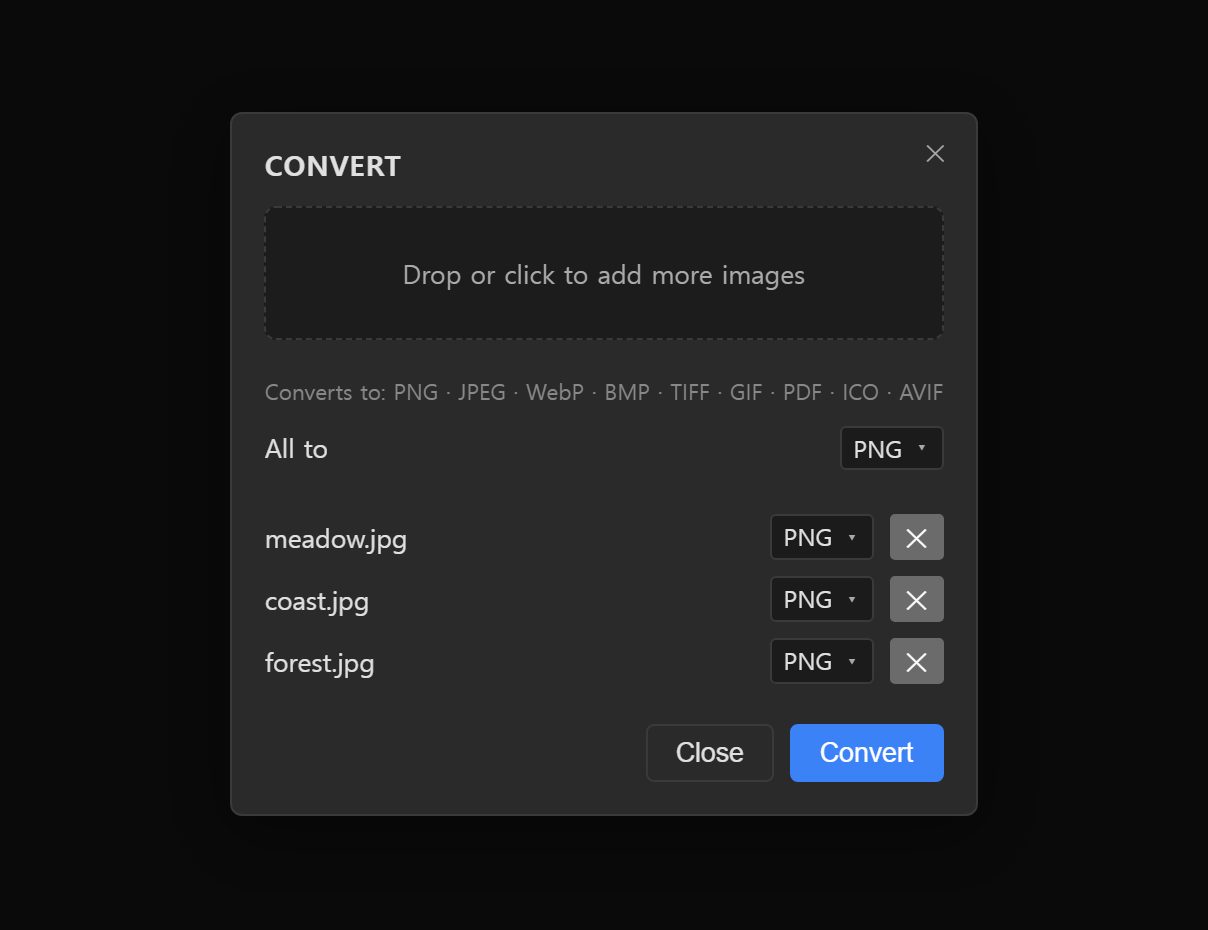
A few limits are worth knowing before you convert:
- GIF output is a single still frame, reduced to a 256-color palette. Animated inputs are not carried over as animations.
- AVIF and WebP output rely on the encoder built into your browser. Chrome and Edge handle both; if a row shows error or the result looks wrong, try another browser or choose a different format.
- Re-encoding does not copy camera metadata (EXIF) into the new file, so details such as capture date and GPS location are not carried over.
Common mistakes
- Converting JPG to PNG to “improve quality.” Lost detail does not come back. You get a bigger file with the same artifacts.
- Re-saving a JPG again and again. Each lossy save adds a little damage. Edit from a lossless master and export a JPG once, at the end.
- Choosing a format before a size. An oversized photo wastes more bytes than any format choice can save.
Try it in Photoyam
Convert a batch of images between PNG, JPEG, WebP, AVIF, TIFF and more, right in your browser. Free, no sign-up, and your files never leave your device.
FAQ
Does converting a JPG to PNG improve its quality?
No. PNG stores exactly the pixels it is given, including any JPEG artifacts already baked into them. The file gets larger but looks the same. Converting only helps when you plan to edit and re-save the image many times, because PNG will not add new losses on each save.
Should I use WebP or AVIF for my website?
Both are supported by current versions of the major browsers. AVIF usually produces smaller files at the same visual quality but is slower to encode; WebP is faster and very widely supported. If you can only pick one, WebP is the safe choice. If your site or CDN can serve both, AVIF with a WebP or JPG fallback gets the smallest files.
Why did my transparent image get a white background?
It was saved in a format without an alpha channel, most often JPG. Photoyam fills transparent areas with white when you convert to JPEG, TIFF, GIF or PDF, and shows a warning icon next to those rows. Choose PNG, WebP or AVIF to keep transparency.
Is HEIC a good format to keep my photos in?
For storage on Apple devices, yes: it keeps good quality in less space. The problem is sharing, because many Windows apps, websites and older devices cannot open it. Keep the HEIC originals if you like, and convert copies to JPG when you need to send or upload them.