Convert images instantly
Change PNG, JPG, WebP, GIF, TIFF, BMP, AVIF, HEIC or PDF pages into any of nine output formats. Convert a single file or a folder of them and save the batch as one ZIP.
Tip: your phone's file picker also lists Dropbox and Google Drive when their apps are installed.
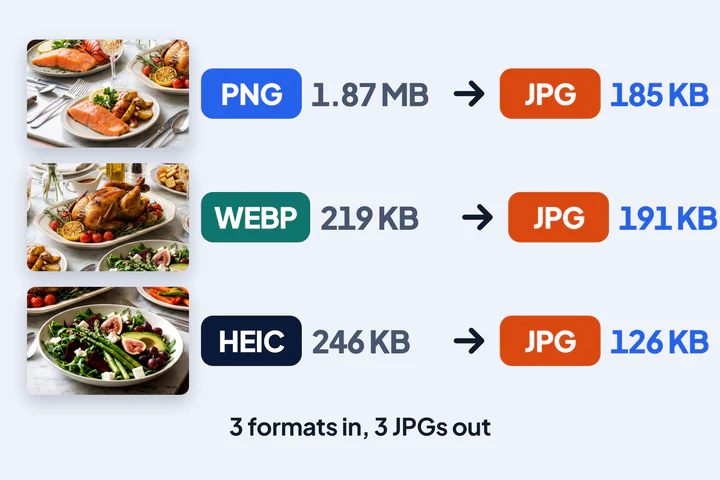
How the converter works
- 1
Add files
Images and PDFs both work. A PDF is split into its pages and each page becomes its own image, drawn at up to 2,000 pixels on the longer side. Camera RAW files (CR2, CR3, NEF, ARW, DNG, RAF and more) are developed from their sensor data with the camera’s white balance; for your own white balance and exposure, open them in the Pro editor.
- 2
Choose a target
Tap a format at the top of the page, or use the Format menu, which applies to the whole batch. Each row also has its own format menu, so one logo can stay PNG while the photos become JPG. A file already in the chosen format (a JPG when you convert to JPG) is kept as it is, without its camera details, because saving it again would make it bigger and lose quality; change the Quality, or press Convert anyway on its row, to re-save it.
- 3
Tune the format
JPG, WebP, AVIF and PDF output get a Quality slider that starts at 90. WebP adds a Lossless checkbox. AVIF is greyed out only in a browser that can neither write AVIF nor run the page's WebAssembly AVIF encoder.
- 4
Save
Each file keeps its name with a new extension, so
scan.tifbecomesscan.jpg. With two or more results, Download all (ZIP) appears.
One PNG, eight formats
To show how much the target matters, we converted the same 1200 × 800 photo, stored as a 704 KB PNG, to every format this page writes, in Chrome and at the default settings unless a row says otherwise.
| Target | File size | What happened |
|---|---|---|
| JPG, quality 90 | 99 KB | Lossy; detail loss is hard to spot at this setting |
| WebP, quality 90 | 73 KB | About a quarter smaller than the JPG |
| WebP, Lossless ticked | 475 KB | Every pixel kept; a third below the PNG |
| AVIF, quality 90 | 95 KB | Barely below the JPG at this high setting |
| AVIF, quality 60 | 13 KB | A seventh of the JPG; the fine grain is smoothed away |
| PNG, saved again | 614 KB | The same pixels, 13% smaller after repacking |
| GIF | 276 KB | Reduced to a 256-colour palette |
| TIFF | 2.75 MB | Uncompressed, no transparency |
| BMP | 3.66 MB | Uncompressed, with an alpha channel |
| ICO (512 × 512 logo, 45 KB) | 21 KB | Scaled to fit 256 × 256 for an icon |
A photo is the worst case for the uncompressed formats: TIFF and BMP store every pixel as raw numbers, which is why they came out four to five times bigger than the PNG. They exist for compatibility with printers, scanners and older software, not to save space. The AVIF rows show why one slider value does not fit every format: AVIF at 90 was barely smaller than the JPG, while at 60 the picture stayed free of blocks and only lost the fine grain of the original, for a seventh of the bytes. Saving the PNG again also helped, because OxiPNG packs the data more tightly than the program that wrote the original.
Formats are decoded and written in this tab
Opening a TIFF, rendering a PDF page and writing a GIF palette all happen with code that runs in your browser, so a scanned contract converts without being handed to anyone.
Questions & answers
Which formats can I open and which can I save?
Output is PNG, JPG, WebP, BMP, TIFF, GIF, PDF, ICO or AVIF. Input is anything your browser can decode, plus TIFF, HEIC and PDF, which Photoyam decodes itself.
Why is AVIF greyed out?
Most browsers cannot write AVIF themselves, so the converter brings its own AVIF encoder (libavif, compiled to WebAssembly). The option is greyed out only when your browser can do neither, rather than producing a broken file. WebP is the closest alternative.
What happens to transparency?
PNG, WebP, AVIF, BMP and ICO keep it. JPG, GIF, TIFF and PDF have no alpha channel here, so transparent areas are filled with the Background colour (white unless you change it) and the row says so.
How do I turn a multi-page PDF into images?
Add the PDF and choose a target such as JPG or PNG. Every page arrives as a separate result, ready to download one by one or as a ZIP. Password-protected PDFs need the password removed first.
When should I tick Lossless WebP?
When the image must stay pixel-exact, such as a screenshot of code or a UI mock-up, and you still want something smaller than PNG. For photos, the normal lossy WebP is far smaller.
Picking a target format
| Format | Transparency | Quality slider | Good for |
|---|---|---|---|
| JPG | No (background fill) | Yes | Photos for email, forms and printing services |
| PNG | Yes | No, lossless | Logos, screenshots, anything with sharp text |
| WebP | Yes | Yes, or lossless | Web pages; small files with transparency |
| AVIF | Yes | Yes | The smallest web images, where supported |
| GIF | No (background fill) | No, 256 colours | Old systems that only take GIF |
| TIFF | No (background fill) | No, uncompressed | Print and archive workflows |
| BMP | Yes | No, uncompressed | Legacy Windows software |
| ICO | Yes | No | Favicons and Windows icons |
| No (background fill) | Yes | Sending a picture as a document |
If you are unsure, start with JPG for photographs and PNG for graphics. Move to WebP or AVIF when the destination is a website you control. The format guide JPG vs PNG vs WebP vs AVIF vs HEIC explains the trade-offs in more depth.
Learn more