Remove the background automatically
Drop an image here and the background is removed in seconds, on your device: logos and graphics on a plain backdrop are cut out by color, photos by a small AI model. Touch up the result with a brush, keep it transparent or put it on a color, a blurred copy or another photo, add a shadow or frame it square, then download a PNG, WebP or JPG.
Tip: your phone's file picker also lists Dropbox and Google Drive when their apps are installed.
First use downloads up to about 9 MB (the AI model and what runs it); your browser keeps it for next time.
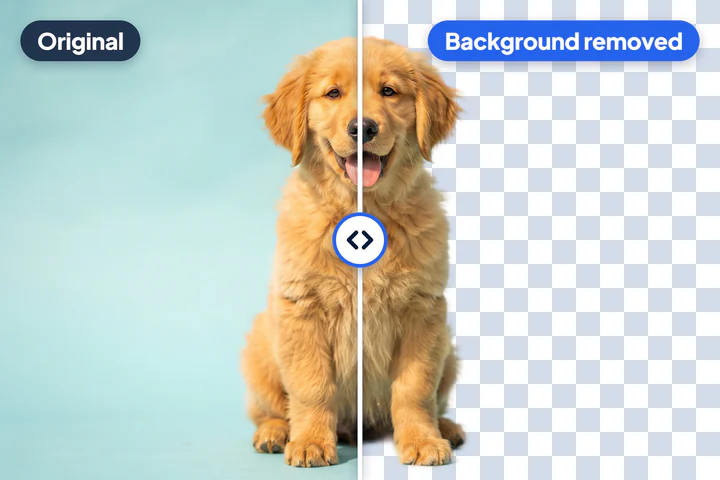
From image to cut-out
- 1
Auto picks the method
When the edge of the image is one flat color, as with most logos, icons and product shots on white, that color is removed straight away with no download. The same color inside the subject, such as white letters, stays unless you tick Also remove enclosed areas. Anything else goes to the AI.
- 2
AI for photos
U-2-Netp, an open model (Apache-2.0, 4.4 MB on the progress bar), comes from the Hugging Face CDN once and is then kept by your browser. Its mask is fitted back onto your full-resolution image, and every soft edge is then re-decided against your own pixels, so outlines stay crisp on a 12-megapixel photo and strands of hair that differ from the backdrop come back. Clean edge color takes the old backdrop’s tint out of those edges, so hair shot against a yellow wall doesn’t glow yellow on white. High quality swaps in BiRefNet-lite (MIT, 94.1 MB) for cleaner edges and whole objects; it is slow without a graphics card.
- 3
Touch up anything
The Restore and Erase brushes paint parts back in or out, and Tap to remove clears a second backdrop color with one tap while leaving alone the parts the AI is sure belong to the subject (tap on one of them to remove it anyway). Pick object, an optional 13.1 MB model (SlimSAM, Apache-2.0), keeps whatever you tap. Undo and Redo step through all of it.
- 4
Choose a background, then save
Keep it transparent, fill a color, use a blurred copy of your own photo, or pick another photo to stand the subject in front of. A Shadow under the subject, as dark and as soft as you set it, grounds a product that would otherwise float, and Framing turns the picture into a square for a shop listing, a 7:9 portrait or a close crop, with the space around the subject you choose. Shift edge trims or grows the outline by up to 20 pixels and Feather softens it. A transparent result saves as PNG or WebP; a coloured or blurred one as JPG, PNG or WebP. Each choice of background and framing gets its own file name, so several versions of one photo don’t overwrite each other. On a phone the save buttons stay pinned to the bottom of the screen once the cut-out is ready, and an iPhone or iPad gets Save to Photos, which hands the file to the share sheet.
GPU when available
The AI runs through WebGPU if your browser offers a graphics adapter, and falls back to WebAssembly on the processor otherwise. The standard model is small enough for phones either way.
Before and after
A slider over a checkerboard lets you compare the original and the cut-out at any point, which is where halos and missed strands show up.
Batch, one by one
Pick several photos and Next image steps through them with the model already loaded, keeping your background and edge settings.
Only the model travels, and only once
When an AI model is needed, it is the only download. Your image is processed by that local copy inside this tab and is never part of a request, so once the model is stored, repeat cut-outs need no network at all. The Solid color method downloads nothing.
Questions & answers
Which AI model does the remover use?
For photos it uses U-2-Netp, a small open model (Apache-2.0) that finds the main subject, run through the Transformers.js library; the Photoyam Pro editor uses the same model. High quality switches to BiRefNet-lite (MIT), a larger download. Images on one flat background color, such as logos and icons, need no model: that color is removed directly.
Does it need an internet connection?
Only the first time the AI is used, to fetch the model and what runs it: up to about 9 MB in all (the model itself is 4.4 MB), or up to about 99 MB with High quality (a 94.1 MB model). The browser keeps that copy, so later cut-outs start without downloading it again. The Solid color method needs no download at all.
Will the cut-out be smaller than my photo?
No. The model works on a reduced copy, but its mask is enlarged and snapped to the edges of your original, so a 4000-pixel photo comes back at 4000 pixels.
Why does my transparent cut-out show a white box elsewhere?
Either it was saved as a JPG, which cannot hold transparency, or the app you placed it in fills transparency with white. Choose the Transparent background so the tool saves a PNG, and check that the other app supports transparent PNGs.
What should I do when part of the subject is missing?
Low contrast is the usual cause: a dark coat against a dark wall, or a product the same colour as its table. Paint the missing part back with the Restore brush, try High quality, or use Pick object and tap the parts you want to keep.
Can I make a square listing photo or a passport-style picture?
Yes. Under Framing, Square centres the subject in a square and Portrait makes a 7:9 picture; Space around sets the margin. A subject cut off by the photo’s edge, such as shoulders, stays flush with that edge. Check the exact size rules of the passport or site you will use it for.
Why did the white letters inside my logo stay?
The Solid color method only removes the background color where it connects to the edge of the image, so the same color inside the subject, such as white letters or the middle of an O, is kept. Tick Also remove enclosed areas to remove that color everywhere.
Speed and fixes in practice
In our tests on a desktop PC, a logo on a white backdrop was cut out by color instantly, with no download. For photos, the first AI run took about 10 seconds on WebAssembly, including the 4.4 MB download on a fast connection, and about 3 to 5 seconds with a graphics card; later photos skip the download. High quality took about half a minute for the first image even with a graphics card, then about 5 seconds per image; on WebAssembly it took about half a minute. Pick object took 12 to 18 seconds to get an image ready, then under a second per tap.
| What you see | Try this |
|---|---|
| A thin halo of the old background | Keep Clean edge color ticked; if a rim is still there, Shift edge to −1 to −3 px |
| A patch of backdrop left behind | Tap to remove on it, or the Erase brush |
| Part of a logo turned see-through | Switch the method to Solid color, or paint it back with Restore |
| Hair or fur cut off sharply | Feather 2 to 4 px, then compare with the slider |
| Shadow under a product removed | Expected: the model keeps the object, not its shadow. Raise Shadow under Background for a new one |
| An edge looks wrong after refining | Untick Refine edges at full size to compare, then fix the spot with Restore or Erase |
| “No clear subject found in this photo” | The model found almost nothing to keep, or only a see-through haze or scattered pieces. Use Pick the subject yourself and tap it, try High quality, or, when nothing was kept, Show the cut-out anyway for a very small subject |
| “Background removal failed” | Check the connection on first use; very large images can also run out of memory |
Subject-finding models judge what the main subject is from the whole frame, so they are most reliable with one clear person, pet or product in focus; with several objects, Pick object lets you tap each one you want. Group photos, glass and wire fences are hard for any automatic tool; for those, treat the result as a good starting mask and finish it by hand in the editor. Our step-by-step background removal guide shows that workflow, and what a layer mask is explains why painting on the mask is safe.
Learn more