Repair corrupted photos
A photo that won’t open, shows a grey lower half, or turns pink partway down? Drop it here. The page reads the file byte by byte, tells you plainly what broke, and runs every repair method on your own device — free, nothing uploaded.
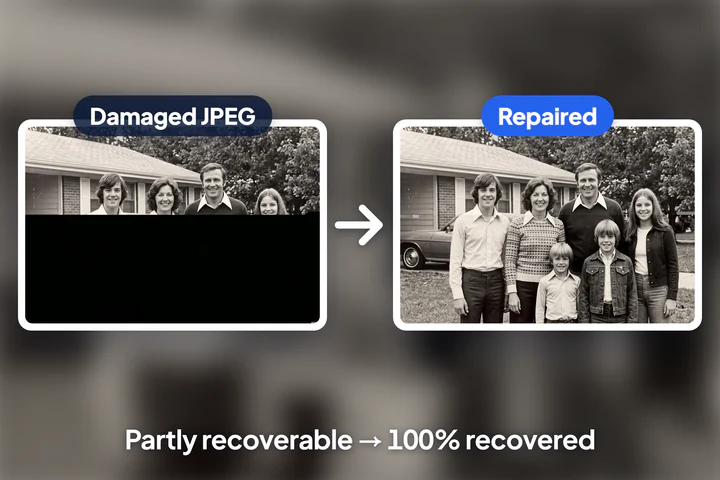
What to expect: most damaged photos were cut off part-way. You get back every part that survived, exactly as it was, and can crop off the rest — the missing part itself cannot be brought back.
No damaged photo at hand?
How the repair works
- 1
A diagnosis you can read
Markers, chunks and checksums are checked one by one. You learn whether the file was cut off, damaged in the middle, misnamed, wiped or encrypted, and roughly how much can come back.
- 2
Every method, side by side
Nothing is guessed for you behind the scenes. Each technique that applies produces its own result card, and one is marked Recommended.
- 3
Keep what looks best
One button saves the recommended result; or tap several result cards and save them as a ZIP. Repairing a whole folder? One button saves every photo’s recommended result in a single ZIP. Damaged spots are outlined in red so you can see what is real and what was filled with grey. A phone photo stored sideways with a rotation tag is shown upright, and a JPEG you download keeps that tag, so it opens the right way up.
- 4
Crop or patch the gaps
A photo cut off part-way gets “Crop off the missing part”: the real picture down to the cut, not re-compressed. “Fill damaged area in Pro editor” opens a result with the broken blocks selected for Edit ▸ Content-Aware Fill. That works for small gaps; a large missing band has little around it to copy from and comes out as a patchwork, not what was there.
What it can fix, and what it can’t
Repair works on the bytes that are still in the file. It cannot bring back bytes that are gone, and it never invents picture content.
| What you see | What is usually wrong | What you get here |
|---|---|---|
| The bottom of the photo is grey or missing | The file was cut off during a transfer or when a card filled up | Everything up to the cut, block for block as it was, and a copy with the missing part cropped off (not re-compressed) |
| The photo opens, but ends in one solid grey or green block | It was cut off and then saved again by an app that painted the gap in one colour, so the lost part is no longer in the file | A clear “damage is permanent in this copy”, the intact part as a crop, and the block selected for Content-Aware Fill |
| Colours turn pink, green or dark partway down | A few bytes in the middle are damaged and every block after them inherits the error | A colour-shift corrected version next to the plain one |
| The picture looks torn and slid sideways | Damaged data made the decoder lose its place in the grid | A version with the blocks moved back into line, when the seam can be found |
| The automatic fixes get close, but a few blocks are still off | The damage hides where exactly the blocks slipped, or the header has the wrong width | “Fix by hand”: move blocks, correct colours, set the width or cut off garbage yourself, saved without re-compression |
| “Invalid image” or nothing opens at all | The header — the part with the decoding tables — is wiped | A rebuild using a healthy photo from the same camera as reference |
| “Not a JPEG”, though it came from a camera, a recovery tool or a failed copy | The first two bytes (the start marker) are missing, the first bytes were wiped, or junk was written in front of the photo | The header that survived is found and the photo rebuilt at full size — no reference photo needed while its tables are still in the file |
| Only a tiny picture survives | The main picture data is lost | The thumbnail or large preview the camera stored inside the file, labelled “Small preview” with its size. When a quarter or more of the photo survives at full size, that part is recommended instead |
| A HEIC photo with blocks of green or grey | Part of its picture data was wiped; the decoder paints those blocks green or grey without reporting an error | The blocks are found and marked as damaged, so the result is never passed off as complete |
| A band in the middle that belongs to a different picture | A memory card or recovery tool put a stretch of another file’s data into this one | The band is marked as not part of this photo; everything around it is kept |
| A PNG reports a CRC error | A checksum no longer matches, often from one changed byte | The full picture, plus a file with corrected checksums |
| A WebP photo that is grey at the bottom or will not open | It was cut off, or bytes inside its picture data were damaged | Every 16 × 16 block (lossy WebP) or row (lossless WebP) that decodes from intact data, with its transparency, and a map of the rest |
| An animated GIF or WebP stops early | The end of the file is missing | Every complete frame, without re-compression |
| A RAW file (CR2, CR3, NEF, ARW, DNG, RAF …) your editor rejects | The file was cut off, or its first bytes were overwritten | The largest JPEG preview stored inside it, often full size, and the camera model |
| A TIFF that stops halfway or will not open | Strips or tiles are missing, the pointer to its directory is broken, or the end is cut off | Every intact strip and tile, every page of a multi-page file, and a TIFF with its header linked again |
| A BMP that no program recognises | Its 54-byte header is damaged, or the file is short | The picture size worked out from the pixel rows, and a BMP with a fresh header |
| A .jpg that refuses to open everywhere | It is really a PNG, WebP or HEIC with the wrong extension | A clear message and a correctly named copy |
| An Adobe® Photoshop® file (PSD or PSB) that will not open | The file was cut off, a layer’s data is damaged, the header was wiped or a section length is wrong | Every readable layer in a new PSD, the merged image, the thumbnail, and a list of which layers were lost and why |
| Every byte is zero, or the bytes look random | Wiped, never written, or encrypted (for example by ransomware) | An honest “can’t be repaired”, with the reason |
Your damaged photos stay on this device
Online repair services ask you to upload private pictures and often charge per file before you can save the result. Here the decoders run in a background thread of this tab: close it and nothing remains anywhere else.
The reference-photo method
A JPEG starts with a header that holds the quantisation and Huffman tables needed to read the picture data. If that header is wiped, the rest of the file is still there but unreadable. Cameras and phones use the same tables for every photo shot at the same quality setting, so a healthy photo from the same device can lend its header.
- Pick a photo taken with the same camera or phone, ideally on the same day and in the same orientation.
- Add it under Reference photo after dropping the damaged file. The repair runs again by itself.
- Compare the options. Each one starts the picture data at a different position in the file; the right one looks natural from the top-left corner on.
- If the result is sheared diagonally, the size differs from the reference: enter the real width and height under Picture size.
- If it is sideways, use Rotate on the result; it starts out the way your photo’s surviving details, or else the reference photo, say it was held.
When the wipe also took the first stretch of picture data, the blocks slide sideways and wrap around; the corrected option moves them back. Colours can then be shifted as a whole, because the decoder no longer knows the colour the data started from. Cameras that write restart markers (most phones) recover from that by themselves; for others the card says “colours may be off” instead of claiming the photo is back.
Desktop tools such as JPEG-Repair Toolkit work the same way. It works for HEIC too: when a HEIC’s first bytes or the item table that says where each 512-pixel tile is were wiped, add a healthy HEIC from the same phone as the reference photo and the table is rebuilt from it. The rebuilt photo keeps its own date, camera settings and location when they are still readable in the damaged file; the reference photo’s details are never copied in, because they describe a different photo. A HEIC that is only cut off needs no reference: the repair keeps the thumbnail and every surviving tile, and marks tiles whose data looks damaged next to the thumbnail.
Damaged Photoshop files
A PSD is a chain of sections: a 26-byte header with the size and colour type, the image resources (where the thumbnail lives), the layers with their pixel data, and at the end the merged image, a flattened copy of the whole picture. Photoshop gives up on the first broken byte. This page reads each section on its own and keeps going:
- Recovered layers. Every layer whose record and pixels survived goes into a new, valid PSD, in its place and order, with its name, opacity, blend mode and group. A layer cut off or damaged partway keeps its complete rows; a lost layer stays in the file as an empty layer with its name, so you know what to redo. Open it in the Pro editor straight away, or download it for Photoshop.
- Merged image. The flattened picture, with every complete row.
- Built-in thumbnail. When everything else is gone, the small preview Photoshop saved near the start of the file often survives.
- Fixed PSD file. When only the header or a section length is wrong, they are measured from the file itself and written again. You get your original file back with text layers, effects and smart objects untouched.
If the header was wiped, the size is usually worked out from the merged image’s own row table. When it cannot be, add a healthy PSD of the same size as the reference file. Large-document (PSB) files are read too, and their layers come back as a regular PSD the editor can open.
Camera RAW, TIFF and BMP files
A RAW file holds the sensor data plus one or more finished JPEG previews that the camera made for its own screen. Those previews are what a damaged RAW gives back here: they are found from the file’s own directories first (including the maker-specific ones and the boxes of a CR3), and when the start of the file is overwritten, by scanning every byte for JPEG streams — even ones whose first bytes are gone. The sensor data itself needs a RAW converter, so it is not decoded on this page.
The report also says whether the sensor data is all there. Most RAW formats record its length; Panasonic RW2 files usually do not, so it is worked out from the sensor size and the way the camera packs its pixels, then compared with what is left of the file. On public samples from twelve Panasonic cameras (G1 to S5 II) the estimate matched the real length to within 0.1% for every fixed-size packing, and a file cut to 90%, 60% or 30% was reported as “sensor data cut off”. The newest compressed RW2s (GH6, G9 II, S5 II) have no fixed size, so there only a file cut well short is reported.
A TIFF is split into strips or tiles that are compressed one by one, so a damaged one only costs its own rows; missing ones are shown in grey. Many programs write the TIFF directory at the very end, which a cut-off file loses; the rows are then read without it and their width worked out from the picture. A BMP has no compression at all: when its header is damaged, the row length shows in the pixels themselves, because neighbouring rows of a photo look alike.
Measured on public camera samples from raw.pixls.us (CC0), cut short or with the first 4 KB zeroed:
| Camera (format) | Largest preview | Cut to 30% / 60% / 90% | First 4 KB zeroed |
|---|---|---|---|
| Canon EOS 5D Mark III (CR2) | 5760 × 3840 | Complete in all three | Complete |
| Canon EOS R6 (CR3) | 3408 × 2272 | Complete in all three | Complete |
| Nikon D750 (NEF) | 6016 × 4016 | Complete in all three | Complete |
| Sony ILCE-7S (ARW) | 1616 × 1080 | Complete in all three | Complete |
| Fujifilm X-T2 (RAF) | 1920 × 1280 | Complete in all three | Complete, its start marker put back |
| Pentax K-3 (DNG) | 6016 × 4000 | Stored at the end: only the 720 × 480 preview survives | Complete |
| Olympus E-M10 (ORF) | 3200 × 2400 | Complete in all three | Complete |
| Panasonic DMC-LX7 (RW2) | 1920 × 1920 | Complete in all three | Complete |
Where the full-size preview sits near the end of the file, as in the Pentax DNG, a cut-off copy keeps only the smaller previews stored earlier.
Measured on our own test files
We damaged a 320 × 213 JPEG and a 160 × 107 PNG on purpose and ran them through this page’s repair engine. “Colour error” is the average difference from the undamaged photo per pixel, on the 0–255 scale.
| Damage | Best method | Result |
|---|---|---|
| JPEG cut off at 30%, 60% and 90% of its picture data | Every readable block | 30%, 64% and 90% of the picture; each recovered block identical to the original |
| JPEG without its end marker | Fixed file structure | Complete and bit-for-bit lossless |
| 64 bytes overwritten a third of the way in | Colour shift corrected | Colour error below the damage fell from 23.5 to 1.5 |
| 200 bytes overwritten at 60% | Colour shift corrected | Colour error fell from 25.3 to 3.7 |
| 300 bytes overwritten in a JPEG with restart markers | Every readable block | 97% of the picture, everything after the damaged rows exact again |
| Header wiped with zeros | Reference photo, option 1 | Pixel-identical to the original |
| All picture data wiped | Built-in thumbnail | The complete 80 × 53 preview |
| JPEG missing its first two bytes, or with its first 512 bytes wiped | Fixed file structure | Complete; every pixel identical to the original, no reference photo needed |
| PNG with its 8-byte signature wiped | Every complete row | Complete and identical |
| PNG with a broken checksum | Fixed PNG structure | Complete and identical |
| PNG cut off at 55% of the file | Every complete row | 61% of the rows, exact |
| Lossy WebP cut off at 30%, 60% and 90% of the file | Every readable part of the WebP | 24%, 56% and 89% of the picture, the same pixels libwebp decodes |
| Lossless WebP cut off at 30%, 60% and 90% | Every readable part of the WebP | 26%, 55% and 89% of the rows, exact |
| 256 bytes of a WebP wiped with zeros | Every readable part of the WebP | The wipe found exactly; everything before it exact |
| One changed byte inside a lossy WebP | Every readable part of the WebP | Noticed in all 36 tests; where the garbage starts is estimated and the uncertain part marked |
| PSD with 4 layers cut off at 90% of the file | Recovered layers | All 4 layers exact, plus the top 27% of the merged image |
| PSD with one layer’s pixel data overwritten | Recovered layers | The other 3 layers and the merged image exact; the damaged layer named in the list |
| PSD with its header wiped, or with three wrong section lengths | Fixed PSD file | Byte-for-byte the original file |
Two things these numbers do not show. Real damage is messier than a single overwritten stretch, so expect some leftover streaks. And when a header is overwritten with random bytes rather than zeros, several start positions fit equally well; that is why every option is shown instead of one guess.
Before you start
- Work on a copy. This page never changes your file, but other tools might. Keep the original somewhere safe.
- Copy files off a failing card first. Every extra read of a dying card risks more damage; repair the copies.
- Files of 0 KB, or photos you deleted, need recovery software first. Repair fixes damaged files; it cannot find files that are no longer on the card. Tools such as PhotoRec can recover them, and their output can then be repaired here.
- Try the browser’s own result too. Browsers sometimes show part of a damaged file on their own; it is one of the cards.
Questions & answers
Is this really free, with no upload?
Yes. There is no sign-up, no per-file fee and no watermark. The repair engine is downloaded into the page once and runs in your browser, so the photos are read from your disk and never sent to a server.
Can it recover photos I deleted, or a formatted memory card?
No. That is data recovery, a different job: the files first have to be found on the card with recovery software such as PhotoRec. If what comes back will not open or looks broken, bring it here.
Why is part of my photo grey after the repair?
Grey marks blocks whose data is missing from the file. Nothing can restore them exactly. For a photo cut off part-way, “Crop off the missing part” keeps only the real picture, without re-compressing it. Small gaps can be painted in from the surrounding picture with “Fill damaged area in Pro editor” and Content-Aware Fill; a large missing band comes out as a patchwork, not what was there. A built-in preview, if one survived, shows the whole scene at a smaller size.
Why does my photo open fine but end in a solid grey or green block?
The photo was cut off or damaged, and then an app (a phone gallery, a cloud backup, a chat app) opened it, painted the missing part in one flat colour and saved it again. The new file is technically perfect, so most tools call it healthy, but the picture data under the block is not in it any more. The repair names this case, offers the intact part as a crop and opens the rest in the Pro editor for Content-Aware Fill. To get the real picture back, look for an older copy: the camera or phone, its card, a backup, or the copy you sent to someone.
Why did my photo turn pink or green halfway down?
JPEG stores each block’s brightness and colour as a difference from the block before. One damaged byte throws that chain off for everything after it. The colour-shift correction finds where the jump happens and removes it.
Can I fix a damaged JPEG by hand, block by block?
Yes. Every JPEG result has a “Fix by hand” button. It opens the picture with its grid of 8- or 16-pixel blocks and the damage map. Click the first block that slid out of place and move it back with the arrow keys (the page inserts or removes whole blocks in the file’s order, like an MCU editor), correct a colour cast from that block on with sliders or “Match the row above”, change a wrong width until diagonal stripes stand straight, or cut off garbage at the end. Every step can be undone. The download is put back together without re-compression: only the blocks you moved, recoloured or cut change.
Can it fix files encrypted by ransomware?
No. Encrypted data looks like random bytes; the page detects that and says so. Only a backup or the decryptor for that particular ransomware can bring such files back.
Can it repair a damaged Photoshop (PSD or PSB) file?
Yes. Each part of the file is read on its own, so one broken part does not stop the rest. You get every layer that is still readable in a new PSD (damaged layers keep their complete rows, lost layers stay in the list with their names), the merged image Photoshop saves next to the layers, and the built-in thumbnail. A wiped header or wrong section lengths are written again, giving you your original file back untouched. PSB files are read too.
Can it repair a corrupted camera RAW file (CR2, CR3, NEF, ARW, DNG)?
It gives back the finished JPEG previews the camera saved inside the RAW file, the largest first. On most recent cameras one of them is as large as the photo itself, and the card names the camera model when the file still records it. The sensor data is not decoded here, so for raw editing open the file in your RAW converter; when the converter refuses a damaged file, the preview is the part that can be saved.
My photo was rebuilt with a reference photo. Why is it sideways, or the colours slightly off?
The rebuilt photo borrows its header from another picture, so it cannot always know which way up yours was held. It takes the orientation from what survives of your photo’s own details, otherwise from the reference photo; if it is still sideways, use Rotate on the result. Colours depend on where the picture data starts: when the very start was wiped along with the header and the camera does not use restart markers, every colour is shifted by the same amount, and the card says “colours may be off”. The “corrected” option moves back blocks that slid sideways; a remaining colour cast can be fixed with Fix by hand.
Does repairing reduce the quality?
Structure fixes, the cropped copy of a cut-off photo, recovered GIF frames, the fixed PNG, the re-linked TIFF, the BMP with a new header, RAW previews and photos fixed by hand keep the original data untouched. Results rebuilt from decoded pixels are saved as JPEG at quality 95 or as PNG, which is visually lossless.
Learn more