How to Open and Edit PSD Files Without Photoshop
Someone sent you a .psd and you do not have Photoshop. You can still open it, look at every layer, pull out a PNG or JPG, make edits and even save it back as a PSD. This guide explains what is inside the file, exactly which parts a browser editor keeps editable and which it turns into plain pixels, and how to avoid losing work along the way.
What is inside a PSD file
A PSD is not one picture. It is a container that holds the separate pieces a designer worked with, plus instructions for combining them. The main parts are:
- Pixel layers. Each layer stores its own image, its position on the canvas, an opacity, a blend mode, and flags such as hidden or clipped to the layer below.
- Layer masks. A grayscale image attached to a layer that hides parts of it without deleting them. There are also vector masks, which are outlines made of paths rather than pixels.
- Groups. Folders of layers, which can be nested and can carry their own opacity and blend mode.
- Adjustment layers. Stored settings rather than pixels: a Curves or Hue/Saturation layer is just a recipe that changes everything below it.
- Text layers. The words, fonts, sizes and styling, so text stays retypable.
- Smart objects. An embedded original (another image, or even a whole PSD) plus the transform applied to it, so it can be resized without losing quality.
- Layer effects. Drop shadow, stroke, glow and similar styles, stored as settings and drawn on the fly.
- The flattened composite. A ready-made merged image of the whole document. Previewers and non-Photoshop apps often show only this.
The important consequence: effects, adjustment layers and text are instructions, not pixels. An app that does not implement an instruction cannot show it from the layers alone, which is why the same PSD can look different from one program to the next.
When you need to open a PSD without Photoshop
- Grabbing an asset. A developer needs the logo or a product cut-out from a designer’s mockup as a PNG.
- Small text or image fixes. Change a date on a flyer, swap a photo, or hide a layer, then send the file back.
- Private files. Contracts, ID mockups or unreleased designs should not be uploaded to an online converter. A viewer that runs in your browser avoids that.
What stays editable in Photoyam
Photoyam reads and writes PSD files with its own code, entirely in your browser. It handles 8-bit RGB and Grayscale documents saved as standard .psd (not the large-document .psb format). Within that, here is what happens to each part of the file.
| Part of the PSD | When you open it | When you save as PSD |
|---|---|---|
| Pixel layers | Separate layers with name, position, opacity, visibility and clipping | Kept as layers, including hidden ones |
| Blend modes | 16 common modes (Multiply, Screen, Overlay, Soft Light and so on) kept; others become Normal | Same 16 modes kept; others written as Normal |
| Layer (raster) masks | Editable masks, including the disabled state | Kept as editable masks |
| Groups | Rebuilt, nested, with name, opacity, blend and open/closed state | Kept, including nesting |
| Levels and Curves adjustment layers | Live, editable adjustment layers | Kept live |
| Other adjustment layers | Not rebuilt; they arrive as empty layers, so their effect is missing | Dropped from the layer list |
| Text layers | Editable text with the words and a best-effort size, color and font | Rasterized to pixels |
| Smart objects | Smart objects, using the embedded original when the file includes one | Rasterized to pixels |
| Layer effects | Not read, so shadows, strokes and glows disappear | Effects added in Photoyam are baked into pixels |
| Vector masks and shapes | Not rebuilt as vectors | Baked into pixels |
Layer pixels in a PSD never include effects: a drop shadow is redrawn from its settings each time. Since Photoyam does not read those settings, a layer that relied on a stroke or shadow looks plainer than it did in Photoshop. If the layer data cannot be parsed at all, Photoyam opens the flattened composite as a single layer instead, so you still get the finished image.
Step by step: open, inspect and export a PSD
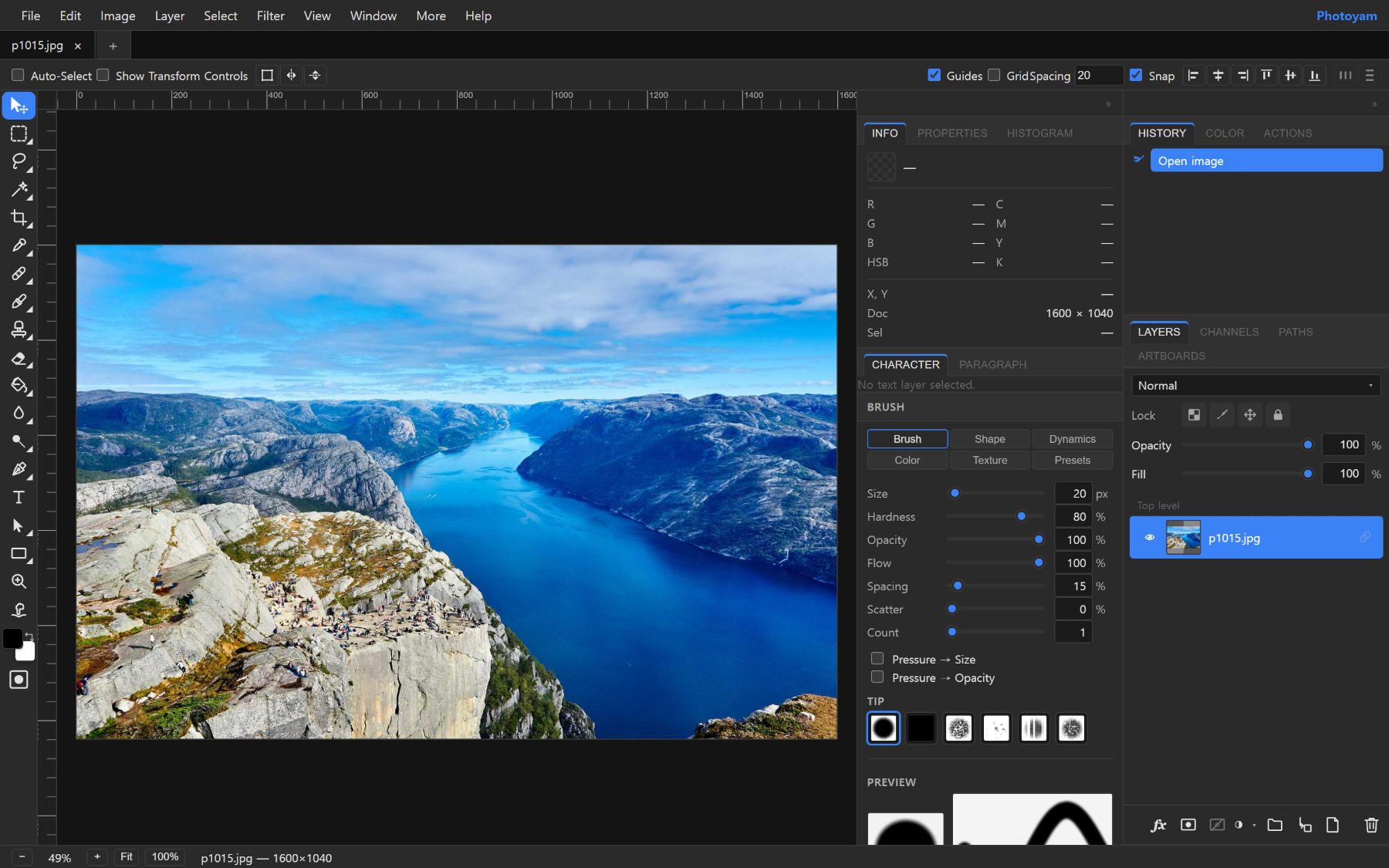
- Open the file. Go to the PSD viewer and click Choose a PSD, or drop the file on the page. It opens straight in the editor. If the editor is already open, use File › Open… (Ctrl+O) or drag the .psd onto the window.
- Read the Layers panel. Layers appear top to bottom in the same order as in Photoshop, inside their groups. Small badges mark text layers, adjustment layers, smart objects and layers clipped to the one below. A second thumbnail next to a layer is its mask.
- Check for missing pieces. An empty layer named something like “Hue/Saturation 1” is an adjustment the reader could not rebuild. Also check text for font substitutions.
- Isolate what you need. Click the eye icon to hide layers you do not want in the export. To export a single element, hide everything else; transparent areas stay transparent in PNG and WebP.
- Export a flat image. Choose File › Export As › PNG, JPG or WebP, set quality and size in the Save for Web window, and click Export.
- Edit if needed. Retype text, move layers, paint on masks or tweak a Curves layer.
- Save your work. Press Ctrl+S to save as PSD, or use File › Save As Project (.psy) to keep everything editable in Photoyam. The next section explains the difference.
Saving back to PSD (and when not to)
File › Save (Ctrl+S) writes an 8-bit RGB PSD. If your document holds anything the PSD writer cannot keep editable, a Save as PSD? window first lists what will be flattened, such as “Text layers become rasterized” or “Layer effects/styles are baked in”, and offers three choices: Cancel, Save Project (.psy) and Save as PSD. File › Export PSD writes the same file without the warning.
“Rasterized” means the layer is converted to its current pixels. It will look the same in Photoshop, but the text can no longer be retyped and an effect can no longer be adjusted. Adjustment layers other than Levels and Curves are the one exception to “looks the same”: they are left out of the layer stack, and their effect survives only in the file’s flattened preview. Photoshop rebuilds the image from the layers, so the adjustment will seem to vanish there. If one matters, rebuild it as Levels or Curves, or merge it into the layer below before saving.
A .psy project is Photoyam’s own format. It stores everything the editor knows: live text, effects, smart objects, every adjustment type and vector shapes. Use it as your working file and reopen it with File › Open Project…. Only Photoyam reads .psy, so treat the PSD as the file you hand to other people.
Troubleshooting
The file does not open
Photoyam reads 8-bit RGB and Grayscale PSDs. Files in 16 or 32 bits per channel, CMYK (common for print work), Lab or Indexed color, and .psb large documents are refused, and the current document is left as it was. If you have access to Photoshop or know the sender, ask for a copy converted to Image › Mode › RGB Color and 8 Bits/Channel. Very large canvases, around 256 megapixels and up, are also refused to protect your browser’s memory.
The layers look wrong or blank, but the file opened
Missing shadows and strokes are layer effects. An odd look on one layer is often a blend mode outside the supported 16, such as Linear Dodge or Vivid Light, now showing as Normal. Set it again from the blend menu in the Layers panel.
The file opens as one flat layer
The layer section could not be read (for example, it uses compression Photoyam does not decode), so you got the composite instead. The image is correct; only the layers are gone.
Common mistakes
- Overwriting the only copy. Save your edited PSD under a new name. If the original used effects or unsupported adjustments, the re-saved file cannot give them back.
- Clicking through the warning. The Save as PSD? list tells you exactly what will stop being editable. Read it once per file.
- Judging a design by the layers alone. If a mockup looks flat, the designer probably used effects. Ask for the PNG they see, or recreate the effect with Blending options (the fx button in the Layers panel).
- Sending a .psy to a Photoshop user. Only Photoyam opens it. Send the PSD, plus a PNG for reference.
Try it in Photoyam
Open a PSD in your browser, inspect its layers, export PNG or JPG, or save it back as a PSD. Free, no sign-up, and the file never leaves your device.
FAQ
Is my PSD uploaded anywhere when I open it?
No. Photoyam parses the .psd file inside your browser tab with its own reader. There is no server that receives the file, so client work and unreleased designs stay on your device.
Why does nothing happen when I open my PSD?
The file is most likely 16-bit or 32-bit, in CMYK or Lab color, or saved as a large-document .psb. Photoyam reads 8-bit RGB and Grayscale PSD files only. In Photoshop, switch to Image > Mode > RGB Color and 8 Bits/Channel, save a copy, and open that copy.
Can I edit the text in a PSD?
Often, yes. Text layers are rebuilt as editable Photoyam text with the words, and a best-effort font size, color and font family. Detailed styling such as mixed fonts within one layer, tracking or warped text is not carried over, and a font you do not have installed falls back to another one.
Will Photoshop open the PSD that Photoyam saves?
Yes. Photoyam writes a standard 8-bit RGB PSD with layers, raster masks, groups, and Levels and Curves adjustment layers. Text, layer effects, smart objects and shapes arrive in Photoshop as ordinary pixel layers, so keep a .psy project if you want to edit those again in Photoyam.