How to Repair Corrupted Photos (and When You Can’t)
A corrupted photo is rarely a lost cause and rarely a perfect fix. What you can get back depends on which bytes were damaged: the end of the file, a stretch in the middle, or the header at the start. This guide shows how to tell those cases apart from the symptoms, what each repair technique really does, and how to patch what is left with Content-Aware Fill.
First, rule out the easy causes
Plenty of “corrupted” photos are perfectly healthy. Before reaching for any repair tool, check these three things:
- The format is unsupported. iPhones save HEIC by default, and many Windows programs and upload forms cannot read it. The photo is fine; convert it with HEIC to JPG.
- The extension lies. Websites often deliver WebP or AVIF images that get saved with a .jpg name. Strict apps then refuse the file even though nothing inside is broken.
- The copy is still running. A photo opened while a phone is still syncing it can look cut off. Wait for the transfer to finish and open it again.
Photo Repair checks the first two automatically: it compares the file’s actual contents with its name and reports a mismatch instead of “repairing” something that was never damaged.
Read the symptoms
The way a damaged photo looks already says a lot about where the damage is. Viewers react differently, so try more than one (a browser tab is a good second opinion).
| Symptom | Likely cause | Outlook |
|---|---|---|
| Top part fine, then a flat grey band to the bottom | The file ends early | Good: everything above the band is exact |
| Colours flip to a pink, green or dark cast below a line | Damaged bytes mid-file; later blocks inherit a wrong colour offset | Often good: the offset can be measured and removed |
| Lower part shifted sideways, with a jagged seam | The decoder lost count of blocks in a damaged stretch | Fair: realigning works when the seam is clear |
| No viewer opens it at all | Header damaged, or not an image any more | Depends: a same-camera reference photo can help |
| File size is 0 KB, or shows as all zeros | Data never written or wiped | None in this file; look for another copy |
Why a few bad bytes ruin a whole JPEG
A JPEG divides the picture into small blocks (8 × 8 pixels, grouped into 16 × 16 “MCUs” for most phone photos) and compresses them one after another into a single stream of variable-length codes. There are no gaps between blocks, so a decoder only knows where block 5,000 starts by decoding blocks 1 to 4,999 first.
Two consequences explain almost every damaged JPEG you will see:
- The average colour is stored as a difference. Each block records how much brighter or darker it is than the previous one. After a damaged stretch the running total is wrong by a fixed amount, and every block from there to the end is tinted by it. That is the classic “pink lower half”.
- The decoder can lose its place. Garbage may decode as a few blocks too many or too few. Everything after it then lands in the wrong position, which looks like the picture slid sideways and wrapped around.
Some cameras insert restart markers every row or so. They reset both the colour total and the position, which contains damage to a single strip. Photo Repair notes in the diagnosis when a file has them.
Step by step: repair a photo in the browser
- Copy the damaged file to your computer. Work on a copy and keep the original untouched, especially if it sits on a memory card that is acting up.
- Open Photo Repair and add the file. Go to photoyam.com/repair-photo and choose or drop one or more photos. Nothing is uploaded; the repair engine downloads into the page and runs there.
- Read the diagnosis. The card says what is wrong in plain words, such as “The file stops early: 64% of the picture data is there”, and gives a verdict from “Not damaged” to “Cannot be repaired”.
- Compare the results. Each method that applies has its own preview with the damaged blocks outlined in red. Untick “Show damaged areas” to judge the picture itself. One result is marked Recommended, but look at all of them: on some files the browser’s own decoder or the colour-corrected version wins.
- Add a reference photo if nothing decodes. When the header is gone, choose a healthy JPEG from the same camera under Reference photo. The repair runs again with that header.
- Download or keep editing. Download a single result, tick several and download them as a ZIP, or open one in the Pro editor to fill the gaps.
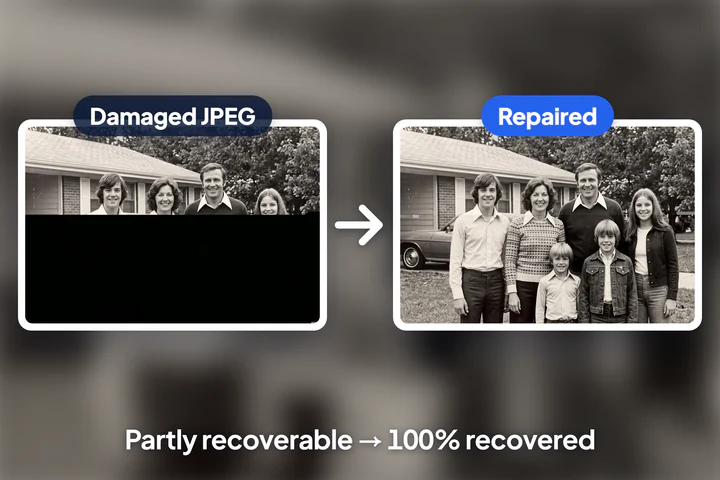
Rebuilding a wiped header
The first few kilobytes of a JPEG contain the tables needed to decode everything after them. Lose those and even a file whose picture data is intact will not open anywhere. The tables are not unique to the photo, though: a camera writes the same ones for every shot at a given quality setting.
Check first whether the tables are really gone. Often only the first two bytes are missing, or a recovery tool wrote junk in front of the photo: the tables are still in the file, just not where a viewer looks. Photo Repair finds them by following the segment lengths and rebuilds the photo on its own, without a reference.
That is what the reference-photo method uses. To give it the best chance:
- Choose a photo from the same device and the same day, saved at the same quality. Burst shots and photos edited afterwards are poor references.
- Match the orientation. The repair tries the reference size both ways round, but if your damaged photo was cropped or shot in a different mode, type its real size under Picture size.
- Compare every option. Each starts reading the picture at a different byte. The correct one looks clean from the top-left corner; the others show a few noisy blocks first or a colour cast.
Fix it by hand, block by block
The automatic corrections only act where they find clear evidence of damage. When a result is close but a stretch of blocks still sits a little to the side, or the colour jumps again further down, take over yourself: every JPEG result has a Fix by hand button. It opens the picture with its block grid and the damage map, starting from that result’s corrections.
- Shift. Click the first block that is out of place and press → or ← (with Shift for 8 blocks, ↑/↓ for a whole row). The page inserts or removes whole blocks at that point in the file’s order, so everything after it moves together, the way an MCU editor works. Drag across blocks to move only a band.
- Colour. From the selected block on, slide brightness and the two colour channels, or press Match the row above to measure the jump for you.
- Size. Diagonal stripes mean the header has the wrong width. Change it one block column at a time until the stripes stand straight.
- Cut from here. Turns everything after a block grey, to drop garbage at the end of a file.
Every step can be undone. The download is a JPEG put back together from the file’s own compressed blocks, without re-compression: only the blocks you moved, recoloured or cut change, and the page says so when it saves. Blocks you inserted, or mark as damaged, are selected for you when you choose Fill damaged area in Pro editor.
Patch the grey blocks
Missing data cannot be restored, but it can often be painted over convincingly, especially in skies, walls and backgrounds.
- On the result you want, click Fill damaged area in Pro editor. The editor opens the picture with the damaged blocks already selected.
- Choose Edit › Content-Aware Fill. It fills the selection with texture sampled from the rest of the photo.
- For faces or text, undo and work smaller: shrink the selection, or use the Clone Stamp and Healing Brush by hand. The object removal guide covers those tools.
- Export with File › Export As when you are happy.
When most of a photo is grey, the built-in preview may be the better keepsake even at a smaller size. Many phones store one about 1,600 pixels wide next to the main image.
PNG, GIF, WebP, HEIC, PSD, RAW, TIFF and BMP
- PNG protects every chunk with a checksum. One changed byte makes most programs reject the whole picture, even though the pixel data may be readable. Photo Repair ignores the checksums, keeps every complete row of a cut-off PNG and can write a copy with corrected checksums.
- GIF stores frames one after another. A cut-off animation keeps every frame before the cut, unchanged, plus the readable part of the last one.
- WebP wraps its data in a container that records its own size. When that number is wrong, decoders give up; rewriting the container fixes it. Browsers refuse a WebP whose picture data is cut off or damaged, so Photo Repair decodes it itself: a lossy WebP keeps every 16 × 16 block before the cut, a lossless one every row, transparency included, and the rest is grey. WebP data cannot be picked up again after a damaged byte, so everything after the damage is lost; a wiped stretch is found exactly, other damage is estimated and marked.
- HEIC photos from iPhones are stored as a grid of 512-pixel tiles plus a small thumbnail. If the file is cut off, the complete tiles, the readable start of the tile the cut went through and the thumbnail can still be decoded and put back in place. If its first bytes were wiped, the header is written again from the item table that says where each tile is; if that table is gone too, a healthy HEIC from the same phone, added as the reference photo, lends its table. The rebuilt file keeps the photo’s own date and location when the damaged file still has them; the reference photo’s details are left out, since they belong to another picture. HEVC decoders draw garbage instead of reporting damaged data, so each tile is compared with the thumbnail and the ones that differ are marked; blocks that came out as the decoder’s flat green or grey are marked even when there is no thumbnail.
- PSD files from Photoshop hold the layers one after another and, at the end, a flattened copy of the whole picture. Photoshop refuses the whole file over one broken section; Photo Repair reads each part on its own. Every layer that survived goes into a new PSD, a layer cut off partway keeps its complete rows, and lost layers stay in the list with their names and the reason. The thumbnail near the start of the file is often all that survives a badly cut file. A wiped header or a wrong section length is measured from the file and written again, which gives back the original untouched. Large-document PSB files are read too. More in opening PSD files.
- Camera RAW files (CR2, CR3, NEF, ARW, DNG, RAF, ORF, RW2 and others) carry ready-made JPEG previews beside the sensor data, and on most recent cameras the biggest one is full size. A cut-off RAW usually loses sensor data rather than previews, which tend to be stored early in the file. Photo Repair finds them through the file’s directories, or by scanning when the start is overwritten, decodes the readable part of a cut-off one and names the camera, and says whether the sensor data is complete — for Panasonic RW2, which does not record its length, worked out from the sensor size. Photo Repair recovers previews only; when the sensor data is complete, open the file in the Pro editor, which develops it.
- TIFF compresses its picture in independent strips or tiles, so each is decoded on its own and a broken one leaves a grey band rather than garbage. Multi-page files are recovered page by page. When only the header or the pointer to the directory is damaged, the directory is found by searching and a lossless copy with the links rewritten is offered.
- BMP stores raw pixel rows, bottom row first. A short file therefore loses the top of the picture. If the header is overwritten, the row length can be measured from the pixels, since each row resembles the one above it, and a new header is written.
When repair is impossible
Be suspicious of any tool that promises to fix everything. These cases cannot be repaired:
- Deleted photos and formatted cards. The files have to be found first by data recovery software. The free, open-source PhotoRec is a reliable choice; run it on the card or a disk image, then repair what it finds.
- Files full of zeros. A file that reports its full size but contains only zeros was allocated and never written, often after a crash. The picture is not in it.
- Encrypted files. Ransomware leaves files that look like random noise, often with an extra extension. No repair can reverse that; only a backup or the matching decryptor can.
- Overwritten files. If another file was saved over the photo, the bytes now belong to that other file.
In all of these, look for another copy: cloud photo libraries, the original phone, chat apps that kept a sent version, or an older backup drive.
How to avoid corrupted photos
- Always eject a card or phone before unplugging it, and never pull a card while the camera is still writing.
- Replace cards that throw errors, and format them in the camera rather than on a computer.
- Leave some free space: cards that fill up mid-shot produce cut-off files.
- After copying, open a few photos from the copy before deleting anything from the card.
- Keep two copies in different places; one of them can be a cloud library.
Try it in Photoyam
Diagnose a damaged photo, compare every repair side by side and patch the gaps with Content-Aware Fill, all in your browser without uploading anything.
FAQ
Can a corrupted JPEG be fixed completely?
Only when the picture data itself is intact, for example when just the end marker is missing or the header can be rebuilt from a reference photo. When bytes of picture data are lost, the blocks they held are gone and can only be painted over.
Why does my photo look fine as a thumbnail but broken when opened?
Cameras store a small separate preview inside each photo. File browsers show that preview, which is often intact, while the full picture behind it is damaged. Photo Repair offers that preview as one of the results.
Does the repair change my original file?
No. The page reads the file and creates new results for you to download; the file on your disk is never written to.
Which reference photo should I use for the header rebuild?
A healthy JPEG from the same camera or phone, at the same quality setting and ideally from the same day and orientation. A photo edited in another app afterwards usually has different tables and will not work.
Can a damaged RAW, TIFF or BMP file be saved?
Usually in part. A RAW file keeps finished JPEG previews next to its sensor data, and Photo Repair recovers the largest one that survived. A TIFF keeps every intact strip or tile, and a BMP whose header is gone can be rebuilt because its size shows in the pixel rows.