How to Make a GIF From a Video
A good GIF is rarely the whole video. It is two or three seconds of the right moment, at a sensible size, with just enough frames to look smooth. This guide shows how to pick that moment from an MP4, MOV or WebM clip, how frame count and size drive memory and file size, and how to export a GIF that loads quickly.
When a GIF beats a video
Video files are smaller and smoother than GIFs, so a GIF is worth making only when it does something a video cannot. In practice that means:
- Places that do not play video inline. Many email clients, issue trackers, wikis and older forums show a GIF as an image but turn a video into a link or an attachment.
- Short UI demos. A three-second loop of a button being clicked explains a bug report or a changelog entry better than a paragraph, and it starts playing without anyone pressing play.
- Reactions and memes. Chat apps and comment sections often accept a GIF where they would reject an MP4.
- Loops with no controls. A GIF has no play bar, no sound and no autoplay rules to fight with; it simply loops.
If the destination plays video well, such as a website you control, keep it as a video. A ten-second clip that is a few megabytes as MP4 can easily become tens of megabytes as a GIF.
What happens when a video becomes a GIF
A video stores frames at a fixed rate, typically 24, 30 or 60 per second, and compresses them by describing how each frame differs from its neighbors. A GIF is much simpler: a list of still pictures, each with at most 256 colors and its own delay, the time it stays on screen, stored in hundredths of a second.
Converting therefore happens in two stages. First, Photoyam decodes the frames you chose from the video into full-color images, one layer per frame, with a frame animation that records each frame’s delay. Second, Save for Web encodes those frames as a GIF: it reduces every frame to a palette of up to 256 colors, optionally dithers to hide banding, and compresses the result.
Decoding uses WebCodecs when your browser supports it for the file: the frames come out exactly as they are stored, with their real timestamps. When it does not, Photoyam falls back to seeking the video to each point in time and grabbing the picture. That path is slower and has to estimate the frame rate (the dialog says which path it is using under the settings), but it works for any clip the browser can play.
Step by step: make a GIF from a video in Photoyam
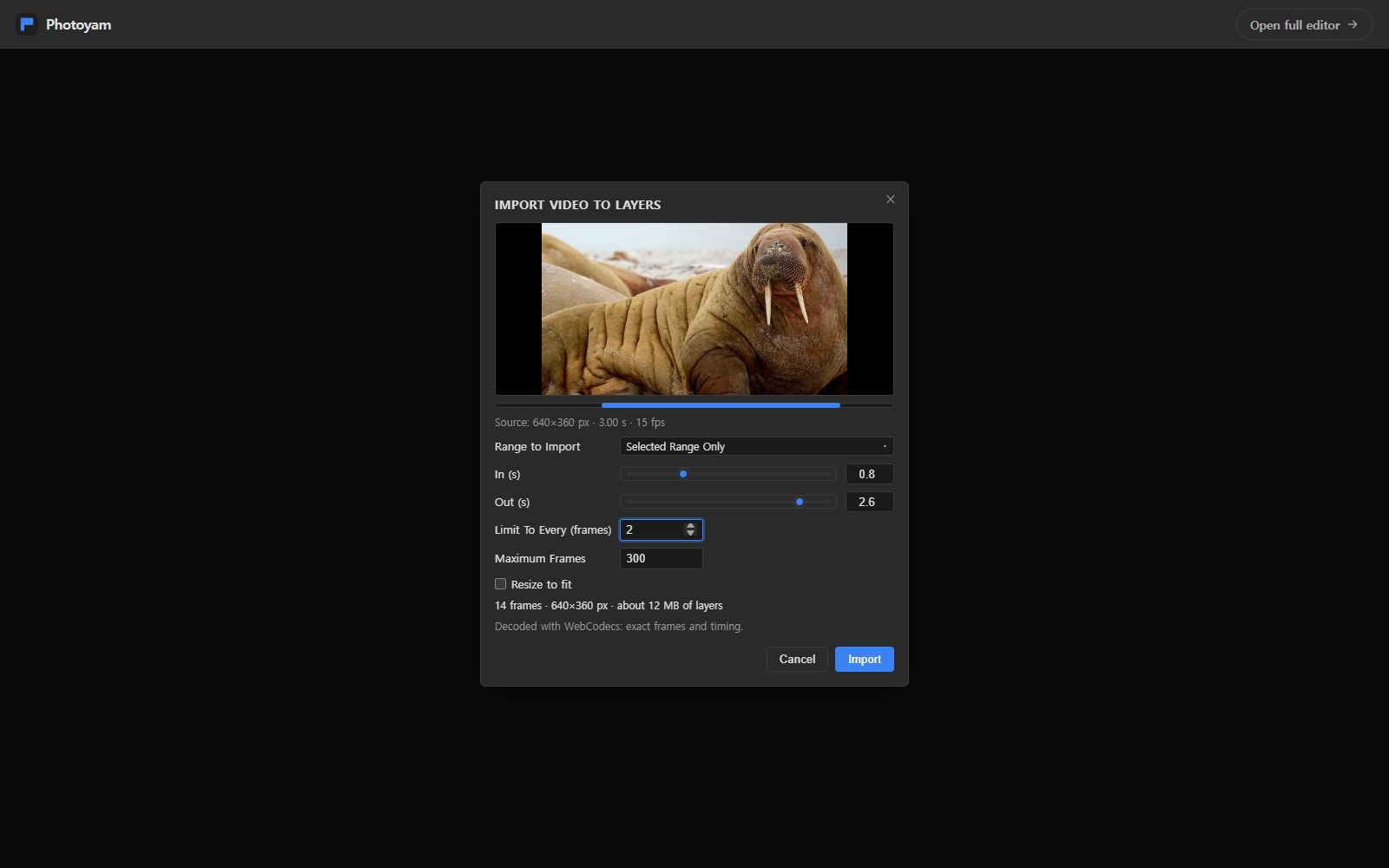
- Open the clip. Go to the Video to GIF tool and choose an MP4, MOV, M4V, WebM, MKV or OGV file, or drop it on the page. In the full editor the same dialog is under File › Import › Video Frames to Layers…. The Import Video to Layers dialog opens with a preview and a line such as “Source: 640×360 px · 3.00 s · 15 fps”.
- Trim to the moment. Set Range to Import to Selected Range Only, then drag the In (s) and Out (s) sliders or type exact times. The preview jumps to the frame under each handle, and the blue bar above the source line shows the part of the clip you kept.
- Thin out the frames. Limit To Every (frames) keeps one frame out of every N. At 2, a 30 fps clip becomes 15 frames per second; at 3, ten. Each kept frame stays on screen until the next kept one, so the motion keeps its real speed, just with fewer steps.
- Check the frame cap and size. Maximum Frames is 300 by default and goes up to 3,000. If the range would produce more, a warning says only the first frames will be imported. Tick Resize to fit and set Max Dimension (px), 1280 by default, to shrink large clips as they are decoded.
- Read the summary, then import. The summary line shows the frame count, pixel size and “about N MB of layers”. When it looks reasonable, click Import. A progress bar counts the frames as they decode.
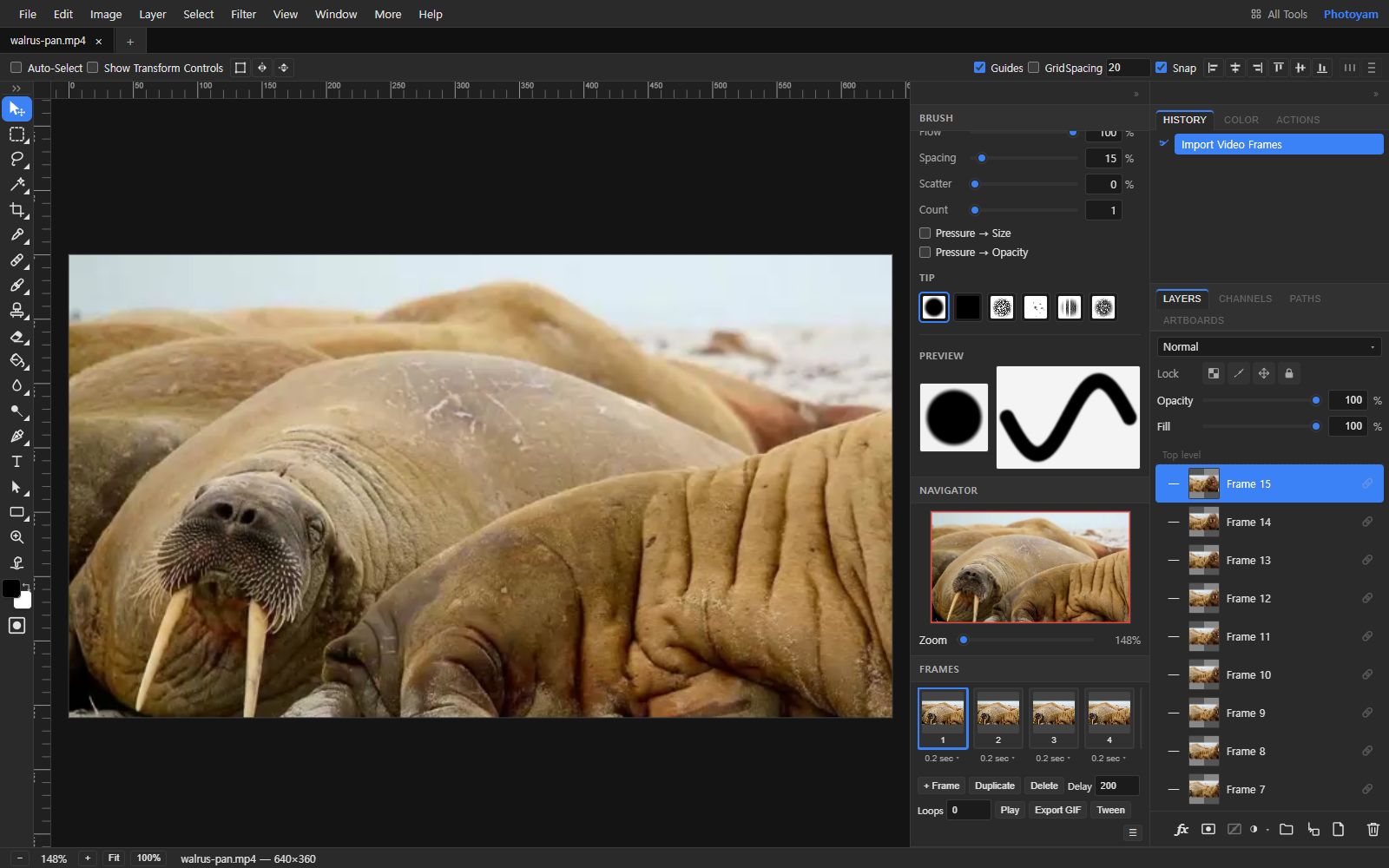
- Export as GIF. On the Video to GIF page, Save for Web opens with GIF selected as soon as the frames are ready. In the editor, use File › Export GIF or the Export GIF button in the Frames panel. Pick Colors, Dither and Lossy, set the Width or Percent, watch the Estimated size, and click Export.
Frames, size and memory: doing the math
Every imported frame is an uncompressed layer of width × height × 4 bytes. That is what the dialog’s “about N MB of layers” reports, and it is the reason for the frame cap. Some examples for a 3-second clip at 30 fps:
| Settings | Frames | Approximate memory |
|---|---|---|
| 1920×1080, every frame | 90 | about 712 MB |
| 1280×720, every frame | 90 | about 316 MB |
| 1280×720, every 2 frames | 45 | about 158 MB |
| 480×270, every 2 frames | 45 | about 22 MB |
Above roughly 1.5 GB the dialog warns that the browser may run out of memory, and it turns Resize to fit on by itself when a full-size import of the whole clip would be that large. A phone has far less room than a desktop, so on mobile aim for the bottom rows of the table.
The same two numbers, pixels and frames, also decide the size of the finished GIF. For a GIF that will be viewed in a chat window or a README, a long edge of 480 to 640 pixels and 10 to 15 frames per second usually look smooth while staying at a few megabytes or less. Thin the frames at import time rather than afterwards: frames you never decode cost neither memory nor time.
Polish the frames before you export
After the import, the clip is an ordinary animated document, so the whole editor is available. On the Video to GIF page, click Open full editor in the top bar to get the Frames and Layers panels. The edits that matter most for GIFs:
- Cut dead frames. Click a frame in the Frames panel (Shift-click for a range) and press Delete. Trimming a slow start or a blink at the end shortens the loop and the file.
- Change the pace. The Frames panel menu has Set Speed… (0.25× to 4×) and Set Frame Delay… for the selected frames. Giving the last frame a longer delay makes the loop restart feel intentional.
- Add a caption. A new layer added to an animated document shows in every frame, so you can type a caption once with the Type tool and it stays put through the whole loop.
- Crop to the action. Cropping the canvas crops every frame. Removing empty sky or a static sidebar is often the biggest size saving available.
Troubleshooting
“This browser can’t decode this video file”
The file opened but the codec inside it is not one your browser can decode, which happens with some HEVC (H.265) phone recordings. Try a different browser, or export the clip again as an H.264 MP4 or a VP9 WebM.
The frame rate says “estimated”
The seek fallback is in use, so Photoyam measured the frame rate by playing the video briefly, or assumed 30 fps if it could not. Timing may be off by a frame here and there. If it matters, check the delays in the Frames panel and even them out with Set Frame Delay….
The GIF looks blotchy or banded
That is the 256-color limit at work on smooth gradients such as skies and skin. In Save for Web keep Dither on Diffusion, keep Colors at 256 and leave Palette on Auto. If the file then gets too large, reduce the dimensions before you give up colors.
Common mistakes
- Importing the whole clip. A GIF of a full 30-second video will be huge and few people watch it to the end. Pick the two or three seconds that matter.
- Keeping 60 fps. Most GIF viewers cannot show frames faster than about 0.02 s each. Use Limit To Every 2 to 4 on high-frame-rate clips.
- Exporting at full HD. Pixel count multiplies everything. Most GIFs are seen small; 480 to 800 pixels wide is plenty.
- Using a GIF where a video would do. If the platform plays MP4, a short MP4 is smaller and sharper.
Try it in Photoyam
Pick a range from your clip, choose how many frames to keep, and export a GIF. Free, no sign-up, and the video never leaves your device.
FAQ
Is my video uploaded to make the GIF?
No. The video is decoded, turned into frames and encoded as a GIF by code running in your browser tab. Nothing is sent to a server, and closing the tab discards it.
Does the GIF keep the sound?
No. The GIF format has no audio track, so only the pictures are imported. If you need sound, keep the clip as a video.
Why does the import stop at 300 frames?
Maximum Frames starts at 300 because every frame becomes a full-size layer in memory. You can raise it to 3,000, but it is usually better to shorten the range or use Limit To Every so the frames cover the part of the clip you need.
My video will not open. What can I do?
If the dialog says the browser can't decode this video file, the codec inside it is not supported by your browser. Try another browser, or save the clip again as an H.264 MP4 or a VP9 WebM with your phone or video app first.