Turn any clip into a looping GIF
Pick the part of a video you want, choose how many frames to keep and how big they should be, then export a GIF with exactly the colors and loop setting you need. Everything happens in this browser tab.
From clip to GIF in three steps
- 1
Choose your video
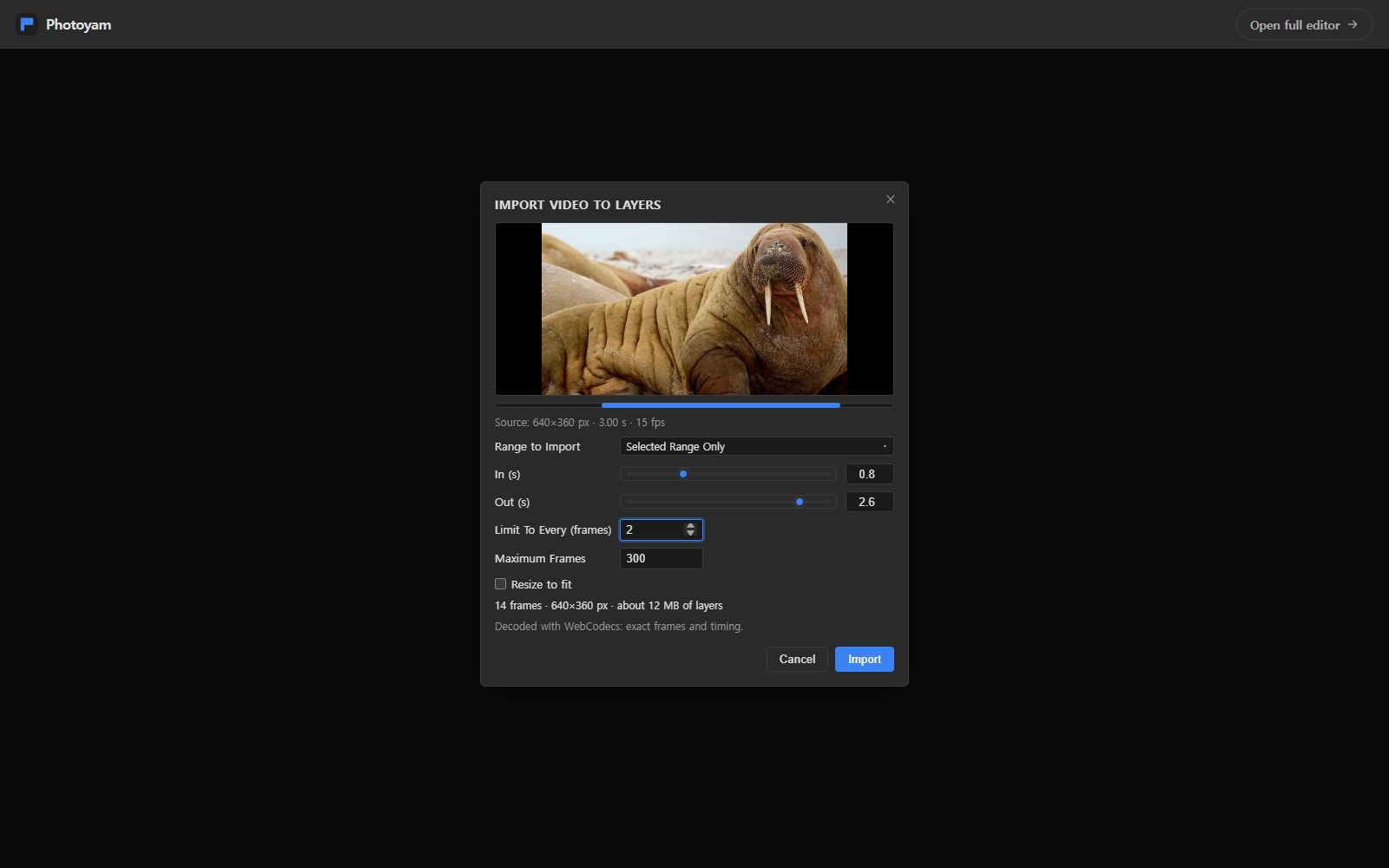
Pick an MP4, WebM or MOV file, or drop it on the page. It opens in a focused view of the Photoyam editor with the Import Video to Layers dialog ready.
- 2
Trim and thin out frames
Keep the whole clip or set In and Out points, keep every Nth frame and resize if the clip is large. A live summary shows the frame count, size and memory before you import.
- 3
Export the GIF
After Import, Save for Web opens with GIF selected. Set colors, dither, lossy and looping, check the estimated size and press Export to download.
What happens to your video
A video file stores its pictures compressed against each other, plus a timestamp for every frame. A GIF stores a short list of full pictures, each with its own delay. Converting one to the other means decoding the frames you want, keeping their timing, and then compressing them again with GIF's 256-color palette.
Photoyam does this in two stages, the same way a desktop editor would:
- Import: the frames in your chosen range are decoded and become one layer each, with a frame animation on top. Each frame's delay comes from the real timestamps in the video, rounded to 0.01 s because that is the finest step a GIF can store.
- Export: Save for Web reduces each frame to at most 256 colors, optionally dithers, stores only the pixels that change between frames, and writes the GIF.
When the browser supports WebCodecs, frames are decoded exactly with their true timing, and the dialog says "Decoded with WebCodecs: exact frames and timing." Otherwise it falls back to seeking the video element frame by frame, which is slower and has to estimate the frame rate; the dialog tells you when that happens.
The import settings explained
| Setting | What it does | Range |
|---|---|---|
| Range to Import | The whole clip, or Selected Range Only with In and Out times. Moving a handle scrubs the preview to that moment. | 0.01 s steps |
| Limit To Every (frames) | Keeps one frame out of every N. The kept frame's delay grows to cover the skipped ones, so the GIF plays at the original speed. | 1 to 1,000 |
| Maximum Frames | A safety cap; frames after it are dropped and the dialog warns you. | Default 300, up to 3,000 |
| Resize to fit | Scales the long edge down to Max Dimension. It never enlarges. | Default 1,280 px |
Each imported frame is a full-size layer in memory: width × height × 4 bytes. The summary line ("14 frames · 640×360 px · about 12 MB of layers") updates as you change settings. If a full-size import would need more than about 1.5 GB, Resize to fit is ticked for you and a warning appears.
For a GIF, fewer and smaller frames matter more than anything else. A phone clip at 30 frames per second with Limit To Every set to 2 or 3 still looks smooth at 15 or 10 frames per second, and it cuts the frame count, the import memory and the final file size at the same time.
Your video never leaves your device
The clip is read, decoded and turned into a GIF by code running in this tab. Photoyam has no upload server, so private recordings stay on your computer or phone, and closing the tab discards everything.
Questions & answers
Which video formats can I convert?
Any video your browser can decode. MP4 (H.264) and WebM play in all current browsers; MOV and MKV work when they use a codec the browser supports, such as H.264. If a file can't be read, the dialog says the browser can't decode it; re-saving it as MP4 usually solves that.
How long can the video be?
There is no fixed length limit, but every imported frame is kept in memory at full size. Use Selected Range Only, Limit To Every and Resize to fit to keep the summary's memory figure reasonable; the dialog warns you above about 1.5 GB. GIFs are meant for short loops, and a few seconds is typical.
Will the GIF play at the same speed as the video?
Yes. Delays come from the video's own frame timestamps, and when you keep only every Nth frame the kept frames last longer to cover the gap. Delays are rounded to 0.01 s, the precision of the GIF format.
Is the sound kept?
No. The GIF format has no audio track, so only the pictures are converted. If you need sound, keep the clip as a video.
Why is my GIF so large?
GIF compresses far less efficiently than modern video, so every extra frame and pixel adds up. Reduce the frame count with Limit To Every, lower the size with Resize to fit or the Width field in Save for Web, and try fewer colors or a Lossy value in Save for Web. The estimated size updates as you change them.
Can I edit the frames before exporting?
Yes. Click Open full editor to see the Frames panel, where you can delete, reorder or retime frames, add a caption that appears on every frame, and then export with File ▸ Export GIF.
Good uses for a video-to-GIF conversion
- Bug reports and documentation: a three-second screen recording of a problem, as a GIF, plays inline in issue trackers and wikis that don't embed video.
- Product demos: show a gesture, a hover effect or an unboxing moment as a silent loop on a product page or in an email, where autoplaying video is often blocked.
- Reactions and memes: trim the exact half-second that matters with In and Out, then add a caption in the full editor.
- Slides and chat: a GIF drops into presentation software and messaging apps that treat it as an image.
If you cancel the import dialog, you return to this page, and nothing has been saved anywhere. Once the frames are imported, the result stays on screen with a Download button, so you can export again with different GIF settings.
Learn more