Rotate & straighten in a click
Give a photo a quarter turn either way, turn it upside down, or set any angle to a tenth of a degree to level a horizon. A small tilt is cropped to a clean rectangle; for bigger angles the canvas grows so no corner is cut off.
Tip: your phone's file picker also lists Dropbox and Google Drive when their apps are installed.
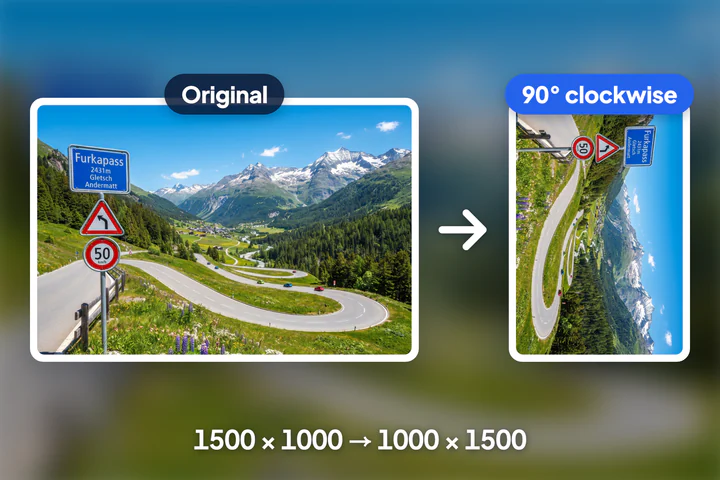
Rotation options
- 1
Quarter turns
90° clockwise is selected when the page opens. 90° counter-clockwise and 180° sit next to it for sideways and upside-down shots.
- 2
Any angle or straighten
Choose Any angle or straighten, then drag the Straighten slider under the picture, tap the ±0.1° and ±1° steps, or type any number of degrees. ⟲ 90° and ⟳ 90° add quarter turns. Positive numbers turn clockwise, negative ones counter-clockwise.
- 3
Corners
An angled turn leaves four empty wedges. Automatic crops a tilt of up to 10° to the largest rectangle with the photo's shape and keeps the whole photo for bigger turns. Crop to fill always crops; to keep every pixel, choose transparent corners (PNG, WebP) or white ones. A JPG has no transparency, so its corners are white.
- 4
Save as
The original format is kept unless you pick JPG, PNG or WebP. JPG and WebP are written at quality 92, and the file is named
name-rotated. Mirror left–right and Flip top–bottom can be ticked as well.
What a rotation does to a 1200 × 800 JPG
| Rotation | Output size | File |
|---|---|---|
| 90° clockwise | 800 × 1200 | 107 KB (+23%) |
| 15°, saved as JPG | 1366 × 1083 | 145 KB, white corners |
| 15°, saved as PNG | 1366 × 1083 | 836 KB, transparent corners |
| −2.5°, whole photo kept | 1234 × 852 | 131 KB |
| −2.5°, cropped to fill (Automatic) | 1125 × 749 | no empty corners |
The quarter turn simply swaps width and height. It still grew by almost a quarter, because the JPG is decoded and saved again at quality 92; this is not the block-level lossless JPEG rotation some desktop tools perform. For the 15° turn the new canvas is as wide as the tilted photo reaches: 1200 × cos 15° + 800 × sin 15° ≈ 1366 pixels. Kept whole, even a small correction like −2.5° adds 34 pixels to the width and 52 to the height, which is the room the corners need. Corners on Automatic crop that tilt instead: the largest 3:2 rectangle inside the turned photo is 1125 × 749.
The turn is computed on your device
Scans of receipts, passports and signed forms often come out crooked. Straightening them here does not involve sending the scan to any server.
Questions & answers
My phone photo looks upright here but sideways elsewhere. Why?
Phones often store the pixels sideways and add an EXIF orientation tag. Photoyam applies the tag when it opens the file, and the saved copy stores the pixels upright with no tag, so apps that ignore the tag show it correctly too. Only rotate if the preview here still looks wrong.
How do I remove the empty corners after straightening?
They are cropped off for you. With Corners on Automatic, a tilt of up to 10° is trimmed to the largest rectangle with the photo's own shape: after a −2.5° turn our 1200 × 800 photo is saved as 1125 × 749 with no wedges. Choose Crop to fill to do the same for bigger angles, or keep the whole photo (1234 × 852) with transparent or white corners.
Does rotating a JPG reduce its quality?
Every save re-encodes it. One pass at quality 92 is very hard to see, but turning the same JPG back and forth many times adds up. Make all your turns in one go, or keep a PNG while you are still editing.
Is −90 the same as 270?
Yes. Both end up as a quarter turn counter-clockwise, the same as the 90° counter-clockwise button. Any angle outside −180 to 180 is wrapped the same way, and the page shows the turn it saves: typing 999 shows −81°.
Can I rotate a whole batch by the same amount?
Yes. Every file you add gets the same setting, and the results can be saved together as a ZIP. For PDF pages, use Organize PDF instead.
Quarter turn, free angle or straighten?
Quarter turns fix a photo that opens on its side or upside down. Because the angle is a multiple of 90°, no pixel is moved off the grid and nothing is blurred.
A free angle is for a deliberate tilt, such as a dynamic product shot or a diagonal banner. The image has to be resampled, so very fine patterns can soften slightly.
Straightening is the small version of the same thing. Hand-held photos often lean by one to three degrees; find a line that should be level, such as the sea, a shelf or a roof edge, and drag the slider until it runs along the grid over the picture. The corner wedges are cropped off and the photo keeps its shape; for any other framing, use the Crop page.
If you only need a mirror image rather than a turn, use Flip. The guide on how to rotate, straighten and flip photos walks through all three with examples.
Learn more