How to Rotate, Straighten and Flip Images (and Fix Sideways Photos)
Turning a picture sounds trivial until a photo that looks fine on your phone arrives sideways in an email, or a tilted horizon leaves you with odd empty corners. This guide explains why photos end up sideways, how quarter turns differ from small tilts, when mirroring an image matters, and how to save the result without surprises.
Why photos show up sideways: the EXIF orientation tag
A camera sensor always records the scene in the same orientation, whichever way you hold the phone. Instead of physically turning every portrait shot, the camera saves the pixels as they came off the sensor and adds a small note to the file’s EXIF metadata: the Orientation tag. It tells viewing software how to turn the image for display.
The tag holds a number from 1 to 8. The ones you meet in practice are:
- 1: display as stored (no turn needed).
- 6: rotate 90° clockwise to display. Typical for a phone held upright.
- 8: rotate 90° counterclockwise.
- 3: rotate 180°, for a camera held upside down.
Values 2, 4, 5 and 7 add a mirror flip and are rare in camera files. The problem appears when software ignores the tag. Your phone’s gallery honors it, so the photo looks right; an older program, some upload forms, or a tool that strips metadata without turning the pixels shows the raw, sideways data instead. The file is not broken. The instruction for displaying it is just being skipped.
The durable fix is to turn the pixels themselves and save a file that needs no tag at all. It then displays correctly everywhere, whether or not a viewer reads EXIF.
How Photoyam handles it
Photoyam decodes images with your browser’s built-in decoder, and current versions of the major browsers apply the orientation tag when they decode. So a phone photo normally opens upright, the way your gallery shows it. When you export, Photoyam writes a brand-new file from the pixels on screen: the image is saved physically upright, and no EXIF data is carried over. That also means other metadata, such as the camera model and any GPS location, is not included in the exported copy.
If a photo still opens sideways in Photoyam, the pixels themselves are sideways (the tag was lost somewhere along the way). A single 90° turn, as described below, fixes it for good.
Quarter turns vs any-angle rotation
Rotations by 90°, 180° and 270° are special. Every pixel lands exactly on another pixel position, so nothing is blended or estimated. The width and height simply swap for a quarter turn: a 4000×3000 photo becomes 3000×4000. No detail is lost.
Any other angle is different in two ways:
- Resampling. Rotated pixels fall between grid positions, so each new pixel is calculated from its neighbors. A single small rotation softens the image very slightly; it is invisible at normal viewing sizes, but rotating the same image over and over compounds it. Decide on the angle, then rotate once.
- Geometry. A tilted rectangle no longer fits the old frame. Either the canvas grows to hold it, or the corners are clipped. In both cases, empty triangles appear in the corners.
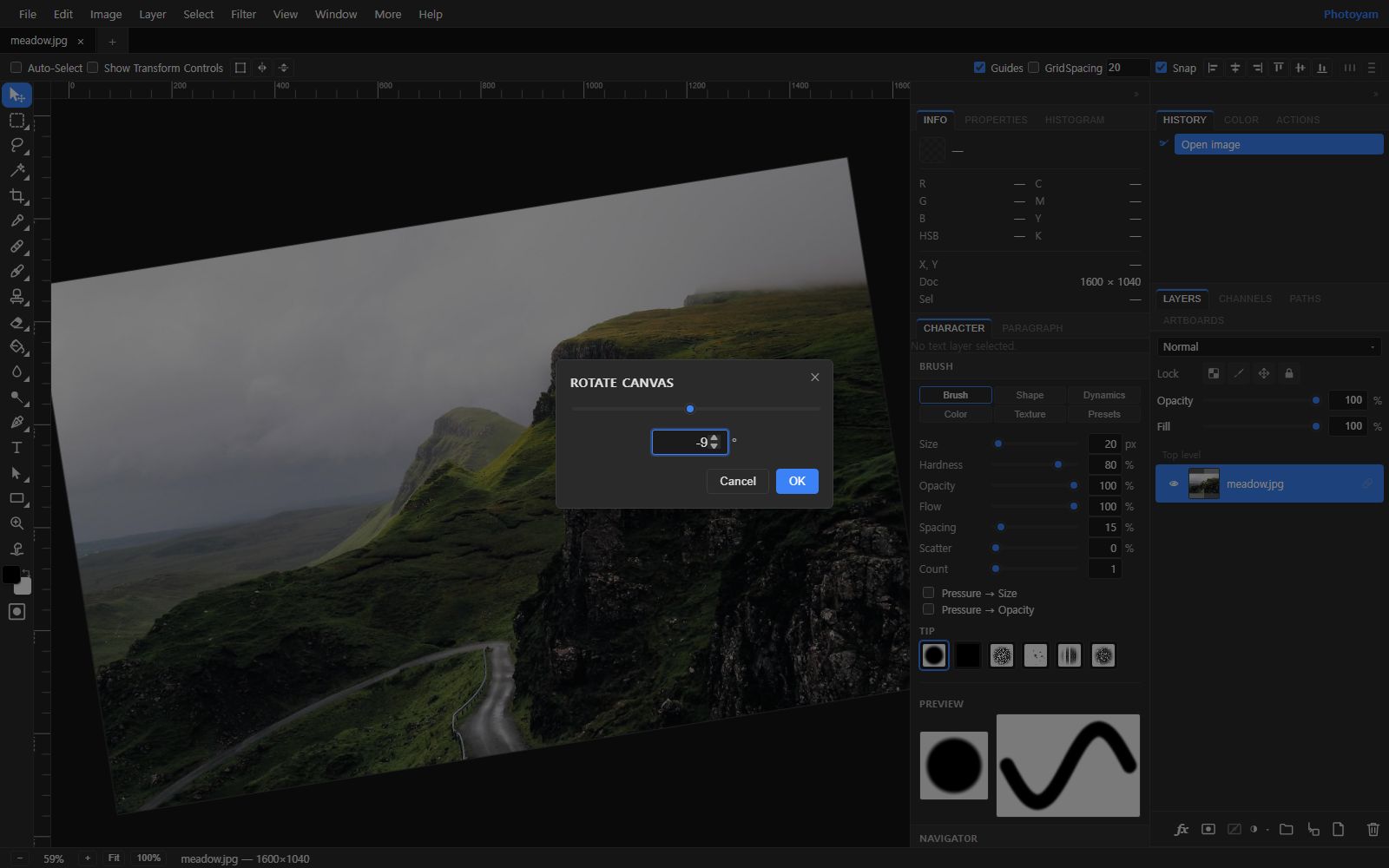
In Photoyam, Image › Image Rotation › Arbitrary… grows the canvas: a 1600×1040 photo rotated by 9° becomes about 1743×1278, with transparent corners. The Crop tool’s Straighten button (and the Ruler tool’s) instead keeps the canvas size, so the photo’s own corners are clipped and transparent gaps appear at the edges.
You then have three ways to deal with those corners:
- Crop them away. The usual choice for photos. Use the Crop tool and keep the box inside the picture.
- Fill them. Draw around one empty corner with the Lasso tool, taking in a sliver of the photo along the edge, then use Edit › Content-Aware Fill to synthesize matching texture. Repeat for each corner. This works well on sky, grass or sand, less well on detailed edges.
- Leave them transparent. Fine for a PNG or WebP that will sit on a web page. A JPG cannot store transparency, so Photoyam fills those areas with white when you export as JPG.
Flipping: horizontal vs vertical
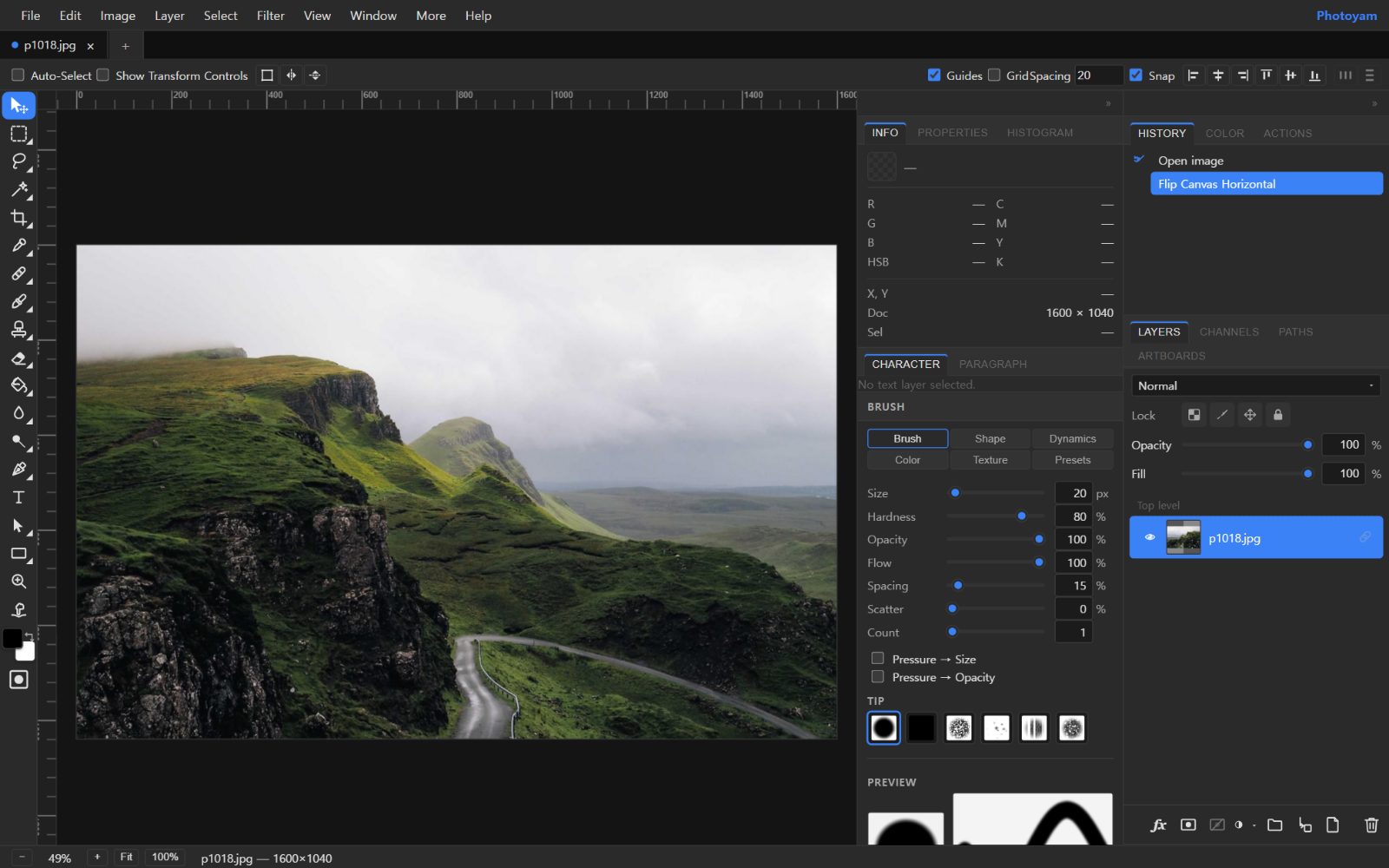
A flip mirrors the image. Flip horizontal swaps left and right, like looking in a mirror. Flip vertical swaps top and bottom, like a reflection in still water. Neither is a rotation: after a flip, the picture cannot be turned back to the original, only flipped back.
When mirroring matters:
- Text and logos. Anything with writing comes out reversed. Signs, T-shirts, number plates and brand marks are a giveaway that a photo was flipped.
- Selfies. A front camera preview shows you a mirror image, which is the face you are used to seeing. Many phones save the unmirrored version, which is how others see you, and some offer a setting to save it mirrored. If a selfie “looks off,” a horizontal flip usually brings back the familiar version; if there is text in the shot, leave it unflipped.
- Layout. Designers flip a photo so a person faces into a page rather than off its edge. Check for text, watches, and parted hair, which can make the flip obvious.
A useful fact: flipping horizontally and then vertically gives exactly the same result as rotating 180°.
Saving a rotated JPG: lossless vs re-encoding
JPG stores an image as compressed blocks of 8×8 pixels. A few specialized tools can rotate a JPG by rearranging those compressed blocks without decoding them, which is truly lossless (with a catch at the edges when the dimensions are not a multiple of the block size). Another approach is to change only the Orientation tag, leaving the pixels alone, which brings back the sideways problem in software that ignores the tag.
Photoyam, like most image editors, works on decoded pixels and compresses them again when you save a JPG. The rotation itself is exact for quarter turns, but the new JPG is a fresh round of compression. At a high quality setting the difference from one save is not visible. Repeating the save-open-edit cycle many times is what causes visible damage.
Step by step in Photoyam
Rotate or straighten
- Open the rotate tool. Go to the Rotate tool and choose or drop your photo. The Rotate Canvas dialog opens as soon as the image loads.
- Set the angle. Drag the slider (−180° to 180°) or type in the degrees field, which accepts decimals such as 1.5. Positive values turn clockwise, negative values counterclockwise. For a sideways phone photo, enter 90 or −90.
- Check the preview and click OK. The photo behind the dialog tilts live. Cancel leaves it untouched.
- Download. Click Download, choose JPEG, PNG or WebP, and click Export.
In the full editor, the same controls live under Image › Image Rotation: 90° Clockwise, 90° Counterclockwise and 180° for exact quarter turns, and Arbitrary… for the dialog above. For a crooked horizon, the Crop tool’s Straighten button lets you drag along the horizon instead of guessing a number.
Flip
- Open the flip tool. Go to the Flip tool and choose your image. It opens in the editor already flipped horizontally.
- Adjust if needed. For a top-to-bottom flip, choose Image › Image Rotation › Flip Canvas Vertical. To undo the automatic horizontal flip, choose Flip Canvas Horizontal again or use Undo.
- Export. Use File › Export As and pick PNG, JPG or WebP.
Flip Canvas mirrors the whole image. To mirror only one element in a layered design, select its layer and use Layer › Flip Horizontal or Flip Vertical instead.
Common mistakes
- Flipping when you meant to rotate. A sideways photo needs a 90° turn. Flipping it produces a mirrored, still-sideways image.
- Rotating in small steps. Five 1° nudges resample the image five times. Undo and apply one 5° rotation instead.
- Forgetting the corners. After an arbitrary rotation, check the corners before exporting. As a JPG they turn white.
- Straightening along a vertical line. The Straighten drag makes the line you draw horizontal. Draw it along a horizon, not a doorframe.
- Mirroring photos with text. Reversed lettering is the first thing people notice.
Try it in Photoyam
Rotate a photo by 90° or any angle with a live preview, or mirror it with the Flip tool. Free, no sign-up, and everything runs in your browser.
FAQ
My photo looks upright on my phone but sideways elsewhere. Why?
The pixels are stored sideways and a tag in the file tells viewers to turn them. Your phone reads the tag; the other app ignores it. Re-saving the photo with the pixels physically turned, and no tag, makes it display the same way everywhere.
Is rotating a JPG lossless?
A 90 or 180 degree turn does not change any pixel values, but saving the result as JPG compresses it again, which adds a small amount of loss. Export at a high quality setting, or save as PNG if you plan to keep editing. Photoyam does not offer the special block-level lossless JPEG rotation some command-line tools provide.
What is the difference between rotating 180 degrees and flipping?
A 180 degree rotation turns the picture upside down, so text is upside down but not mirrored: turn the screen around and it reads normally. A vertical flip mirrors the picture top to bottom, so text stays mirrored however you turn it. Flipping both horizontally and vertically gives exactly the same result as a 180 degree rotation.
Why is my rotated image bigger than the original?
When you rotate by an angle that is not a multiple of 90 degrees, the canvas grows so the tilted photo fits without its corners being cut off. The extra area is transparent. Crop it away, or fill it, before exporting.