Add text to a GIF, on every frame
Write a caption, a punchline or a watermark once and it shows on every frame of your animated GIF. Choose the font, size and color, place it where you want, and export a new GIF without leaving your browser.
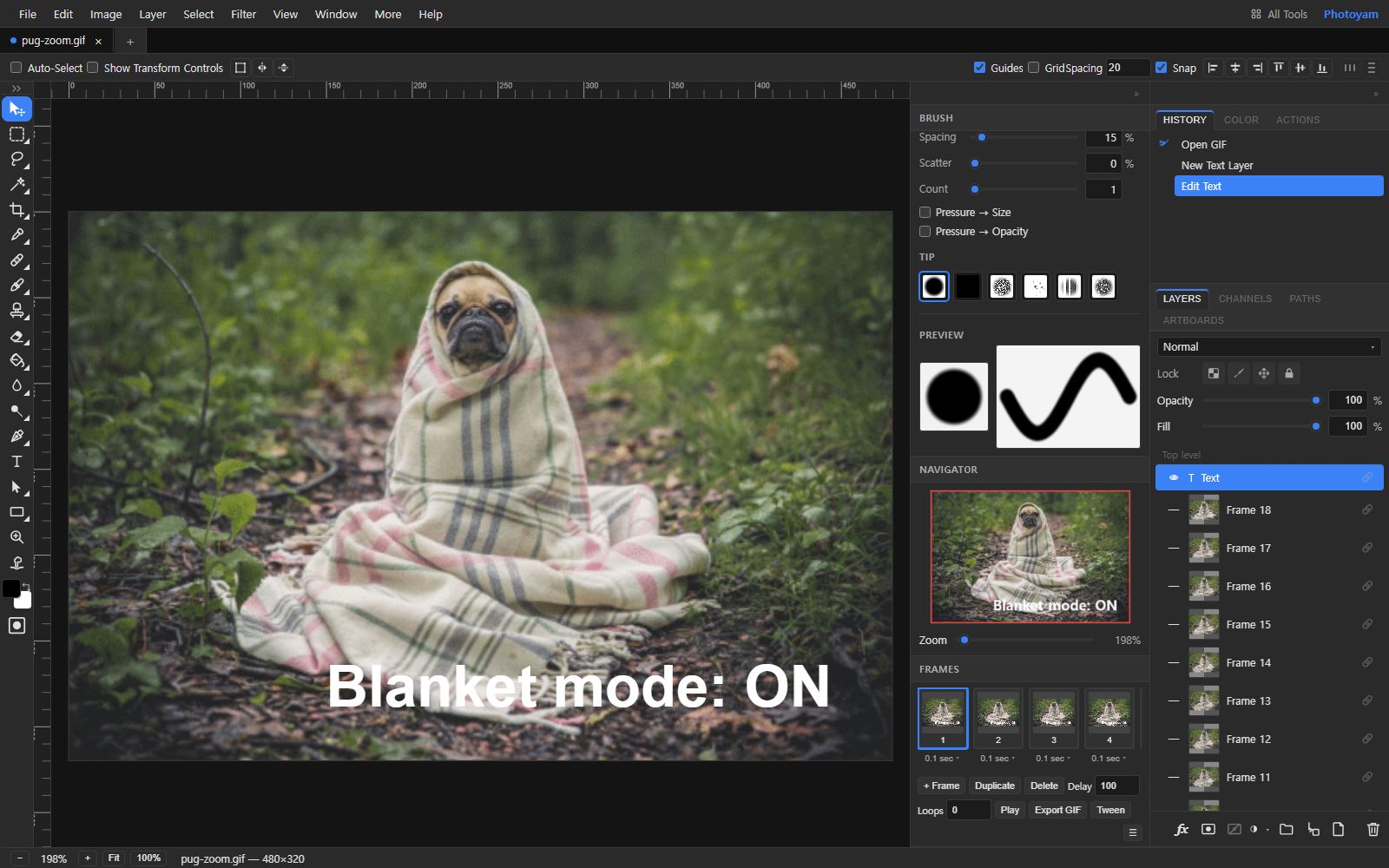
Captioned in three steps
- 1
Open your GIF
Choose a GIF or drop it on the page. It opens in the Photoyam editor with every frame as a layer and the Type tool already selected.
- 2
Click and type
Click on the image where the caption should go and type. Set the font, size, color and bold in the Character panel, then drag the text into place.
- 3
Export the GIF
Press Play in the Frames panel to check it, then use Export GIF (in the Frames panel or the File menu) and press Export in Save for Web.
Why the text shows on every frame
When a GIF opens in Photoyam, each frame becomes its own layer and a frame animation records which layers are visible in which frame. A layer you add afterwards, such as a text layer, isn't listed in any frame's record yet, so it simply stays visible in all of them. That is why one caption, typed once, appears through the whole animation.
The text layer sits at the top of the Layers panel, above the frame layers, so it is always drawn over the picture. It stays editable: double-click it with the Type tool to change the wording, or select it and change the Character settings, until you export.
Export turns everything into plain GIF frames. Save for Web composites each frame with the caption on top and reduces it to the GIF palette. Fonts are loaded before rendering, so a web font you picked is baked into every frame exactly as it appears on screen; the people who view the GIF don't need that font.
Making a caption readable
GIF captions are usually read at small sizes on a phone, over a moving background. A few settings make a big difference:
| Choice | Why it helps |
|---|---|
| Bold, plain sans-serif | Thin strokes break up when the GIF is reduced to 256 colors and scaled down. |
| Size of about a tenth of the GIF's height | On a 320-pixel-tall GIF that is 30 to 34 px, large enough to read in a chat thread. |
| White or yellow over dark areas | High contrast survives color reduction and dithering better than mid-tones. |
| Near the bottom, inside the frame | Keeps the subject visible and leaves a margin if the GIF is later cropped or rounded. |
If the background is busy, add a layer style such as a stroke or a drop shadow to the text layer, or put a semi-transparent shape layer behind it. Both are applied to every frame the same way the text is.
Your GIF never leaves your device
The GIF is opened, edited and exported entirely inside this browser tab. Photoyam has no upload server, so the original and the captioned version both stay on your device.
Questions & answers
Will the text appear on all frames?
Yes. A text layer added to an opened GIF is visible in every frame, so one caption covers the whole animation. You don't need to copy it frame by frame.
Can I show text on only some frames?
Yes. Select a frame in the Frames panel and hide the text layer with its eye icon in the Layers panel; the visibility is remembered for that frame. Repeat for each frame where the text should be hidden, then press Play to check.
Can I use different fonts?
Yes. The Character panel offers system fonts plus a range of web fonts, along with size, color, bold, italic, underline and spacing. The chosen font is rendered into the frames when you export, so it looks the same for everyone who views the GIF.
Does adding text change the speed or loop?
No. Frame delays and the loop setting stay as they were. You can still change them in the Frames panel, or set the loop in Save for Web's Looping options.
Why does my text look slightly rough after export?
GIF allows at most 256 colors per frame, so anti-aliased text edges are mapped to the nearest palette colors. Bold text, strong contrast and a higher Colors value in Save for Web keep edges clean; turning dither off can also help around text.
Can I add a watermark or logo instead?
Yes. Type your name or handle as a small, semi-transparent text layer in a corner, or use File ▸ Place to add a logo image. Like text, a placed layer appears on every frame.
Ideas for captioned GIFs
- Reactions and memes: a short line at the bottom turns a clip into a reply people can reuse.
- Tutorial loops: label the step being shown ("Step 2: drag to crop") so a silent GIF explains itself in documentation.
- Product and event teasers: add a date, a price or a call to action over a short loop for email and social posts.
- Credit and ownership: a small handle in the corner keeps your name on a GIF as it gets shared.
Learn more