Resize or crop a GIF, every frame
Set exact pixel dimensions for an animated GIF, or crop it to the part that matters, and the change applies to all frames at once. Then export it as a GIF again, right in your browser.
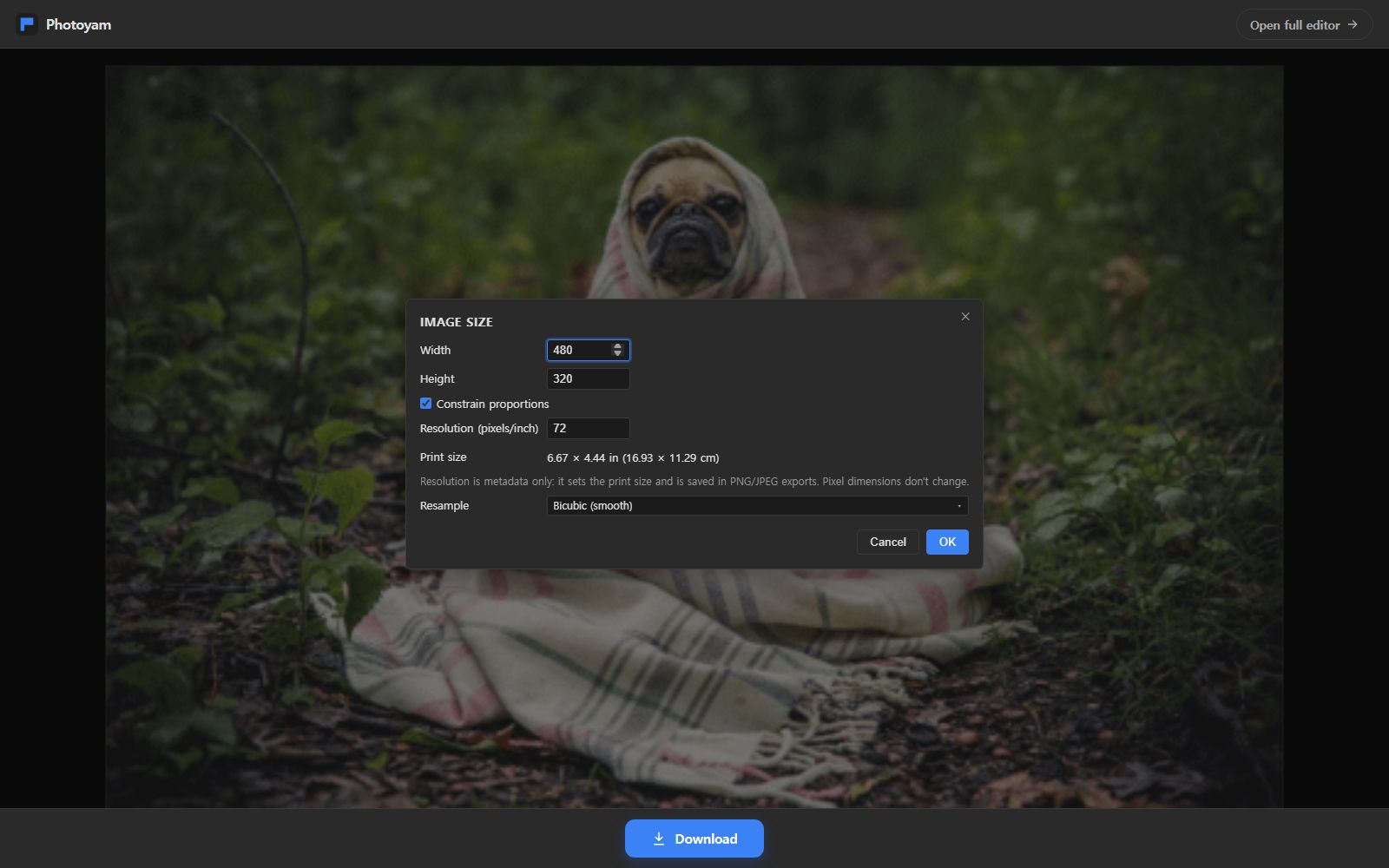
Resized in three steps
- 1
Open your GIF
Choose Resize a GIF, or Crop a GIF instead if you want to trim it. All frames open together as one animated document.
- 2
Set the new size
In Image Size, type a width or height; with Constrain proportions the other side follows. Pick how pixels are resampled and press OK.
- 3
Download the GIF
Press Download. Save for Web opens with GIF already selected, shows the estimated file size and exports your resized animation.
How resizing an animated GIF works
An animated GIF is a stack of pictures that share one canvas size. Many GIFs also store frames as small patches that only cover the area that changed. Resizing one patch on its own would break the animation, so Photoyam first rebuilds every frame as a full picture, one layer per frame, and then scales all of them by the same amount. The result is a normal animated document that you can export as a GIF again.
Shrinking a GIF has a large effect on file size, because the file grows with the number of pixels in every frame. Halving the width and height leaves a quarter of the pixels. Enlarging, by contrast, cannot add detail; it only spreads the existing pixels out, and the larger file is rarely worth it.
The resample method decides how new pixels are calculated:
| Resample | Best for | What you'll see |
|---|---|---|
| Bicubic (smooth) | Photos, video clips, screen recordings | Soft, natural edges when shrinking |
| Bilinear | Quick general resizing | Slightly softer than bicubic |
| Nearest Neighbor (hard edges) | Pixel art, sprites, icons | Crisp blocks, no blending; clean at 2×, 3×, 4× |
Cropping instead of resizing
Resizing keeps the whole picture and makes it smaller. Cropping keeps the original pixel scale and cuts away the edges, which is the right choice when a recording shows a whole screen but only one window matters, or when you need a square or vertical GIF from a wide clip.
The Crop a GIF instead link opens the GIF in the full editor with the Crop tool active. Drag the box, press Enter, and every frame is trimmed to the same area, so the animation stays aligned. Then export with File ▸ Export GIF or the Export GIF button in the Frames panel; both open Save for Web with GIF selected.
You can combine both: crop first to frame the subject, then use Image ▸ Image Size to bring the result down to the size you need.
Your GIF never leaves your device
Decoding, resizing and re-encoding all happen inside this browser tab, using the same engine as the Photoyam editor. Nothing is sent to a server, and closing the tab discards the work.
Questions & answers
Does resizing keep the animation?
Yes. All frames are scaled together, and the frame delays and loop setting are unchanged. When you press Download, Save for Web opens with GIF selected, so the export stays animated.
Can I resize by percentage?
Yes. The Save for Web dialog that opens when you download has Width, Height and Percent fields of its own, with a Quality resample choice. Typing 50 in Percent exports at half size without changing the open document. Image Size is the place for exact pixel values.
Which resample option should I choose?
Use Bicubic (smooth) for photos and video clips. Use Nearest Neighbor (hard edges) for pixel art and sprites, especially when scaling by a whole number such as 2× or 3×, so the pixels stay as sharp squares.
Will a smaller GIF have a smaller file size?
Usually by a lot, because every frame stores fewer pixels. The estimated size in Save for Web updates as you change dimensions or colors, so you can check before exporting.
Can I crop just one frame?
No. A crop changes the canvas, so it applies to every frame of the animation. To hide part of a single frame, open the GIF in the editor and paint or mask on that frame's layer instead.
Is there a size limit?
No fixed limit. Each frame is held in memory as a full layer: width × height × 4 bytes per frame. A few hundred frames at typical GIF sizes are fine on a computer; very large, long GIFs may be too much for a phone.
Common reasons to resize or crop a GIF
- Upload limits: chat apps, forums and email often cap image size or dimensions; scaling a GIF down is the most effective way to fit.
- Avatars and emoji: square, small animations need a crop to a square first and then a resize to the exact pixel size the service asks for.
- Documentation: crop a full-screen recording to the one panel you're explaining so the text stays readable at a smaller width.
- Pixel art: enlarge a tiny sprite animation by 2× or 4× with Nearest Neighbor so it displays crisply instead of being blurred by the browser.
Learn more