Make animated GIFs smaller
Cut the file size of a GIF so it fits upload limits and loads faster, while keeping every frame and its timing. Adjust colors, lossy compression and scale, and see the exact size before and after.
Compressed in three steps
- 1
Open your GIF
Choose a GIF or drop it on the page. Its dimensions, frame count, length and current file size appear at the top.
- 2
Pick how hard to compress
Lower the number of colors, raise Lossy, or scale the GIF down. The defaults (128 colors, Lossy 30, original size) are a moderate starting point.
- 3
Compare and download
Press Compress GIF, check the result against the original and the before-and-after size, then download it or try stronger settings.
Where the bytes in a GIF go
A GIF stores every frame as a grid of palette indexes, each pointing to one of at most 256 colors, and compresses those indexes with LZW, a method that shrinks long runs of repeated patterns. Three things therefore decide its size: how many pixels there are, how many different colors appear, and how noisy the pattern of those colors is. The compressor attacks each of them:
- Scale reduces the number of pixels. At 50% a frame has a quarter of the pixels, which usually shrinks the file more than any other setting.
- Colors shrinks the palette. Fewer colors mean shorter codes and more repetition for LZW to exploit.
- Lossy lets the encoder replace a pixel with a slightly different palette color when that continues a pattern it has already seen. Higher values allow larger color differences. The effect looks like light grain or streaking, mostly in busy, detailed areas.
- Store only the pixels that change writes each frame as the rectangle that differs from the previous one, marks unchanged pixels inside it as transparent, and merges identical consecutive frames into one with their delays added together. The picture you see is unchanged; only redundant data is removed.
Dither works against compression: it scatters pixels of different colors to hide banding, which breaks up the patterns LZW relies on. It is off here by default and worth enabling only when smooth gradients look striped after reducing colors.
A worked example
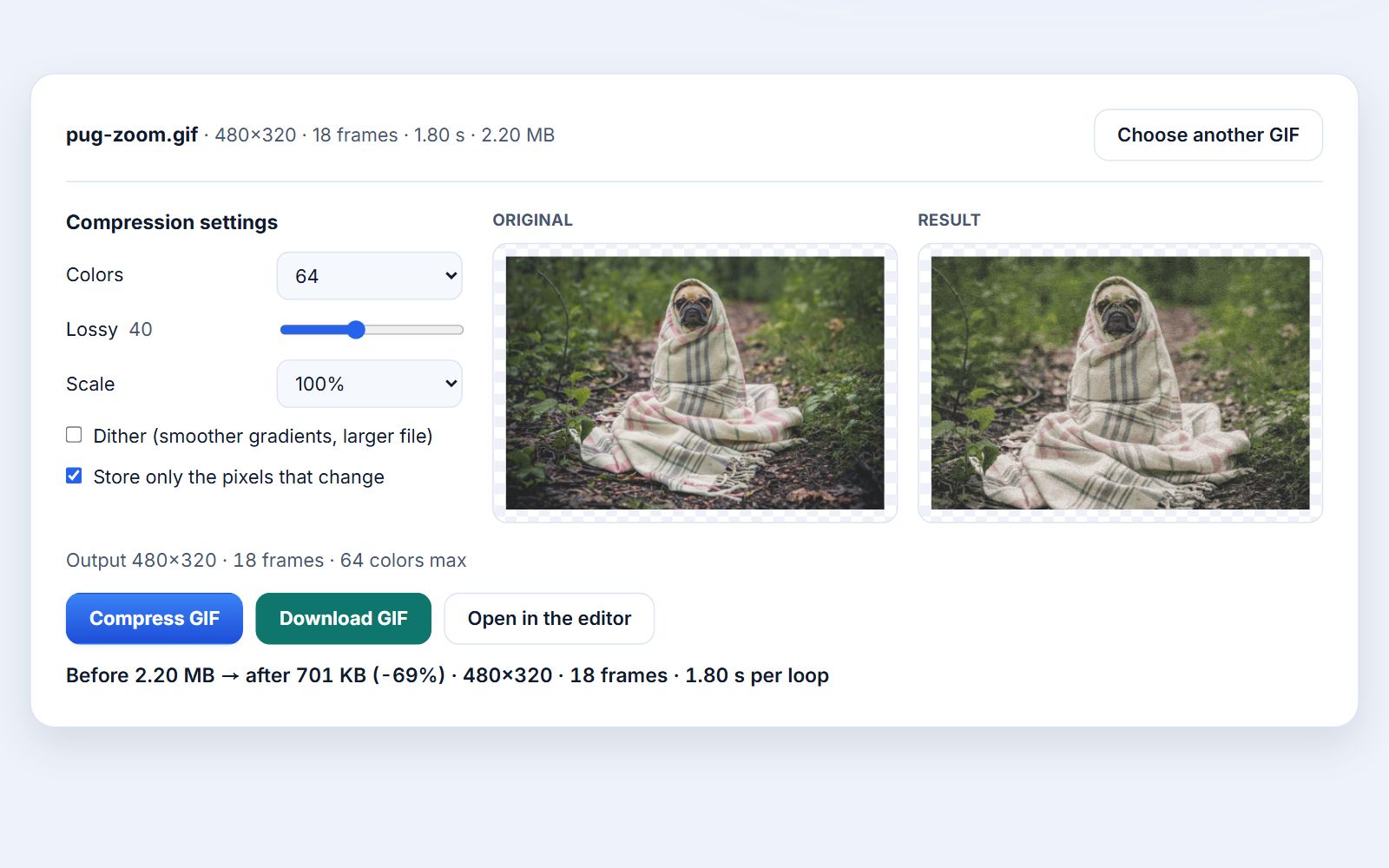
The screenshot above uses an 18-frame, 480×320 GIF made from a slow zoom on a photo. Every frame changes almost every pixel, which is the hardest case for GIF compression. These are the settings and results shown:
| Setting | Original | Compressed |
|---|---|---|
| Colors | Up to 256 per frame | 64 |
| Lossy | None | 40 |
| Frames and timing | 18 frames, 1.80 s | 18 frames, 1.80 s |
| File size | 2.20 MB | 701 KB (−69%) |
Your own results will differ: screen recordings with large static areas often compress far more, because only the changed rectangle of each frame is stored, while GIFs that were already optimized may barely shrink. If the result is not smaller than the original, the tool says so, and you can try fewer colors, a higher Lossy value or a smaller Scale.
Your GIF stays on your device
The GIF is decoded, compressed and previewed by code running in this tab, using the same encoder as Photoyam's Save for Web. Nothing is uploaded, so private recordings and unreleased work stay private.
Questions & answers
Will compressing remove frames or change the speed?
No. Every frame and its delay is kept, and the loop setting is preserved. The only exception is that identical consecutive frames are stored once with their delays added together, which plays back exactly the same.
Which setting should I change first?
If the GIF is larger than it needs to be on screen, use Scale first: 75% removes about 44% of the pixels and 50% removes 75%. If the size must stay, lower Colors to 64 or 32, then raise Lossy in small steps while checking the preview.
What does the Lossy value do?
It sets how different a substituted color may be when the encoder replaces a pixel to continue a repeated pattern. 0 is off. Moderate values usually go unnoticed in photos and video clips; high values add visible grain, especially on flat areas and text.
Why is my compressed GIF bigger than the original?
The original was probably already optimized, used few colors, or was encoded with heavier lossy compression than you chose. Try fewer colors, a higher Lossy value or a smaller Scale. Turning Dither on also makes files larger.
Does it keep transparency?
Yes. Transparent pixels stay transparent, and the same frame-difference method is used for them as in the Photoyam editor's GIF export.
Is there a file size limit?
No fixed limit. Every frame is decoded into memory at full size, which is width × height × 4 bytes per frame, so a 480×320 GIF with 200 frames needs about 123 MB. Very long, large GIFs may be too much for a phone.
When a smaller GIF matters
- Upload and attachment limits: chat apps, forums and email often cap file sizes. Scaling to 75% and using 64 colors is a quick way under a limit without cutting frames.
- Web pages: a GIF in an article loads before the reader sees it move. Halving its size cuts the wait on mobile connections.
- Documentation and READMEs: screen recordings of software have large unchanging areas, so the frame-difference optimization alone often removes most of the size; add a few colors less and they stay crisp.
- Reaction GIFs from video: these are mostly photographic, so Lossy 30 to 50 is usually where the savings come from.
Learn more