Turn your images into an animated GIF
Pick two or more photos, screenshots or drawings, put them in order and choose how long each one stays on screen. Photoyam builds the GIF in this tab and lets you download it straight away.
From images to GIF in three steps
- 1
Add your images
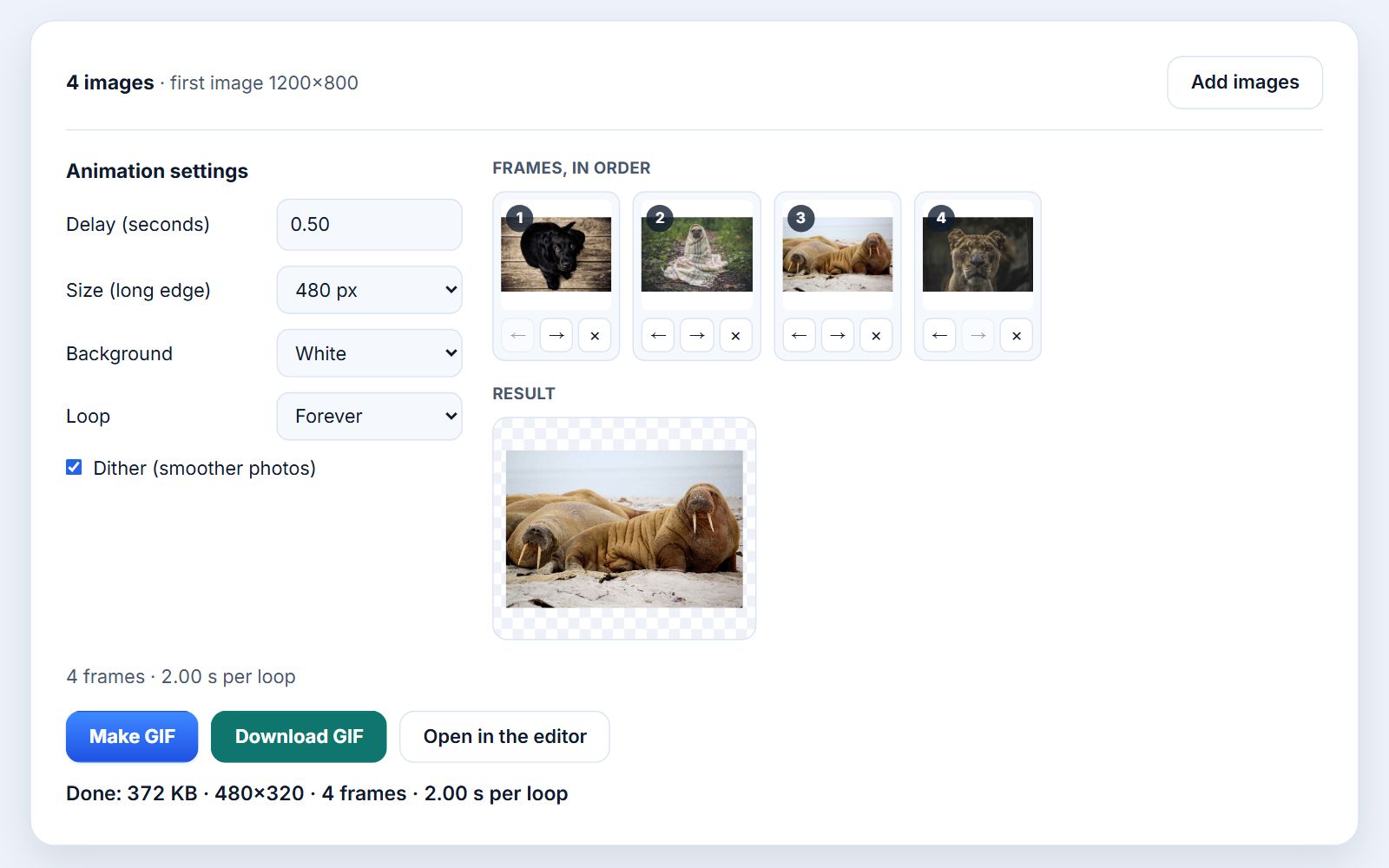
Choose two or more images, or drop them on the page. Each one becomes a numbered frame, in the order you picked them. Add more at any time with Add images.
- 2
Arrange and set the timing
Move frames earlier or later with the arrow buttons, remove any you don't want, then choose a delay, an output size, a background and whether the GIF loops.
- 3
Make and download
Press Make GIF. The animation is encoded in your browser, previewed next to your frames and saved as a .gif with Download GIF.
How the GIF maker builds each frame
Every frame in a GIF has the same width and height, but the images you add rarely do. The maker solves this in a predictable way so you know what to expect before you press the button:
- The first image sets the shape. Its aspect ratio becomes the canvas of the whole GIF. Put your most representative image first, or reorder the frames until the one with the right proportions is in position 1.
- Size caps the long edge. With 480 px selected, a 1200×800 first image produces a 480×320 GIF. A smaller first image is kept at its own size, because the maker never enlarges. Choose "First image's size" to keep the original dimensions.
- Other images are fitted, not cropped. Each one is scaled to fit entirely inside the canvas and centered. If its proportions differ, the leftover strips show the background you picked: white, black or transparent.
The frames are then converted to the GIF format's limit of 256 colors with the same encoder the Photoyam editor uses for Save for Web. When all of your images together use 256 colors or fewer (flat graphics, pixel art, simple screenshots) the colors are kept exactly. Photos have far more colors, so a palette is chosen for them and the Dither option mixes nearby palette colors in a fine pattern so gradients like skies and skin don't break into bands.
Choosing the settings
| Setting | Range | When to change it |
|---|---|---|
| Delay | 0.02 s to 10 s per frame (default 0.50 s) | Around 0.5 to 2 s for a slideshow people need to read; 0.05 to 0.1 s for smooth motion from a burst of shots. |
| Size (long edge) | 320, 480, 640, 800 or 1080 px, or the first image's size | Smaller sizes make much smaller files. 480 px suits chat apps and most web pages. |
| Background | White, Black or Transparent | Transparent keeps empty areas see-through, which suits logos and stickers placed on colored pages. |
| Loop | Forever or Play once | Play once for an animation that should stop on its final frame. |
| Dither | On or off (on by default) | Leave on for photos; turn off for flat graphics and screenshots, where it only adds noise and file size. |
The delay applies to every frame. The summary line under the settings shows the frame count and how long one loop lasts, so four frames at 0.50 s make a 2.00 s loop. GIF stores delays in hundredths of a second, so a value such as 0.125 s is rounded to 0.13 s.
Your images never leave your device
Decoding, resizing and GIF encoding all happen in this browser tab. There is no server receiving your photos, and closing the tab discards them.
Questions & answers
How many images do I need to make a GIF?
At least two, because an animation needs more than one frame. There is no fixed maximum; each frame is held in memory at the output size while the GIF is encoded, so a few hundred frames at 480 px are fine on a computer but may be too many for an older phone.
Which image formats can I use?
Any format your browser can display, which normally includes JPG, PNG, WebP, GIF and BMP. HEIC photos from iPhones usually cannot be read by browsers other than Safari; convert them to JPG first. An animated GIF or WebP you add contributes only its first frame.
Can different frames have different delays?
Not in the maker, which uses one delay for all frames. Press Open in the editor after making the GIF, and in the Frames panel you can give any frame its own delay, for example a longer pause on the last image.
Why does my GIF look grainy?
That is dithering, the fine dot pattern that hides color banding in photos. For screenshots, logos and flat illustrations, turn Dither off and make the GIF again; edges will be cleaner and the file usually smaller.
How can I make the file smaller?
Choose a smaller size, use fewer frames, or turn Dither off. The size has the largest effect because the number of pixels drops with the square of the long edge. You can also run the finished GIF through the GIF compressor to reduce colors further.
Is there a watermark?
No. The GIF contains only your images, and making it is free with no account.
Ideas for image-based GIFs
- Before and after: two frames with a 1 s delay show an edit, a renovation or a product variant more clearly than a side-by-side image.
- Step-by-step instructions: one screenshot per step, a delay of 1.5 to 2 s, and Play once so the GIF ends on the result.
- Burst photos: a sequence shot in burst mode, a delay of 0.1 s and a 480 px size gives a short, smooth clip of a jump or a pet in motion.
- Product color options: the same product photographed in each color, cycling forever on a white background for a store page.
Learn more