Speed up or slow down any GIF
Change how fast an animated GIF plays without touching its pictures. Choose a multiplier or one delay for every frame, preview the result and download it, right in this tab.
Retimed in three steps
- 1
Open your GIF
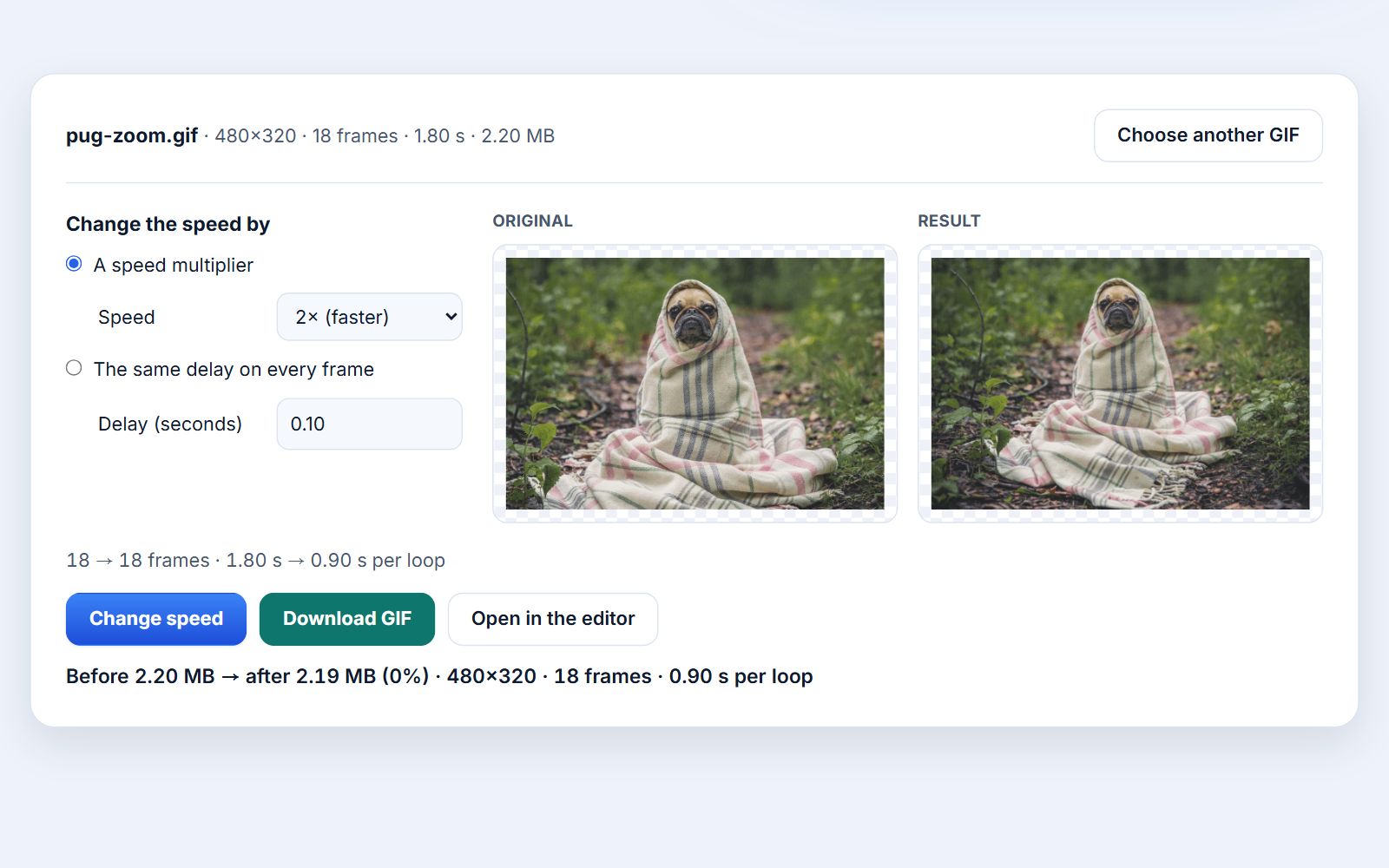
Choose an animated GIF or drop it on the page. It is decoded in your browser and shown with its size, frame count and total duration.
- 2
Pick the new speed
Use a multiplier such as 2× (twice as fast) or 0.5× (half speed), or give every frame the same delay. The summary shows the old and new loop length before you start.
- 3
Preview and download
Press Change speed, watch the new version play beside the original, then download it as a GIF with the same frames and loop setting.
How GIF speed actually works
A GIF has no frame rate. Each frame carries its own delay: how long it stays on screen before the next one appears. The format stores that delay in hundredths of a second, so a frame can last 0.01 s, 0.02 s, 0.10 s and so on, but never 0.015 s. Changing the speed of a GIF therefore means rewriting those delays; the pictures themselves do not need to change.
This tool reads every frame's delay, applies your choice and writes a new file:
- Speed multiplier divides each delay by the factor. At 2× a 0.10 s frame becomes 0.05 s; at 0.5× it becomes 0.20 s. Frames that were longer than the rest (a pause on the last frame, for example) stay proportionally longer, so the rhythm of the animation is kept.
- Same delay on every frame replaces all delays with one value between 0.02 s and 10 s. Use it when a GIF has uneven timing you want to flatten, or when you need an exact pace such as 0.04 s per frame (25 frames per second).
Every new delay is rounded to the nearest 0.01 s, because that is the finest step a GIF can store. When speeding up, no delay is allowed to drop below 0.02 s: many browsers treat faster frames as "too fast" and play them at about 0.1 s instead, which would make your sped-up GIF look slower than the original.
What the multipliers do to a typical frame
Rounding to 0.01 s and the 0.02 s floor mean that very fast settings can produce the same result. Here is what happens to two common frame delays:
| Multiplier | 0.10 s frame | 0.04 s frame |
|---|---|---|
| 0.25× (slower) | 0.40 s | 0.16 s |
| 0.5× | 0.20 s | 0.08 s |
| 1.5× | 0.07 s | 0.03 s |
| 2× (faster) | 0.05 s | 0.02 s |
| 3× | 0.03 s | 0.02 s |
| 4× | 0.03 s | 0.02 s |
So on a GIF made of 0.10 s frames, 3× and 4× look identical, and anything already running at 0.04 s per frame cannot go faster than 2×. If you need a GIF to finish sooner than that, the remaining option is fewer frames: open it in the editor and delete every other frame in the Frames panel, then raise the delay of the frames you keep.
Your GIF never leaves your device
The GIF is decoded and re-encoded by code running in this tab, using the same GIF engine as the Photoyam editor. There is no server to upload to, and closing the tab discards everything.
Questions & answers
Does changing the speed reduce the quality of my GIF?
No. Only the frame delays change. The frames are re-encoded without dithering or lossy compression, so a normal GIF keeps the same pictures. The one exception is a rare GIF whose frames, once combined, use more than 256 colors; its colors are then reduced to fit the format again.
Why does my GIF not get faster above a certain speed?
A GIF stores delays in steps of 0.01 s, and this tool never goes below 0.02 s per frame because many browsers slow faster frames down to about 0.1 s. A GIF that already runs at 0.02 to 0.04 s per frame is close to the fastest speed that plays reliably.
Will the file size change?
Only a little. The number of frames stays the same, so the size is usually close to the original. It can be slightly smaller or larger because the GIF is re-encoded with frame optimization, which stores only the pixels that change between frames.
Can I speed up only part of the animation?
Not on this page, which applies one speed to the whole GIF. In the Photoyam editor you can select some frames in the Frames panel and use Set Speed… or Set Frame Delay… on just those, for example to hold the last frame longer.
Does it keep the loop setting?
Yes. A GIF that loops forever still loops forever, and one that plays once or a set number of times keeps that setting.
Is there a size or length limit?
There is no fixed limit, but every frame is decoded into memory at full size. A 480×270 GIF with 100 frames needs about 52 MB, which any computer or phone handles; GIFs with thousands of large frames may be too much for a phone.
When to change a GIF's speed
- Screen recordings and tutorials: slow a UI demo down to 0.5× so viewers can follow each click, or speed a long process up to 2× so it fits in a short loop.
- Reaction GIFs: a fast reaction often lands better slightly slowed down; try 0.75× before going all the way to half speed.
- Product and how-to loops: set every frame to the same delay to give a step-by-step sequence an even, readable pace.
- Converted video clips: a GIF made from a phone video sometimes plays slower than the original clip. Raising the speed by 1.25× or 1.5× can bring it back to life.
Learn more