Merge PDFs into one
Combine several PDF files into a single document, in exactly the order you choose. Drop them, reorder, done, right here in your browser.
Tip: your phone's file picker also lists Dropbox and Google Drive when their apps are installed.
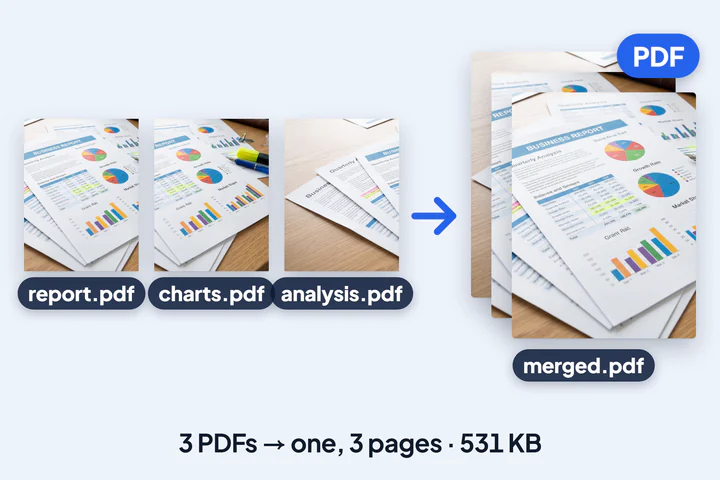
What a merge keeps, and what it leaves behind
Photoyam copies every page of every file, in the order of your list, into one new PDF. The pages themselves are copied object for object: nothing is re-rendered or recompressed, so text you could select before can still be selected, vector drawings stay sharp at any zoom, and photos keep their original bytes. What belongs to a file rather than to its pages is a different story.
| Part of the PDF | In the merged file |
|---|---|
| Page content, fonts, images | Kept unchanged |
| Page size and rotation | Kept per page; mixed sizes are fine |
| Links to web pages | Kept and still clickable |
| Links that jump to another page | Usually stop working (they point into the old file) |
| Bookmarks (outline) | Not copied |
| Form fields | Typed-in values stay visible, but the fields can no longer be edited |
| Title, author and other document info | Not copied |
| Edit or print restrictions (owner password) | Not kept |
For most paperwork, such as invoices, scans, signed letters and exported reports, none of the missing parts matter. If you are combining a long manual whose sidebar bookmarks people rely on, or an application form that still has to be filled in, merge a copy and keep the originals.
Measured: four files into one
We merged four test files: a 3-page scan stored as JPEG images (2.37 MB), an 8-page text-only report (10.4 KB), a 10-page brochure that reuses one background photo (811 KB) and a one-page file with a single web link (657 bytes). The result was one 22-page PDF of 3.17 MB, within 2 KB of the four inputs added together. The web link still opened its address.
That is the general rule: a merged PDF weighs about as much as its parts, because pages are copied rather than rebuilt. If the total is too large to email, run the merged file through Compress PDF afterwards, or compress only the heaviest input before merging.
Getting the order right
Files are listed in the order you picked them, each with its page count, and the list header totals the pages. Drag a file by its handle to move it, or use the up and down arrows next to it; the arrows also work from the keyboard, with focus staying on the file you moved. A few habits save a second attempt:
- Pick files in sequence. If your files are named 01-cover.pdf, 02-letter.pdf and so on, selecting them all at once in the file dialog usually adds them already sorted.
- Check the page counts. A file showing 1 page when you expected 12 is often an export of the wrong version, and is easier to spot here than in the merged result.
- Reorder pages, not just files, afterwards. The merge works on whole files. To move one page of the middle file to the front, merge first, then rearrange pages in Organize PDF.
The download is named merged.pdf unless you type another name in the File name box. Choose one the recipient will understand, since they see that name too.
Assembled in this tab
The PDFs are read and stitched together by code running in your browser. Contracts, bank statements and medical letters can be combined without any copy reaching a server, and closing the tab discards them.
When a file refuses to merge
Each file is checked as soon as you add it, and a problem is shown on that file's row, so you know which one to replace before pressing Merge.
- Password-protected: the PDF needs a password just to open. Open it in your PDF reader, save or print a copy without the password, and add that copy.
- Edit restrictions are not a problem: a PDF that opens freely but carries an owner password against editing or printing is unlocked in the tab and merged like any other; its row notes that the merged file will not keep the restrictions. Only an unusual kind of encryption is refused.
- A picture named .pdf: a PNG or JPG that was renamed is not a PDF, and its row says so. Turn pictures into a PDF with JPG to PDF first, then merge that file.
- Couldn't be read: the file is damaged, cut short by an interrupted download, or not really a PDF. Download it again or re-export it from the program that made it.
Merging questions
Will my bookmarks survive the merge?
No. The merged file is a new document built from copies of your pages, and the bookmark tree (the outline in the sidebar of a PDF reader) is not copied with them. If you need bookmarks, add them to the merged file in a desktop PDF editor afterwards.
Can I merge PDFs with different page sizes?
Yes. Each page keeps the size and orientation it had, so an A4 report followed by a US Letter form and a landscape chart stays exactly that. Nothing is scaled to a common size.
How many files can I merge at once?
Up to 100 PDFs in one merge, each up to 200 MB. Very large merges also depend on how much memory your device has free, because the combined file is built in the browser tab.
Can I merge a PDF that has security restrictions?
Yes, if it opens without a password. A PDF whose owner password only limits editing or printing, as many bank statements do, is unlocked in your browser so its pages can be copied, and its row says so. The merged file does not keep those restrictions. A PDF that needs a password just to open cannot be merged.
Can I merge only some pages of a PDF?
The merge always takes whole files. To use only some pages, first pull them out with Split PDF (for example pages 2-4), then merge that smaller file. To reorder or delete single pages after merging, open the result in Organize PDF.
Before or after merging
- Split PDFTake only the pages you need from a file before adding it to the merge.
- Organize PDFMove, rotate or delete single pages of the merged document.
- Compress PDFShrink a merged scan that is too large to attach to an email.
- JPG to PDFTurn photos of receipts into a PDF so they can join the merge.
- Guide: merge, split and compress PDFsThe three tools side by side, with when to use each.
Looking for something else? Browse every Photoyam tool.