How to Merge, Split, Reorder and Compress PDFs Without Uploading Them
Most PDF chores are small: stitch three statements into one file, pull out a signed page, turn a sideways scan upright, get an attachment under an email limit. This guide explains what each operation does to a PDF, walks through every Photoyam PDF tool, and is honest about the one that trades quality for size.
Why local PDF tools matter
The PDFs people most need to rearrange are the ones they should least want to hand to a stranger: a signed lease, a passport scan, lab results, a year of pay stubs for a mortgage broker. A typical online PDF service uploads the file, processes it on its server and returns a download link. Even with a good privacy policy, a copy has left your device and you cannot verify when it is deleted.
Photoyam’s PDF tools download two open-source libraries into the tab, pdf-lib (to read and rebuild PDF structure) and pdf.js (to draw pages), and run them there. Your file is read into the tab’s memory, processed, and saved back to your Downloads folder. There is no upload step because there is no server to receive one.
What each operation does to the file
A PDF is not one big picture. Each page is a list of drawing instructions (“place this text in this font here, draw this line”) plus shared fonts and images, plus document-level extras such as bookmarks, form fields and signatures. Tools either rearrange pages or redraw them, and that decides what you keep.
| Tool | How it works | Text stays selectable? | Quality |
|---|---|---|---|
| Merge PDF | Copies every page of each file, in order, into a new PDF | Yes | Unchanged |
| Split PDF | Copies each page into its own single-page PDF | Yes | Unchanged |
| Organize PDF | Copies the pages you keep, in your order, with a rotation flag | Yes | Unchanged |
| Compress PDF | Renders each page to a JPEG and builds a new PDF from the images | No | Reduced (you choose how much) |
| PDF to JPG | Renders each page to an image file | No (it is an image) | Fixed resolution |
Merge, Split and Organize are lossless: page content is copied, not re-encoded. Two caveats apply to any rebuilt PDF: bookmarks are not carried over, and a digital signature is no longer valid. If a signed contract must stay verifiably signed, send the original.
Merge PDFs
- Open the tool. Go to Merge PDF and click Choose PDFs, or drop several files onto the page.
- Add anything you missed. Click the box that says Drop or click to add more PDFs to append more files. You need at least two before the merge button becomes active.
- Set the order. Each row is numbered. Use the up and down arrows to move a file and the × button to remove one.
- Merge.
Click Merge PDFs. The combined file downloads as
merged.pdf.
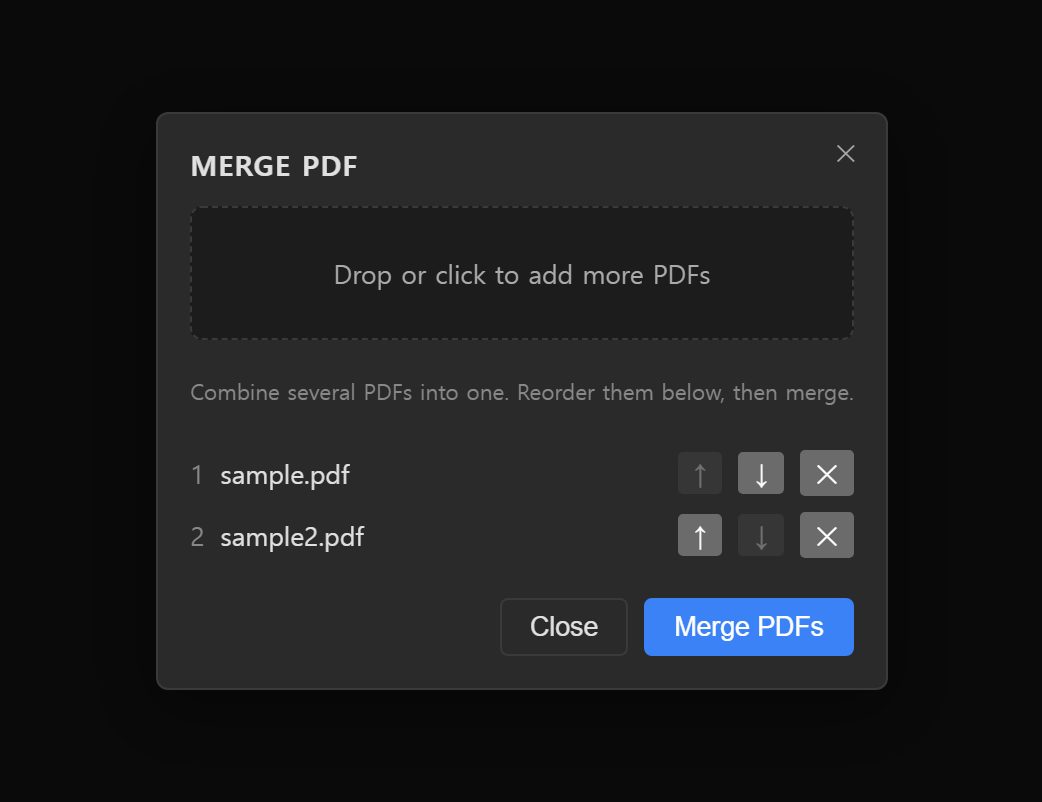
Merge works on whole files. To interleave pages from different documents, merge first, then fix the order in Organize PDF.
Split a PDF into pages
- Open the file. Go to Split PDF and choose or drop one PDF. The window reports Pages detected with the count, so you can confirm it read the file.
- Split.
Click Split into pages. Every page becomes its own PDF, named like
lease-p01.pdf; the zero-padding keeps them sorted correctly. - Unzip.
Multiple pages arrive together as
lease-pages.zip. Extract it to get the individual PDFs.
Split has no page-range option. To keep, say, pages 3 to 7 as one PDF, use Organize PDF and delete everything else.
Rotate, reorder and delete pages
- Open the file. Go to Organize PDF and choose a PDF. The window shows Rendering pages… while it draws a thumbnail of every page.
- Rotate. Under each thumbnail, the two circular arrows rotate that page left or right by 90 degrees.
- Reorder. The left and right arrows move a page one position earlier or later.
- Delete. The × button removes a page from the output. Your original file is never touched, so a mistaken delete costs nothing.
- Save.
Click Save PDF. The result downloads as
yourfile-organized.pdf.
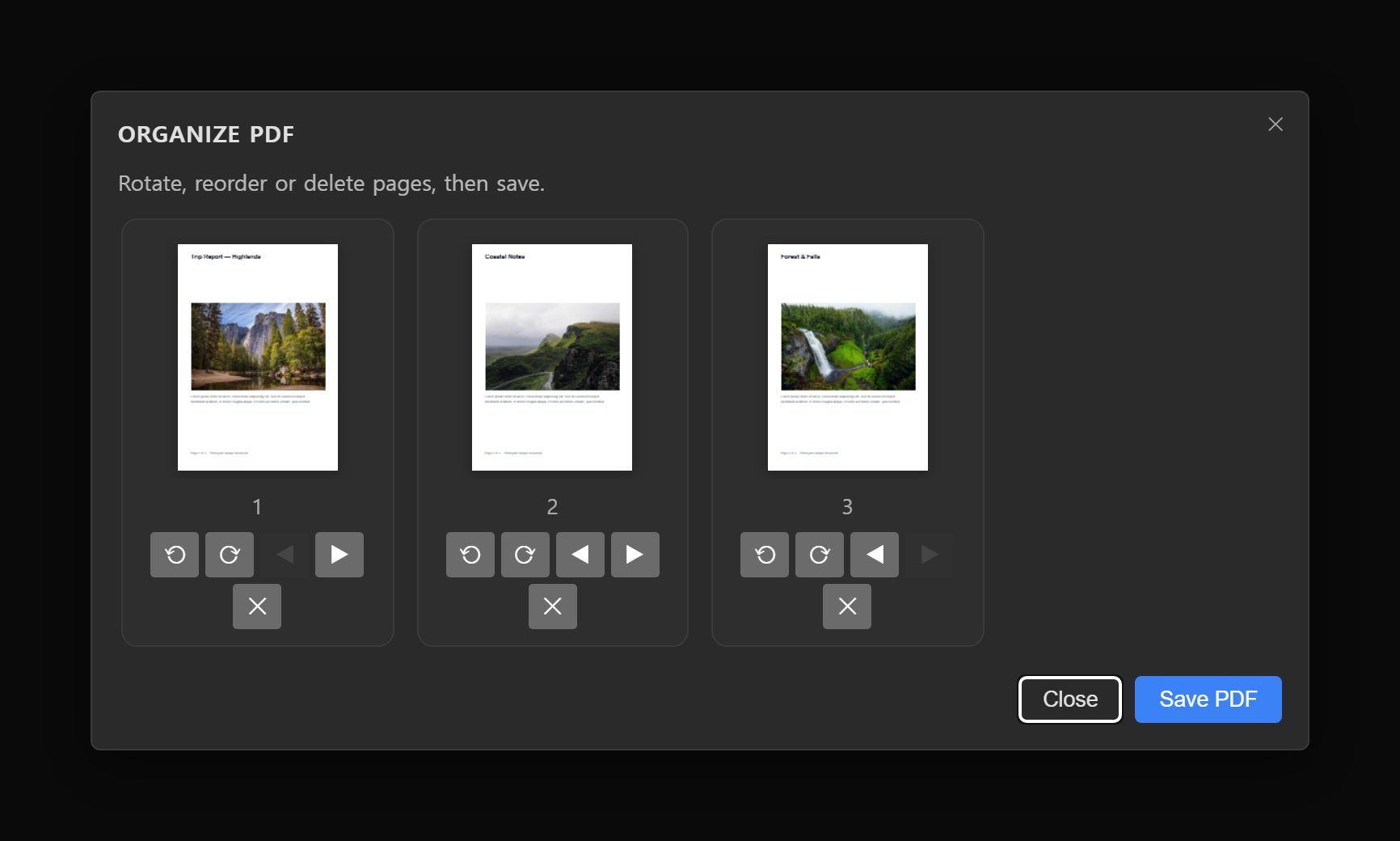
Rotation is lossless: Organize changes each page’s rotation setting rather than redrawing it, so a rotated contract stays exactly as sharp and searchable.
Compress a PDF (and when not to)
Understand this tool before you use it. Photoyam compresses a PDF by rasterizing it: each page is rendered to an image at roughly 140 pixels per inch (the longest side is capped at 1,600 pixels, so a US Letter page becomes about 1,224 × 1,584 pixels), saved as a JPEG at the quality you choose, and placed on a new page of the same physical size.
For a scan, that is exactly right: a scan is already a picture, often stored at 300 ppi or more, and redrawing it smaller with stronger JPEG compression can shrink it dramatically. For a “born-digital” PDF exported from a word processor or accounting app, it is usually the wrong tool:
- Text becomes a picture. It can no longer be selected, searched, copied or read aloud by a screen reader.
- Vector sharpness is lost. Text and line art that were crisp at any zoom now blur when zoomed or printed large.
- Interactive parts stop working. Links, fillable form fields and signatures are flattened into the image.
- The file can get bigger. A text-only PDF is already tiny. If the tool shows a saving of 0%, keep the original.
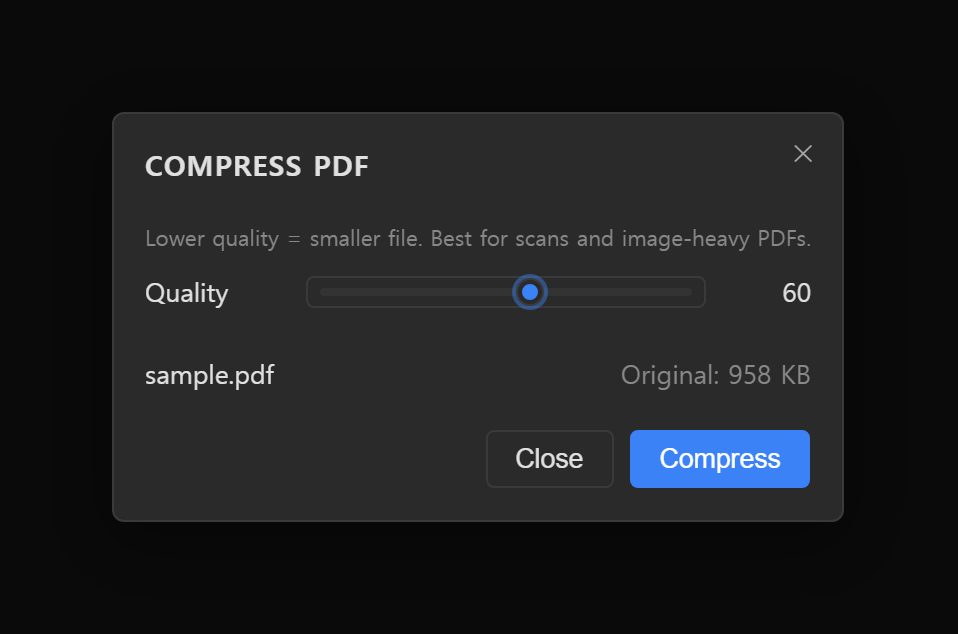
- Open the file. Go to Compress PDF and choose a PDF.
- Pick a quality. The Quality slider runs from 20 to 90 and starts at 60. Go lower only if the file must fit a strict limit.
- Compress and compare. Click Compress. When it finishes, the row shows the compressed size and the percentage saved.
- Check, then download.
Not small enough? Lower the quality and compress again. Then click Download PDF to save
yourfile-compressed.pdf. Zoom in on the smallest print before you send it.
PDF to images and images to PDF
PDF to JPG or PNG
PDF to JPG opens the Convert window and adds one row per page,
named like report-p01.png. Pages are rendered with the longest side up to
2,000 pixels. Rows start as PNG; set All to to JPEG for smaller files, adjust
Quality (default 90), and click Convert. Download pages individually or with Download all (ZIP).
Images to PDF
JPG to PDF opens the Image to PDF window. Add images, order
them with the arrows exactly as in Merge, and click Create PDF to download
images.pdf. JPEGs are embedded without recompression and PNGs as PNG, so
there is no quality loss; other formats such as WebP are converted to PNG first. Each page takes the size of its image, not Letter or A4.
Limits and troubleshooting
Password-protected and encrypted PDFs
Merge, Split and Organize cannot read encrypted PDFs, including files that open without a password but restrict printing or editing. A PDF that needs a password to open will not load in any tool, since there is nowhere to enter one. There is no error message: the download never arrives, Organize stays on Rendering pages…, or PDF to JPG adds no rows. If the document is yours, remove the protection in your PDF reader (or save an unprotected copy) and use that.
Very large files
Everything happens in your browser’s memory, so your device is the limit. Every tool reads the whole file into memory, and Merge and Split hold the source and result together. Compress renders one page at a time, which is steadier but slower. A long, high-resolution scan that a laptop handles easily can exhaust a phone. If a tab freezes or reloads, process the document in parts and merge them.
Tips and common mistakes
- Scanning at the wrong setting. For text, 200 to 300 ppi in grayscale is plenty and far smaller than a color scan.
- Compressing a born-digital PDF. It loses searchable text and may grow. Compress scans only.
- Compressing twice. Artifacts pile up with each pass. Start again from the original.
- Trusting the order without checking. Page through the result before sending it. Numbered file names such as
01-application.pdf,02-id.pdfmake the order obvious when you add them. - Keeping generic names. Rename
merged.pdfto something like2025-tax-return-smith.pdfbefore you attach it. - Deleting the original. Keep it until you have checked the result.
Try it in Photoyam
Merge PDFs in your browser, in the order you choose. Nothing is uploaded, and there is no sign-up. The other PDF tools work the same way: Split PDF, Organize PDF, Compress PDF, PDF to JPG and JPG to PDF.
FAQ
Are my PDFs uploaded anywhere?
No. Photoyam has no server that receives files. Every merge, split, rotation and compression runs inside your browser tab, on your own device.
Why can't I select the text in my compressed PDF?
Compress PDF works by turning each page into a JPEG image and rebuilding the document from those images. The result is a picture of each page, so text can no longer be selected, searched or copied. Keep the original if you need that.
Can I open a password-protected PDF?
Not reliably. Merge, Split and Organize cannot read encrypted PDFs at all, and a PDF that needs a password to open will not load in any of the tools. If the document is yours, remove the protection in a PDF reader and use the unprotected copy.
How do I extract just a few pages instead of every page?
Split PDF always produces one file per page. To keep a range such as pages 3 to 7 as a single PDF, open the document in Organize PDF, delete the pages you do not want, and click Save PDF.