Workspaces and Work Modes: A Lighter Editor for Each Job
A full professional toolbar has more than fifty tools, and most edits use five of them. Photoyam’s workspaces, also called work modes, trim the toolbar and the panel dock down to what a particular kind of job needs: a few tools for a quick fix, retouching tools and a histogram for photos, brushes and colors for painting, type and shapes for design. This page explains what each workspace keeps, how to switch, and how to reach anything a workspace hides.
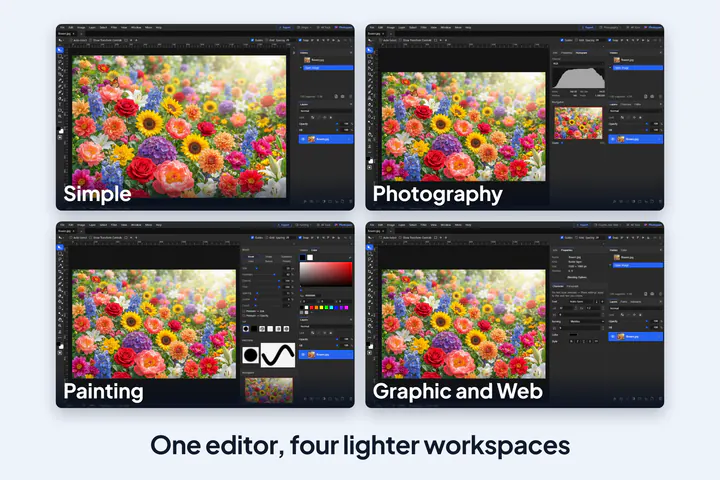
What a workspace changes
A workspace is a saved arrangement of the Pro editor, applied in one click. It controls three things at once:
- Toolbar buttons. Which tool groups appear on the left. A group such as Brush, Pencil and Mixer Brush is shown or hidden as a whole.
- Panels. Which panels are open in the dock on the right, and which tab is in front where panels share a slot.
- Dock width. Whether the second panel column starts expanded or folded into icons.
What it never touches is your work. The open document, its layers, the History list and any unsaved changes are the same before and after a switch. Menus stay complete in every workspace too, so a command is never more than a menu away.
The five workspaces
Four of the five follow the workspaces Photoshop ships with, so the names will be familiar if you have used it. Simple is Photoyam’s own, aimed at quick edits and phones.
| Workspace | Toolbar | Panels |
|---|---|---|
| Simple | Move, Marquee, Lasso, Quick Selection, Crop, Eyedropper, Healing, Brush, Eraser, Type, Shapes, Zoom | Layers, History, Properties |
| Essentials | Every tool group | The full default dock, laid out as in Photoshop |
| Photography | Selection tools, Crop, Eyedropper, Healing, Brush, Clone Stamp, Eraser, Paint Bucket and Gradient, Blur and Sharpen, Dodge and Burn, Type, Hand and Rotate View, Zoom, Liquify | Layers, Channels, Paths, History, Properties, Histogram (in front), Navigator, Info |
| Painting | Selection tools, Crop, Eyedropper, Brush, Clone Stamp, Eraser, Paint Bucket and Gradient, Blur and Smudge, Dodge and Burn, Hand and Rotate View, Zoom, Liquify | Layers, History, Color (in front), Brush, Navigator |
| Graphic and Web | Selection tools, Crop, Eyedropper, Brush, Eraser, Paint Bucket and Gradient, Pen, Type, Path Selection, Shapes, Hand and Rotate View, Zoom | Layers, Paths, Artboards, History, Color, Properties (in front), Character, Paragraph, Info |
Two details are easy to miss. In Simple and Photography the magic-wand group shows Quick Selection first, because painting a selection is usually quicker than clicking with a tolerance. And Essentials is what a desktop browser starts in, so if you never touch the switcher nothing changes from the classic layout.

Switching workspace
- Open the workspace button. It sits at the right end of the menu bar and shows an icon plus the current workspace’s name. On a phone or a narrow window only the icon is shown.
- Pick a workspace. The list shows all five with a short description, such as “Brushes, colors and paint tools” for Painting. The current one is ticked. The arrow keys move through the list and Esc closes it without changing anything.
- Keep working. The toolbar and dock change immediately. If the tool you were holding is not part of the new workspace it stays active, so a half-finished selection or stroke is not interrupted.
The same choices are in Window › Workspace, with Window › Workspace › Essentials at the top, followed by Simple, Photography, Painting and Graphic and Web. Photoyam remembers the workspace you last used and opens in it next time.
The first-visit chooser
The first time you open the Pro editor with an empty canvas, a small card asks What are you working on? It offers four big buttons:
- Quick edits selects Simple.
- Photo retouching selects Photography.
- Design selects Graphic and Web.
- Everything selects Essentials.
The card is not a blocking dialog: the Open and New buttons behind it keep working, and opening a file simply dismisses it. Phones arrive with Quick edits pre-selected and desktops with Everything, so closing the card with its × keeps that default. It is skipped entirely when you arrive with a file, for example from a tool page’s Edit further in the Pro editor button, and it is shown only once.
After that, the start card that greets an empty editor keeps a small Work mode button under its Open Image and Convert images buttons. It shows the current choice and opens the same four options, so you can change workspace before opening a file without hunting for the menu bar. All three places, the start card, the workspace button and Window › Workspace, stay in step.
Reaching tools a workspace hides
A hidden tool is only hidden from the toolbar. There are four ways to use it anyway:
- More tools. At the end of the toolbar, a … button opens a list headed Not in this workspace. Pick a tool there to use it straight away.
- Show all tools. The bottom of that list has a button that switches to Essentials, for when you want the full toolbar back for a while.
- Shortcut letters. Every tool keeps its key. In Simple, pressing P still picks the Pen and O still picks Dodge, even though neither has a button.
- Menus and the command palette. Menu commands are never removed, and Ctrl+K (Cmd+K on a Mac) opens the command palette, where you can type a tool or command name.
To look up a tool’s letter, open the shortcut reference with Help › Keyboard Shortcuts…. The keyboard shortcuts guide explains how to search it and change keys.
The options bar along the top follows the same idea in a narrow desktop window: settings that do not fit, starting with the guide, grid and alignment buttons, move into a More options (…) button at its right end instead of being cut off.
Your changes, and Reset
Each workspace is a starting point, not a cage. Open any panel from the Window menu, close the ones you never look at, or fold the second dock column, and the workspace remembers that arrangement. The memory is kept per workspace: closing Info in Graphic and Web does not close it in Photography.
When a layout has drifted too far, choose Reset followed by the workspace name (Reset Painting, for example) at the bottom of the workspace menu or of Window › Workspace. It puts that one workspace back to its original panels and dock width. The item is greyed out while nothing has changed.
Which one to use
- Simple for cropping, straightening, removing a blemish, adding a caption or making a quick selection, and as a calm start on a phone where screen space is tight. On a phone the full tool options open in a sheet from the … button of the options bar; tapping the active tool again opens or closes it too.
- Photography for exposure and colour work with adjustment layers, where the histogram and Info readouts help, and for longer retouching sessions with Clone Stamp and Dodge and Burn.
- Painting for digital painting and photo painting: the Color panel is in front, the Brush panel is open, and type and vector tools are out of the way.
- Graphic and Web for social graphics, banners and mockups with text, shapes and artboards.
- Essentials when you know Photoshop and want everything where you expect it.
Try it in Photoyam
Switch between Simple, Photography, Painting and Graphic and Web in the free editor; your document stays put.
FAQ
Does switching workspace close my image or lose my edits?
No. A workspace only changes which tool buttons and panels are on screen. The open document, its layers, History and any unsaved changes stay exactly as they were, and you can switch back and forth as often as you like.
The tool I need is missing from the toolbar. Where did it go?
The current workspace hides it. Click the More tools button at the end of the toolbar to see the tools this workspace leaves out and pick one, press its shortcut letter, or choose Show all tools to switch to Essentials, which has every tool.
Can I get the first-visit chooser back?
It appears only once per browser, but it does nothing the workspace button cannot do. Everything it offers is in the button at the top right of the Pro editor, in the Work mode button on the start card and in Window > Workspace.
Why did my workspace come back with a different set of panels?
Each workspace remembers the panels you opened or closed in it. If you closed Histogram while in Photography, it stays closed the next time you return there. Choose Reset Photography (or Reset with the name of your workspace) in the workspace menu to restore the original layout.