How to Save and Export Images in Photoyam (and Recover Unsaved Work)
Editing is only half the job: the picture still has to leave the browser as a file that opens where you need it. This guide covers the one-click Export button, which format to choose (with file sizes we measured), saving straight to Photos on a phone, keeping layers in a PSD or project file, getting work back after a crash, and installing Photoyam so it runs offline.
The quickest way: the Export button
As soon as a document is open, an Export button appears at the top right of the Pro editor, next to the Photoyam logo. After your first real edit it turns solid blue and reads Save, a reminder that the changes exist only in the tab so far; once you export, it goes back to Export. Either way it opens a short sheet that has everything most people need on one screen, so you don’t have to know which menu hides which format. On a computer, after five edits or a few minutes of work on a file, a small note under the button, Export when you’re ready, offers the same sheet once per document.
- Click Export. With a document open, click the Export button at the right end of the menu bar. After your first edit it turns blue and reads Save; it opens the same sheet. On a phone it sits in the top bar.
- Name the file. The File name box starts with the name of the document you opened. Type a new name if you like; the extension (.jpg, .png…) is added for you and shown to the right of the box.
- Pick a format. Choose JPG, PNG, WebP, PSD or .psy, or open More beside them for AVIF, GIF, TIFF, BMP, PDF and ICO. A one-line note under the buttons says what the format keeps and what it loses, for example “Transparent areas turn white” for JPG.
- Set the quality. For JPG and WebP a Quality slider appears, starting at 85; AVIF (from 70) and PDF (from 90) have one too. The Estimated size next to the thumbnail updates a moment after you let go, because Photoyam actually encodes the file to measure it.
- Choose a size. Leave Size on Original, pick 75%, 50% or 25%, or choose Custom width and type a width in pixels. The height follows automatically, so the picture is never stretched. ICO has no Size choice, because an icon file always holds its own fixed set of sizes.
- Download. Click Download. The file goes to your browser’s download folder and the document you are editing is not changed, so you can export again in another format.
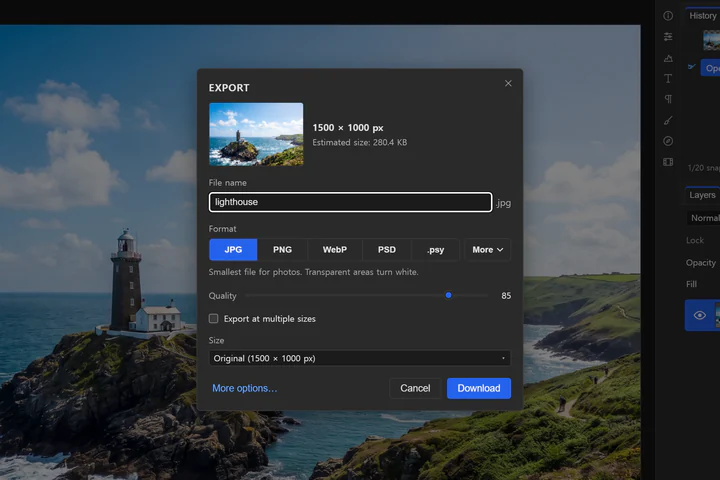
The sheet picks a sensible starting format. If you have exported before, it reopens on your last format and size. Otherwise it matches what you opened: a JPG or an iPhone HEIC photo comes back as JPG, a WebP as WebP, a PSD as PSD, and anything else (a new canvas, a PNG, a screenshot) as PNG.
Which format to choose
To give real numbers rather than rules of thumb, we exported Photoyam’s own sample image (a 1200 × 800 px illustration of a lake at sunset, one layer) in every format the sheet offers. Your photos will produce different sizes, but the proportions between formats are typical.
| Format | Keeps | Use it for | Sample size |
|---|---|---|---|
| JPG | Photo only; no transparency, one flat layer | Photos for email, messages, print shops and any form that asks for “an image” | 84.1 KB at 85 (51.1 KB at 70, 120.6 KB at 95) |
| PNG | Every pixel exactly, plus transparency | Screenshots, logos, text, cut-outs and a lossless copy to edit later | 613.9 KB |
| WebP | Transparency, at a much smaller size than PNG | Images for your own website or blog | 42.8 KB at 85 (15.6 KB at 70) |
| PSD | Layers, masks and most layer styles | Handing the file to someone who uses Photoshop or Photopea | 5.7 MB |
| .psy | Everything, fully editable in Photoyam | Your own working copy to reopen and keep editing | 1.5 MB |
A few things stand out:
- PNG is not a “better JPG” for photos. It was about seven times larger here with no visible difference. Use it when you need exact pixels or transparency, not to raise the quality of a photo.
- Size beats quality. Dropping the same image to 50% (600 × 400 px) shrank the JPG from 84.1 KB to 19.5 KB and the WebP to 9.7 KB. If the image will be shown small, pick a smaller size before you touch the slider.
- Quality 95 costs a lot for little. Going from 85 to 95 added more than 40% to the JPG. Between 80 and 90 is enough for nearly every photo you share.
For the background on how these formats compress, see JPG vs PNG vs WebP vs AVIF vs HEIC, and for squeezing a file under an upload limit, how to compress images.
More formats behind “More”
Six less common formats sit behind the More button at the end of the format row, each with a short hint. Pick one and the button takes its name, so you can see what is selected after the list closes. They are made from the flattened picture, like JPG and PNG, and the sheet remembers them as your last format.
- AVIF is a newer format that is often much smaller than JPG at the same quality and keeps transparency. Browsers that can’t write it themselves get Photoyam’s own AVIF encoder, so the entry is only grayed out (Not supported by this browser) where WebAssembly can’t run.
- GIF here is a single frame with up to 256 colors, which suits simple graphics. For an animation, use Save for Web instead (see below).
- TIFF is lossless, for archives and print shops that accept RGB. Transparent areas turn white.
- BMP is uncompressed and large, for old Windows programs that read nothing else.
- PDF puts the picture on one page, ready to print or attach to a form. Its Quality slider controls the JPEG compression inside the PDF.
- ICO is a website or app icon: one file with 16, 32, 48 and 256 px versions inside, square, with the picture centred on transparency. Sizes larger than your image are left out rather than blown up.
Export at multiple sizes stays limited to JPG, PNG and WebP. For a favicon, start from a square design at least 256 px wide so the largest icon is sharp.
On a phone: save to Photos with Share
On a phone the Export button stays in the top bar while you edit. Tap it and the same sheet opens. When your browser can hand files to other apps, the main button at the bottom changes from Download to one that opens your phone’s own share sheet with the finished image attached, and Download moves next to it.
- iPhone and iPad: the main button reads Save to Photos. Tap it, then Save Image in the share sheet to put the picture in the Photos app, or pick Messages, Mail or another app to send it directly. Download instead saves it to the Files app, which is easy to miss.
- Android: the main button reads Share and lists your gallery, messaging and cloud apps. Download saves to the Downloads folder, where most gallery apps will also find it.

Sharing works for every picture format in the sheet, from JPG to ICO, as long as the phone accepts that type of file; PSD and .psy files are always downloaded. If the main button stays Download, your browser can’t share that file, but the download still works.
There is also a shortcut that skips the sheet. After your first edit on a phone, a Save bar appears at the bottom of the screen with one big button: on an iPhone or iPad it reads Save to Photos and opens the share sheet with the image already attached; elsewhere it reads Download. It saves the whole picture at full size in the format you last used in the sheet, or else the format of the file you opened. The × hides the bar for that image. A while after a couple of edits, a short “Done?” note may also point at it, at most twice per visit.
More control: Save for Web and Export As
The Export sheet deliberately leaves out the rarer options. When you need them, click More options… in the sheet, which opens Save for Web on the format you had chosen. A ← Quick Export button at its top left takes you back to the sheet with the file name, format and size you had typed still in place. Esc does the same (press it again to close the sheet), and so does the Back gesture on a phone. You can also go through the menus:
- File › Export As › PNG, JPG or WebP opens Save for Web on that format. It has Width, Height and Percent fields, so you can type an exact height as well as a width, and its Quality slider starts at 90.
- File › Export As › GIF opens the GIF options: Color reduction, Colors, Dither, Matte for transparent edges, Lossy and, for animations, Looping options. An animated document also shows a note in the Export sheet pointing here, because JPG, PNG and WebP from the sheet are single frames. The GIF size guide explains each setting.
- File › Export As › TIFF and PDF download straight away, for print shops and documents.
- File › Export As › CMYK for Print… separates the image into CMYK with the profile set in Edit › Color Settings… (a built-in FOGRA39 coated-paper profile unless you load your printer’s .icc file) and writes a TIFF (LZW, ZIP or no compression), a JPEG with a Quality setting, or a layered PSD. Turn on View › Proof Colors first to preview the print colors, and Gamut Warning to mark colors the press can’t reproduce.
- File › Layers to Files… saves every layer as its own image, handy for app assets or a set of social posts built in one document.
PNG, JPG, WebP, TIFF and PSD exports carry an sRGB color profile, so other apps show the colors as you saw them; the Embed color profile in exported files box in Edit › Color Settings… turns that off. Large exports can take a few seconds. While Photoyam works, a progress overlay shows a Cancel button; click it or press Esc to stop. Nothing is downloaded and your document is untouched. The same Cancel appears for slow filters and Content-Aware Fill.
Export at multiple sizes
Websites want 1x and 2x versions of the same graphic, app icons come in a ladder of sizes, and a set of social frames should leave as separate files. The Export sheet handles all of these without repeating yourself. Open it with the Export button or File › Export As › Quick Export… (Alt+Shift+Ctrl+W), choose JPG, PNG or WebP, and tick Export at multiple sizes.
- Contents decides what each file contains: Whole document, Each artboard, Each top-level layer or Each slice. The artboard and slice choices only appear when the document has some, and each one shows how many files it will make.
- Size rows list the sizes to write, up to eight. Each row is a scale (0.5x, 1x, 1.5x, 2x, 3x or 4x) or a fixed Width (px) or Height (px) with the other side following the proportions. Add size appends the next common scale.
- Suffix is added to the file name for that row. The defaults follow
Photoshop: nothing for 1x,
@2xfor 2x,-640wfor a fixed 640-pixel width. Type your own, for example-thumb.
Under the thumbnail the sheet shows the number of files and, once encoded, their total size, and the first few names so you can check them before anything is written. More than one file downloads as a single ZIP; a single file downloads on its own. On a phone that can share files, Share… hands the whole set to the share sheet instead, so the pictures can go straight to Photos or a chat. Your rows are remembered for next time.
For artboards specifically there is also File › Export Artboards, which writes one PNG per artboard at its own size; the artboards guide compares the two.
Keeping layers: PSD or a Photoyam project
JPG, PNG and WebP flatten everything into one picture. To come back to your layers later, save one of two layered formats:
- PSD, from File › Save (Ctrl+S), from File › Export As › PSD or from the sheet’s PSD button. Layers, masks, opacity and blend modes come through, and layer effects such as Drop Shadow, Stroke, Outer Glow and Bevel & Emboss stay live, so Photoshop can still edit them. Pattern Overlay stays live as well, with its pattern saved in the file. Smart objects keep their embedded contents, and shape, fill and adjustment layers stay editable. You can check a PSD, effects included, in the PSD viewer without opening the Pro editor.
- .psy, Photoyam’s project format, from File › Save As Project (.psy) or the sheet’s .psy button. It keeps absolutely everything editable and was a quarter the size of the PSD in our test. Reopen it with File › Open Project….
When you save a PSD with Ctrl+S and the document contains things a PSD from Photoyam can’t keep editable, a Save as PSD? window lists them before anything is written: warped text, text on a path and warped smart objects or shapes become pixels, smart filters are applied into their smart object, and Photo Filter or Photoyam-only adjustments such as Shadows/Highlights are left out of the layer stack. Choose Save Project (.psy) there if you want to keep them.
Recover unsaved work
Browsers close tabs, phones reclaim memory and laptops run out of battery. Photoyam keeps recovery copies of documents with unsaved changes, much like the “Automatically Save Recovery Information” setting in Photoshop:
- a copy is written every 2 minutes by default, and also the moment the tab is hidden, for example when you switch apps on a phone;
- only documents that changed since their last copy are written, so an idle editor does no work;
- copies stay in this browser on this device and are never uploaded.
Next time you open the Pro editor, a Recover unsaved work card sits above the start screen, listing each document with a thumbnail, its size and when it was saved. Click Restore to reopen it with its layers, or Discard to delete the copy. With several documents, Restore All and Discard All appear. If you closed the card, File › Recover Unsaved Work… brings the list back. A restored document shows a slim banner, Recovered from your last visit, whose Download button opens the Export sheet, because the recovery copy itself lives only in this browser.

A recovery copy is removed when you no longer need it: after you Save or Export the document, close it on purpose, undo back to the saved state, or click Discard. Up to 20 documents are kept, and when browser storage runs short the oldest go first.
To change the timing, open Edit › Preferences… and go to the File Handling page. Automatically Save Recovery Information Every: offers 1, 2, 5, 10 or 15 minutes, or Off. A short interval suits long edits on a phone; Off suits a shared computer where you don’t want copies left behind.
Install Photoyam for offline use
Photoyam can be installed like an app, with its own window and icon and no address bar. Choose Help › Install Photoyam… and follow what your browser shows:
- Chrome and Edge (Windows, Mac, ChromeOS, Android): an Install button opens the browser’s own install prompt.
- iPhone and iPad: tap the Share icon, then Add to Home Screen.
- Safari on a Mac: use Add to Dock in Safari’s File menu.
- Samsung Internet: open the menu and choose Add page to, then Home screen.
Once installed, a few things get easier:
- It works offline. Everything needed to open, edit and export an image is stored on your device, so the Pro editor starts on a plane or with a bad connection.
- Open with Photoyam. On Windows, Mac and ChromeOS with Chrome or Edge, Photoyam appears in the “Open with” list for PNG, JPG, WebP, GIF, AVIF, BMP, SVG, TIFF, HEIC and PSD files.
- Share to Photoyam on Android. In your gallery app, share a photo and pick Photoyam: it opens straight in the editor.
Settings Photoyam remembers
Your choices are kept on this device: the Export sheet reopens on your last format and size, Save for Web shares its JPG and WebP quality, and every tool keeps its own options and your colors. If a tool behaves oddly because of a forgotten setting, click the tool icon at the left end of the options bar and choose Reset Tool or Reset All Tools. The same buttons are on the General page of Edit › Preferences….
Troubleshooting
I clicked Download but can’t find the file
Check your browser’s downloads list (Ctrl+J in Chrome and Edge on Windows). Some browsers ask where to save each file; if a save dialog opened behind the window, the download waits until you answer it.
The background turned white
JPG has no transparency, so transparent areas are filled with white, as the format note warns. Export as PNG or WebP to keep a see-through background.
A message says the browser can’t save this format
JPG, PNG, WebP and AVIF are written by WebAssembly encoders (MozJPEG, OxiPNG, libwebp and libavif) that download on first use. If one can’t load, for example because a network filter blocks it, the browser’s own encoder takes over, and a browser without WebP support then can’t write WebP. Photoyam says so rather than quietly saving another format: choose PNG or JPG, or try again on a connection that allows the download.
No recovery card appeared
Copies only exist for documents with unsaved changes that were open for at least one save pass. They are also not offered while the Pro editor tab that wrote them is still open in another tab or window. Look under File › Recover Unsaved Work…, and check that recovery isn’t set to Off in Preferences.
Something still doesn’t work
Choose Help › Report a Problem… and describe what happened. Only the text you write is sent, never your image, file names or layer names.
Try it in Photoyam
Open an image, make a change and press Export. JPG, PNG, WebP, AVIF, PDF, ICO, PSD and project files, saved on your device without an account or an upload.
FAQ
Where do exported files go?
To the same place as any other download from your browser, usually the Downloads folder on a computer. On an iPhone, Download puts the file in the Files app under Downloads; tap Save to Photos and then Save Image if you want it in Photos instead.
Does Photoyam upload my image when I export it?
No. Encoding happens in your browser, and the file is handed straight to your device. Recovery copies are also stored only in this browser on this device.
Should I save as PSD or as a Photoyam project?
Save a PSD when someone will open the file in Photoshop or Photopea. Save a .psy project when you will keep editing in Photoyam: it keeps warped text, warped smart objects and shapes, and every adjustment type editable. A PSD from Photoyam keeps plain text, smart objects, shape layers, fill layers and most adjustment layers live, but turns the warped ones into pixels.
How often does Photoyam save recovery copies?
Every 2 minutes by default, and also whenever the tab is hidden, for example when you switch apps on a phone. Change the interval or turn it off under Edit > Preferences, on the File Handling page.
Can I make a favicon or a PDF from the Export sheet?
Yes. Open More next to the format buttons and choose ICO or PDF. ICO writes one icon file holding 16, 32, 48 and 256 px versions, centred on transparency; PDF puts the picture on a single page. The same list has AVIF, GIF, TIFF and BMP.
Can I use Photoyam without an internet connection?
Yes, once it has been loaded or installed. The Pro editor caches what it needs to open, edit and export images, so it keeps working offline. A few extras that download data on demand, such as the background-removal model, need a connection the first time.